

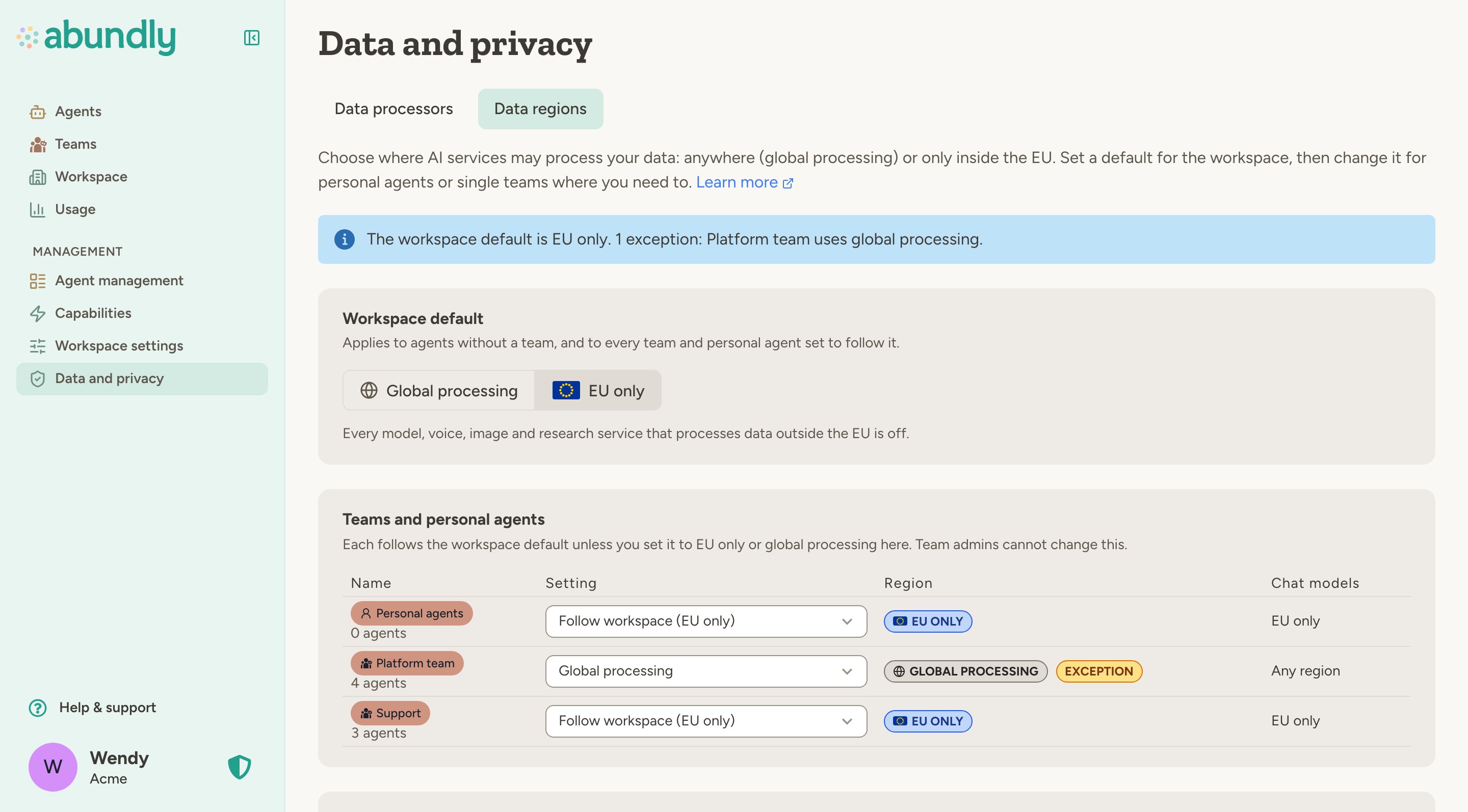
Data regions are an enterprise feature that Abundly enables per workspace. Depending on your agreement, you set the region for the whole workspace only, or also per team and for personal agents. A region that is already set, but not covered by your agreement, stays in force and can only be reset. If your workspace only needs EU chat models, use EU models only on the Model selection tab instead — it is available to every workspace.
What EU only turns off
EU only covers the AI services that Abundly provides: chat models, image generation, voices and transcription, live voice, memory, research and web scraping. Any of them that processes data outside the EU is turned off for every agent the region applies to, with no per-agent exceptions. Models and services in the EU keep working as before. Connections you set up yourself, such as MCP servers, Outbound APIs and scripts, are not limited by the region. Some capabilities have an EU version and keep working with less. For example, text to speech can switch to an EU voice provider, searching documents works without semantic search, and web scraping uses an EU-based scraper instead of Firecrawl. The Capabilities that process data outside the EU list on the Data regions tab shows what stops and what keeps working, and every capability carries a region badge:- EU — its data processors process data in the EU.
- Partly EU — it uses a data processor outside the EU, but keeps working in a reduced form under EU only.
- Global processing — it uses a data processor outside the EU and is off under EU only.
- Your account — it connects to your own account in another system, such as Slack or Google. Your data is processed wherever that account is set up, not by Abundly’s data processors.
Workspace default, personal agents and teams
The Workspace default applies to agents without a team and to everyone set to follow it. In the table below it, choose for personal agents and for each team:- Follow workspace — use the workspace default. This is where every team starts.
- EU only — keep this team’s AI processing in the EU, whatever the workspace default.
- Global processing — let this team’s agents use models and services outside the EU, even when the workspace default is EU only.
Before EU only takes effect
When you switch the workspace, personal agents or a team to EU only, you see exactly what changes first: which models will be disabled and which stay available, which agents are set to a model that will be disabled (you can move them to the same model in the EU, or the closest one available, in the same step), and which capabilities lose a provider. If the default model is outside the EU, you choose an EU default first. If a team that follows the workspace has its own default model outside the EU, the dialog names the team, and you choose an EU default on the team’s Model selection tab before anything changes. Agents that keep a disabled model stop with a clear error until someone changes their model. EU only is a filter on top of your other settings, not a rewrite of them. Your per-model switches, your decisions under Data processors, and each agent’s provider choices stay as they are, so switching back to Global processing restores everything at once. The only change that stays is an agent move you accepted in the dialog.Where data can still leave the EU
EU only applies to the AI processing of each agent itself. When some agents are EU only and others are not, data from an EU-only agent can still reach an agent on global processing. The Data regions tab lists the agents that connect the regions:- Agent connections — an agent can call an agent in the other region with Call Other Agent. What one sends the other, or gets back, is processed in the other agent’s region, so only a workspace admin can connect agents in different regions. Anyone else who tries sees a dialog that explains why. Remove a connection under Outgoing in the calling agent’s Settings → Agent-to-Agent Communication if it is not acceptable.
- Agents that read other agents — an agent on global processing with Workspace Explorer can read the chats, documents, diaries and settings of EU-only agents, and an agent that reviews agents before production can read their instructions and settings. Move such an agent to an EU-only team, or remove its capability or review step.
- Shared documents — workspace documents and Company Brain pages can be read by agents in every region.
- People — a member of teams in both regions can copy what one agent wrote into a chat with another.
- Your own connections — MCP servers, Outbound APIs and scripts send data to the services you set them up for, whatever the region.
FAQ
My workspace already used the EU only switch on Model selection. What changed?
My workspace already used the EU only switch on Model selection. What changed?
Nothing changes for your agents: the workspace is still EU only. The setting moved to Data and privacy → Data regions, where you can also set a region per team and for personal agents. Data regions are enabled for workspaces that already used EU only. A team’s region is now set by workspace admins here, no longer by team admins on the team’s Models tab.
What is the difference between EU models only and EU only?
What is the difference between EU models only and EU only?
EU models only turns off chat models outside the EU and nothing else. EU only is the data region: it also turns off every other AI service outside the EU, such as voices, image generation and research. A workspace or team that is EU only always uses EU models only.
Does the data region change where my data is stored?
Does the data region change where my data is stored?
No. Data regions decide where AI services process your data. Where Abundly stores it is described in Infrastructure.
Learn more
Model selection
Keep only chat models in the EU, for any workspace
Subprocessors
The data processors Abundly uses and where they process data
Teams
Group agents and people, each with its own settings