

Access levels
- Workspace administrators can manage all agents in the workspace.
- Team administrators (when teams are enabled) can manage agents in their teams.
Agents tab
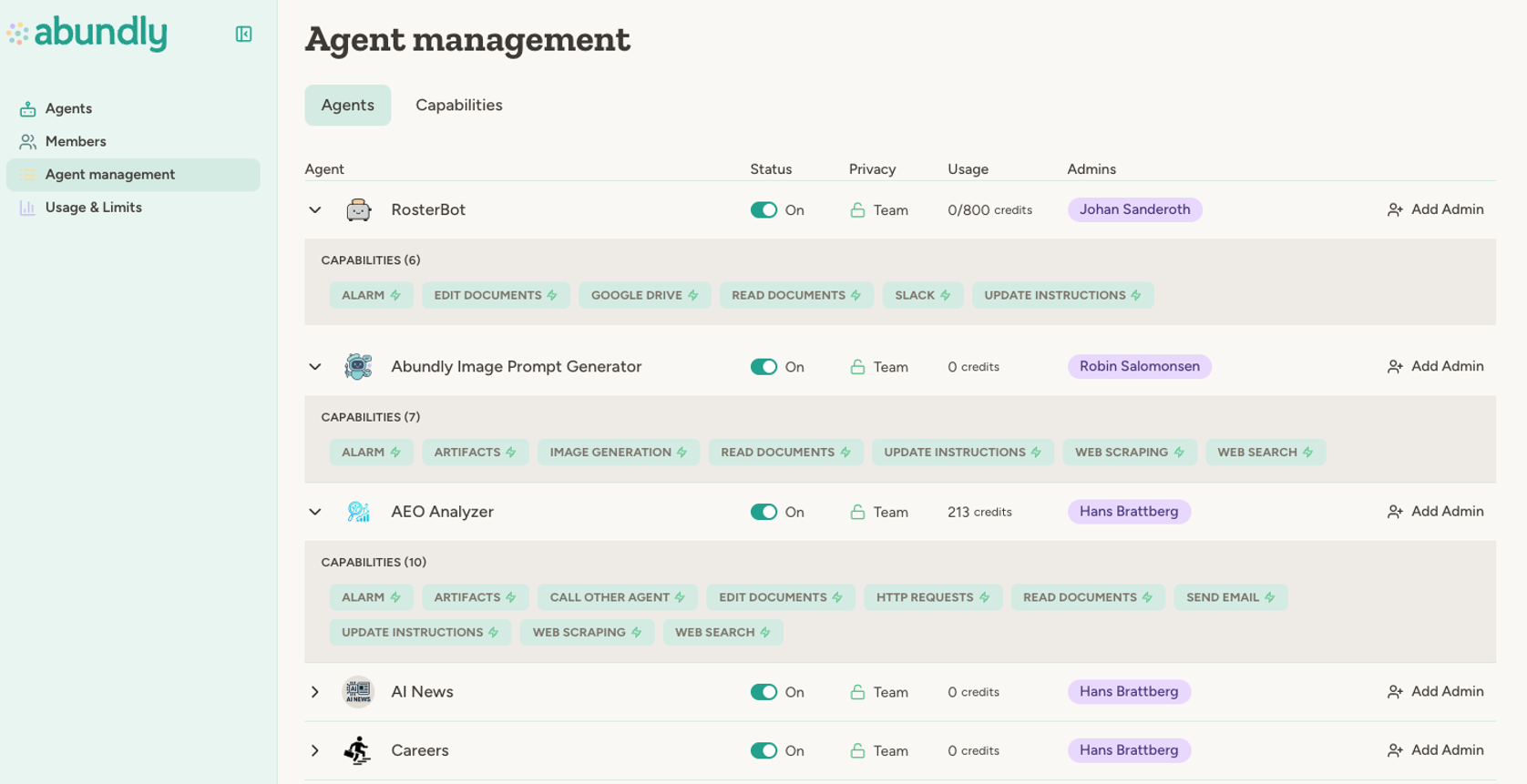
The Agents tab is a flat, searchable table with sorting, filtering, and bulk actions.
Click a row to expand details for:
- Tags
- Enabled capabilities (including whether a capability is disabled by admin policy)
- Outgoing APIs
- MCP servers
- Message log status
- Agent owners, and everyone else with access and their level
- Description and instructions (workspace admins; for a restricted or personal agent you’re not named on, the description only)
- Agent-to-agent connections, and whether the agent is exposed through a widget, HTTP API, MCP server, or webhooks (workspace admins)
Restricted and personal agents
Restricted agents—agents whose default access is “Nothing”—and personal agents are listed here too, marked with a padlock. Unless you’re named on one, you see it from the outside: who has access and at what level, its description, value statement and key metrics, which capabilities and integrations it has, and what it costs. You can disable it, limit its credits, change its model or lifecycle phase, or delete it, but you can’t read its instructions or trigger it. On a restricted agent you can also change its tags, move it, and choose who has access and at what level. To look inside one, give yourself access in the expanded row; the change is logged in the agent’s activity log and the workspace’s User action log. A personal agent’s access and team stay with its owner. See Personal and restricted agents.Search, filters, and sorting
You can search by agent name and open a filter panel to narrow by status, who can open the agent (only named people, everyone in its team, or everyone in the workspace, which includes team agents shared with the entire workspace), teams, tags, model, owner, capabilities, outgoing APIs, MCP servers, value statement, criticality, key metrics, lifecycle phase (when lifecycle phases are enabled), usage range, and date ranges for last activity and last updated. When filters are active, a Reset button appears next to the filter panel button, letting you clear all filters in one click. Column headers support sorting for key fields like usage and activity dates, and active filters are counted in the filter button.Bulk actions
Select one or more agents with the checkboxes to run bulk actions:- Change phase (promote to production or demote to sandbox — see Agent lifecycle phases)
- Set model
- Set daily limit
- Turn credit details on or off
- Move to team (into teams you manage, see Moving agents between teams)
- Trigger (run each selected agent once with a message you provide)
- Notify owners (send a notice to the people responsible for each selected agent)
- Enable
- Disable
Per-agent quick actions
Each agent row includes an actions menu where you can:- Open agent settings
- Change phase (when agent lifecycle is enabled)
- Set model
- Set daily limit
- Show or hide credit details
- Move to team
- Trigger the agent once with a message
- Enable or disable the agent
- Delete the agent
Moving agents between teams
To move an agent you need a say over it in both teams: you’re a workspace admin, an admin of both teams, or one of its owners and a member of the target team. So a team admin can’t move someone’s agent into a team where they’re only a member and nobody could manage it. The move dialog shows who will lose access before you confirm.Tags
Tags are free-text labels you can put on agents, teams and workspace members to group them for filtering and bulk actions. Tags are stored trimmed and lowercase, soSales and sales are the same tag, stray spaces around a tag are dropped, and duplicates collapse into one. A tag can be up to 50 characters and cannot contain line breaks, and each agent, team or member can carry up to 50 tags. The same rules apply wherever tags are written — the tag editor, an agent using the Workspace Manager capability, and the Workspace API.
Anything that already carries more than 50 tags keeps working, and you can still remove tags from it — you just can’t add more until it’s back under the limit.
Agent limits tab
The Agent limits tab lets you manage daily credit limits directly from Agent Management:- Set or edit a workspace default daily limit
- Add or change custom per-agent limits
- Remove a custom limit (fall back to the default)
- Reset an agent’s daily usage counter
Delegating administration to an agent
Everything on this page can also be done by an agent. Give an admin-only agent the Workspace Manager capability and it can enable and pause other agents, move them between teams (when teams are enabled), set daily limits, model, criticality and credit details, manage tags on agents, teams and members, and create and rename teams and add or remove their members — on behalf of the admins it works for. It can’t delete teams. Pair it with Workspace Explorer so the agent can find its targets first. Workspace Explorer supplies the reading and listing; Workspace Manager supplies the changes.- “Pause every agent that hasn’t run in 60 days and tell me which ones you paused.”
- “Move all agents tagged
supportinto the Support team, but show me who gains and loses access before you do it.” - “Set a 20 credit daily limit on every agent without one.”
Workspace Manager reaches agents whose default access is “Nothing” — the agent can pause, move or retag them without
being able to read their content.
Capability policies
Capability availability policies are configured outside this page:- Capabilities for workspace-wide policy plus per-team overrides (when teams are enabled): which capabilities are available, extra instructions, and default or locked values for selected capability settings
- Workspace management → Model selection for which LLM models agents may use in this workspace (you can turn families off, for example; models disabled by Abundly for all workspaces stay off)
FAQ
What happens when I disable an agent?
What happens when I disable an agent?
Disabled agents stop processing triggers, schedules, and incoming work until re-enabled.
Can I update many agents at once?
Can I update many agents at once?
Yes. Use row selection plus bulk actions to trigger agents with a message, enable/disable them, move teams, or set limits/models for multiple agents in one step.
Learn more
Value tracking
Value statement, criticality and key metrics per agent
Usage & limits
Track credit usage and configure limits in detail
Teams
Organize agents and administration by team
Sharing
Clone and share agents across workspaces
Access control
Understand workspace, team, and agent permissions