

Two types of scheduled tasks
Recurring tasks run on a regular schedule—daily, weekly, monthly, or any pattern you define.- “Every Monday at 9am, generate a weekly sales summary and post it to Slack”
- “Every weekday at 7am, scan for AI news and send me a digest”
- “On the first of each month, compile expense reports and email them to finance”
- “Remind me to call the client at 3pm today”
- “Send the proposal to the investor tomorrow morning at 9am”
- “In 2 hours, check if the deployment succeeded and message me”
- “Post the product announcement to Slack at 5pm today”
How it works
Think of it like your agent has an alarm clock. When you ask it to do something at a specific time, it sets an alarm for itself. When the alarm goes off, the agent wakes up and executes the task—just like it would wake up when receiving an email or other event.Recurring tasks
Recurring tasks are defined in the agent’s instructions. When you save the instructions, the agent automatically creates or updates scheduled tasks as needed. You can also ask the agent to schedule a recurring task via chat—it will update its instructions for you: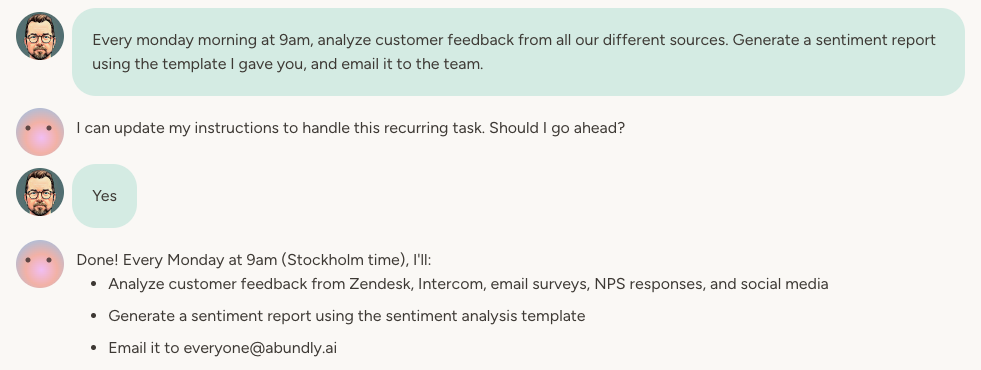
One-off tasks
One-off tasks are scheduled through the chat. Since they only run once, they don’t appear in the instructions (which are meant to be persistent).Viewing and managing scheduled tasks
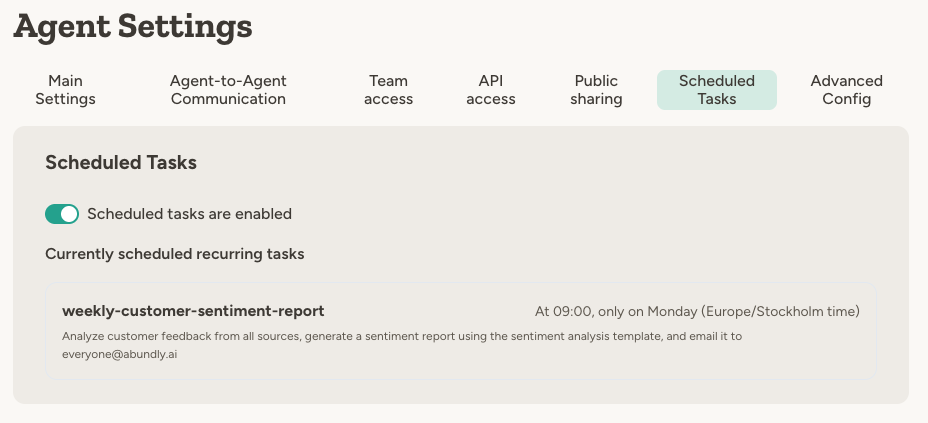
Go to Agent Instructions → Scheduled Tasks to see all scheduled tasks for an agent. From this tab you can:- Enable or disable scheduled tasks — Disabling doesn’t remove the tasks, it just prevents them from running. Useful if you want to temporarily pause an agent’s autonomous work.
- See task details — View the schedule and description for each task.
- Run now — Trigger any recurring task immediately without waiting for its next scheduled run. Useful for testing or running a task on demand.
A disabled agent will not execute any scheduled tasks, even if the tasks themselves are enabled.
Context when a task runs
When the agent wakes up for a scheduled task, it has access to:- Its instructions and capabilities
- The task description (what you asked it to do)
- Any agent documents it has access to
- Put brief instructions in the task: “Run the daily competitor analysis”
- Keep detailed guidance in an agent document: list of competitors, what to look for, where to save the report
Script-linked scheduled tasks
For deterministic, high-volume, or latency-sensitive work, you can link a scheduled task directly to a script instead of running the full agent pipeline. When a script is linked, the task fires the script directly—no LLM call—using the agent’s toolbox. This is much faster and cheaper than a regular agent run, and produces consistent, predictable output every time. Example use cases:- A nightly task that queries your database, calculates KPIs, and emails a formatted report—all deterministic, no AI judgment needed
- A webhook-style trigger that ingests data from an external system and writes it to an agent database, routing only unusual cases to the full agent for reasoning
Per-task model selection
Each scheduled task can use a different model than the agent’s default. This lets you optimize cost and capability per task—use a fast, cheap model for routine data processing and a more powerful model for tasks that require complex reasoning. Open the task’s settings to configure a model and effort preference that applies only to that task. If no override is set, the task inherits the agent’s default model settings.Example use cases
With Email and Document capabilities:- “Every Monday morning, summarize last week’s support tickets and email the report to the team leads”
- “At 6pm today, send me a reminder to prepare for tomorrow’s presentation”
- “Every weekday at 8am, check for AI news and post a summary to #ai-updates”
- “In 1 hour, search for updates on the competitor’s product launch and message me”
- “On the first of each month, generate a performance report and save it to the Reports folder”
- “Tomorrow at 9am, check if the Q4 data is ready and notify the finance team”
FAQ
Can I schedule tasks in different time zones?
Can I schedule tasks in different time zones?
Yes. If you specify a time zone (e.g., “every day at 9am EST”), the agent uses that time zone. Otherwise, it uses the agent’s configured time zone, which you can set on the agent’s Settings page.
Learn more
Instructions
Define what your agent should do and how it should behave
Code Execution
Link scripts to scheduled tasks for fast, deterministic execution
Model Selection
Choose the right model for each task