

Creating an agent database
Creating a database is simple - just ask your agent to create it. No setup needed.- “Create a database to track processed invoices”
- “Set up a database for customer feedback with fields for date, rating, and comments”
- “Make a database to log all emails you send”
- “Turn these notes from our product brainstorm workshop into a database of ideas”.
When to use an agent database
Think of it like choosing between a word processor and a spreadsheet. You’d personally write an article or report in a document, but you’d track a list of products, transactions, or tasks in a spreadsheet or database table. Use a database when you have many items of the same type—products with prices and stock levels, support tickets with status and priority, research findings with sources and dates. Use a text document when the content is prose—articles, meeting notes, guidelines, templates. If you’re writing something you’d read top to bottom, it belongs in a document. Could you store a product list in a text document? Sure—it works fine for a handful of items. But once you have dozens or hundreds, text gets inefficient: every insert or update requires the agent to find the right spot, parse the format, and rewrite the text. That’s slow, token-expensive, and error-prone. Databases handle this with precise operations—faster, cheaper, and no risk of corrupting the format. Plus you get a visual table view instead of scrolling through text. Not sure which to use? Just pick one—you can always ask your agent to convert a text document into a database or vice versa. Agent databases are a simple way to create an instant data store, but you can also connect to an external database if needed—see Agent database vs external database below.Editing data
You can ask the agent to make direct changes. The agent will interpret your request and use database operations to make the changes. Examples:- Insert data: “Add this invoice to the database” (drop PDF in chat)
- Update data: “Update the status of invoice 123 to ‘paid’”
- Delete data: “Delete last week’s invoice from company Y”
- “When you receive an invoice, add it to the database”
- “Keep the product catalog up to date whenever you hear about changes”
- “After your weekly research, update the database with the new findings”
Querying data
Ask your agent questions about the data in natural language, and it will execute database queries to answer your question. Examples:- “How many invoices did you process this week?”
- “Show me all pending tickets from the last 24 hours”
- “What’s the total amount of approved expenses?”
- “Find all feedback with negative sentiment”
- “Show me bug reports that mention data loss”
- “Which research findings are about competitor pricing?”
- “When you receive a customer support email, check the FAQ database for similar questions before suggesting an answer”
Viewing agent database contents
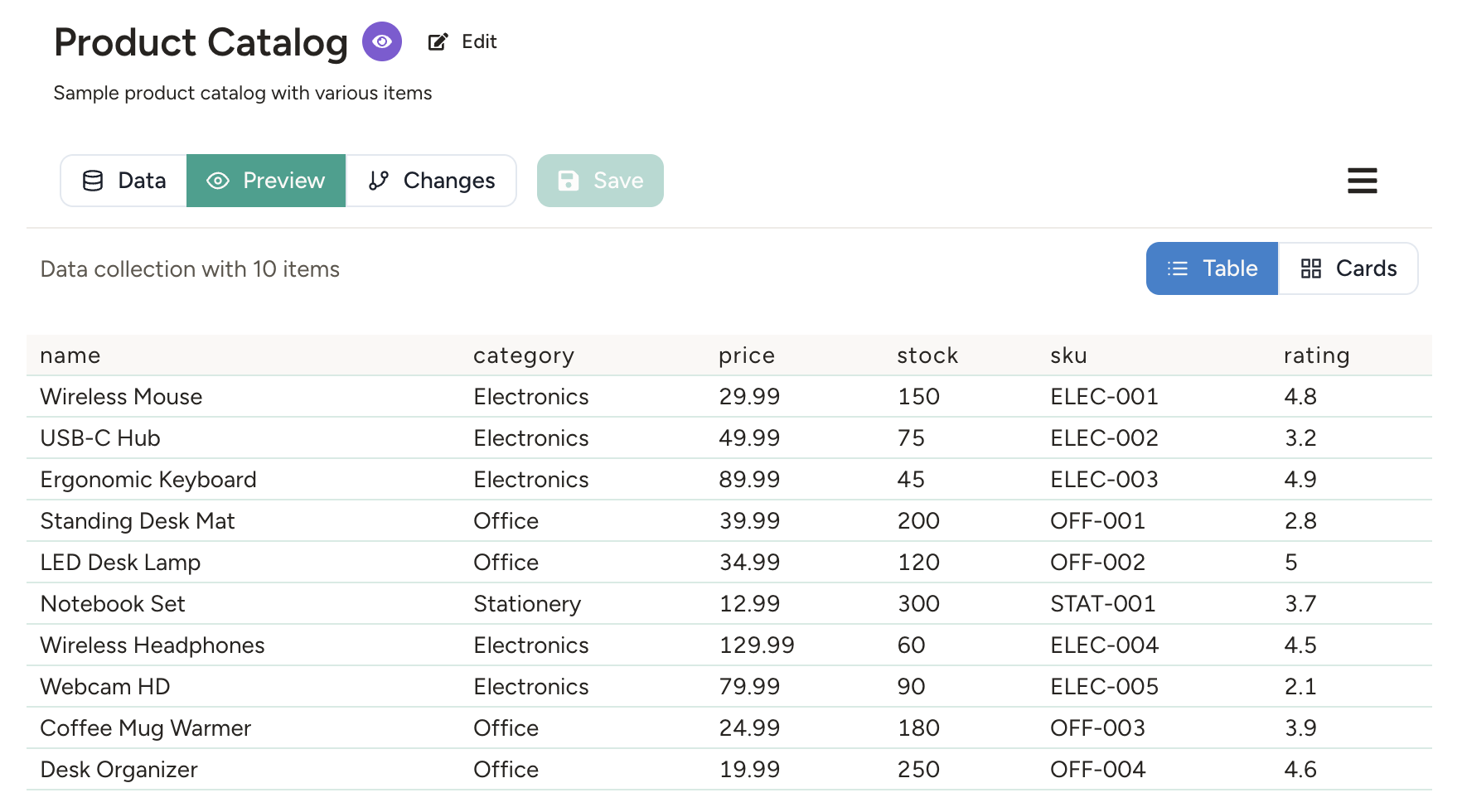
The agent database is listed alongside the other documents in the Documents panel. Click on it to see the contents.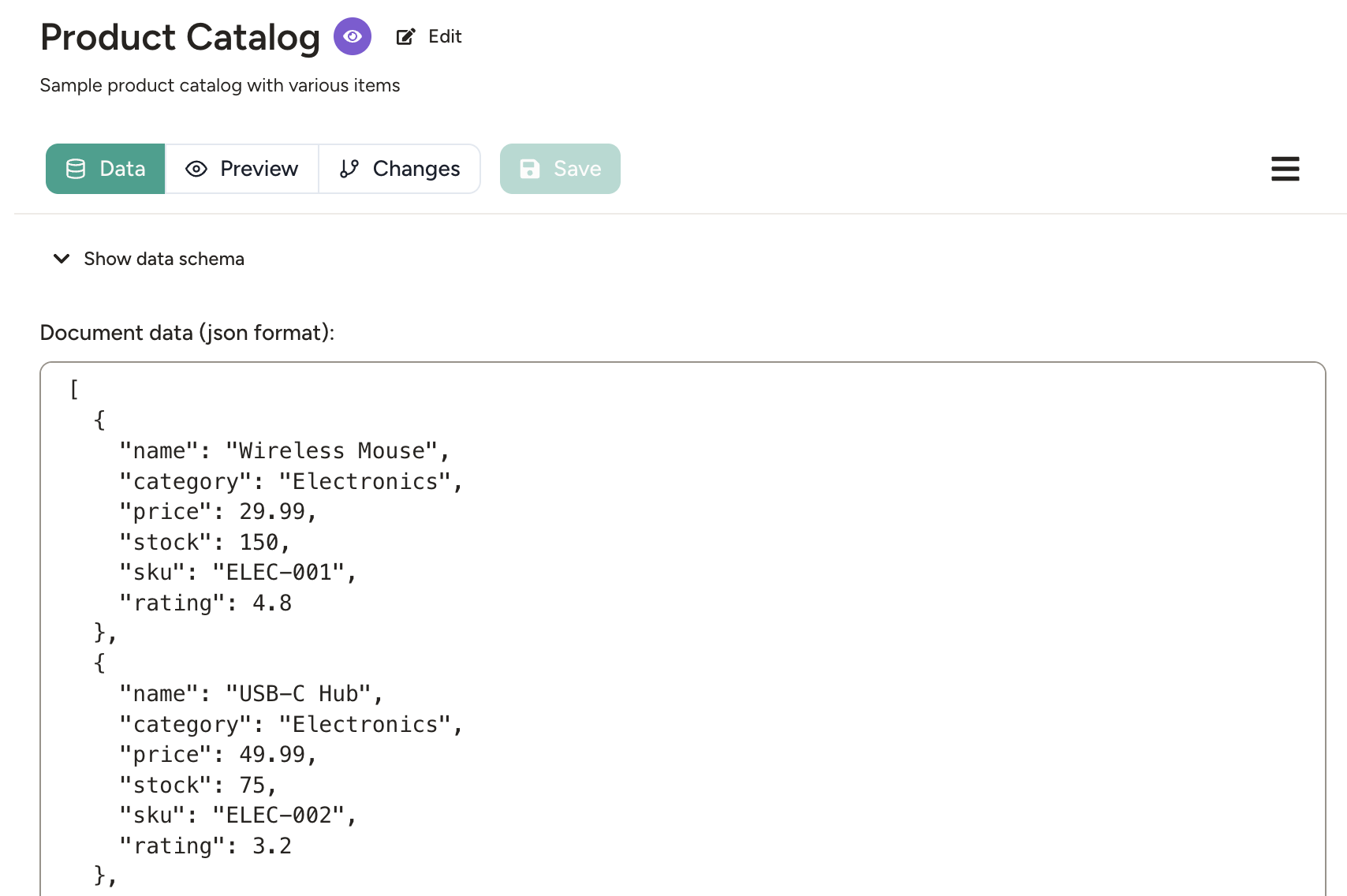
- Data mode — Raw JSON data plus schema (editable)
- View mode — A simple database viewer. You can toggle between table view (like a spreadsheet) and card view (grid of cards for each record). Nested objects and arrays appear as clickable links that expand for details.
Importing and exporting data
When viewing an agent database, you can click on the menu to import or export data in JSON text format.- Export data — Download the data as a JSON text file.
- Import data — Upload a JSON file from your computer. When importing data, you can choose to append to the existing data or replace it.
Connecting to apps and scripts
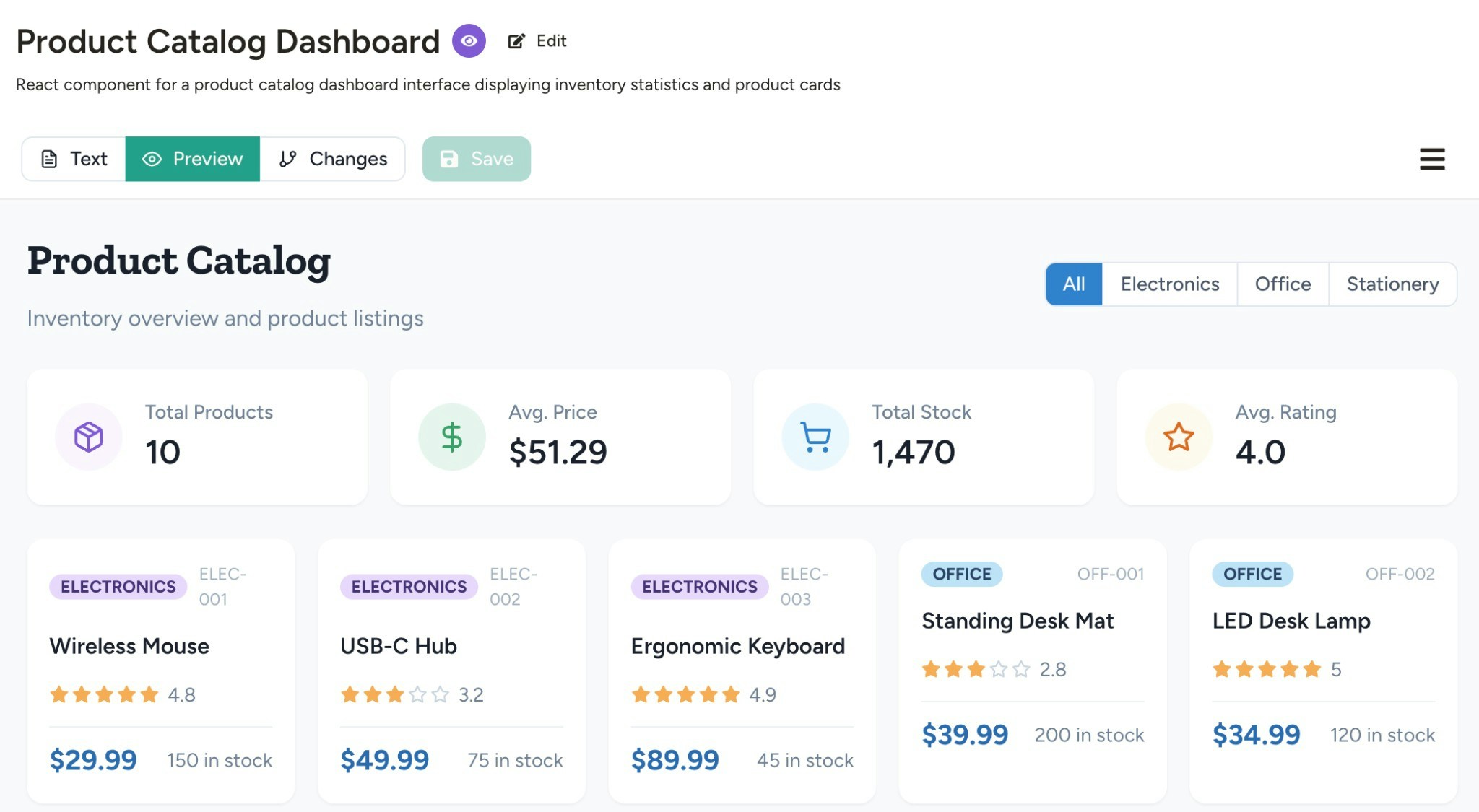
Databases pair naturally with apps and scripts (which also are agent documents):- Interactive apps — Dashboards, forms, and data tables that read from and write to databases
- Executable scripts — Code that performs database operations programmatically
- “Create a database to track beta feedback”
- “Build a dashboard showing feedback trends and top issues”
- “Add a form so users can submit new feedback”
- “Write a script to import feedback from this google spreadsheet”
Data schema
A database can have a schema that describes the shape of its records (which fields etc). The agent defines the schema automatically when creating the database, so you don’t need to manage this unless you want to. To view or edit the schema, open the database and click Schema in Data mode. Schemas can be written in any format, but the agent uses TypeScript by default—a concise way to express data structures. For example here is a simple schema for a task list:Security
Agent databases follow the same access model as other agent documents:- By default, the agent can read and write to databases (disable via the Edit Documents capability)
- Users with access to the agent can view database contents
- For detailed permissions, see access control
Agent database vs external database
Agent databases are included by default—instant to create, no setup required, and tightly integrated with your agent. However, sometimes you may want your agent to connect to an external database, such as an existing company database, a shared data source used by multiple systems, or when you need enterprise-grade scaling. External databases (PostgreSQL, MongoDB, etc.) can be connected via MCP or other integrations.
You can change your mind later. If you started with an agent database and later decide to store the data in an external database, or vice versa, you can ask the agent to convert/migrate the data. Enable the Code Execution capability in that case, so it can write a script for it.
You can also combine both approaches - store some data in an agent database and some in an external database.
Agent database vs spreadsheet
Your agent can access external spreadsheets via capabilities like Google Drive. This works well for small data (a few hundred cells), for example to maintain a product catalog with a few dozen products. But with large and complex spreadsheets with 1,000+ cells, agents struggle—reading and updating cells requires parsing row/column coordinates, which gets slow, expensive, and error-prone. In that case it is better to use an agent database or external database.Learn more
Interactive Apps
Build dashboards and forms backed by database data
Code Execution and Scripts
Write code that performs database operations programmatically
Agent Documents
Learn about other types of agent documents