

Teams are an enterprise feature enabled by Abundly staff on request. Contact
support@abundly.ai if you’re interested.
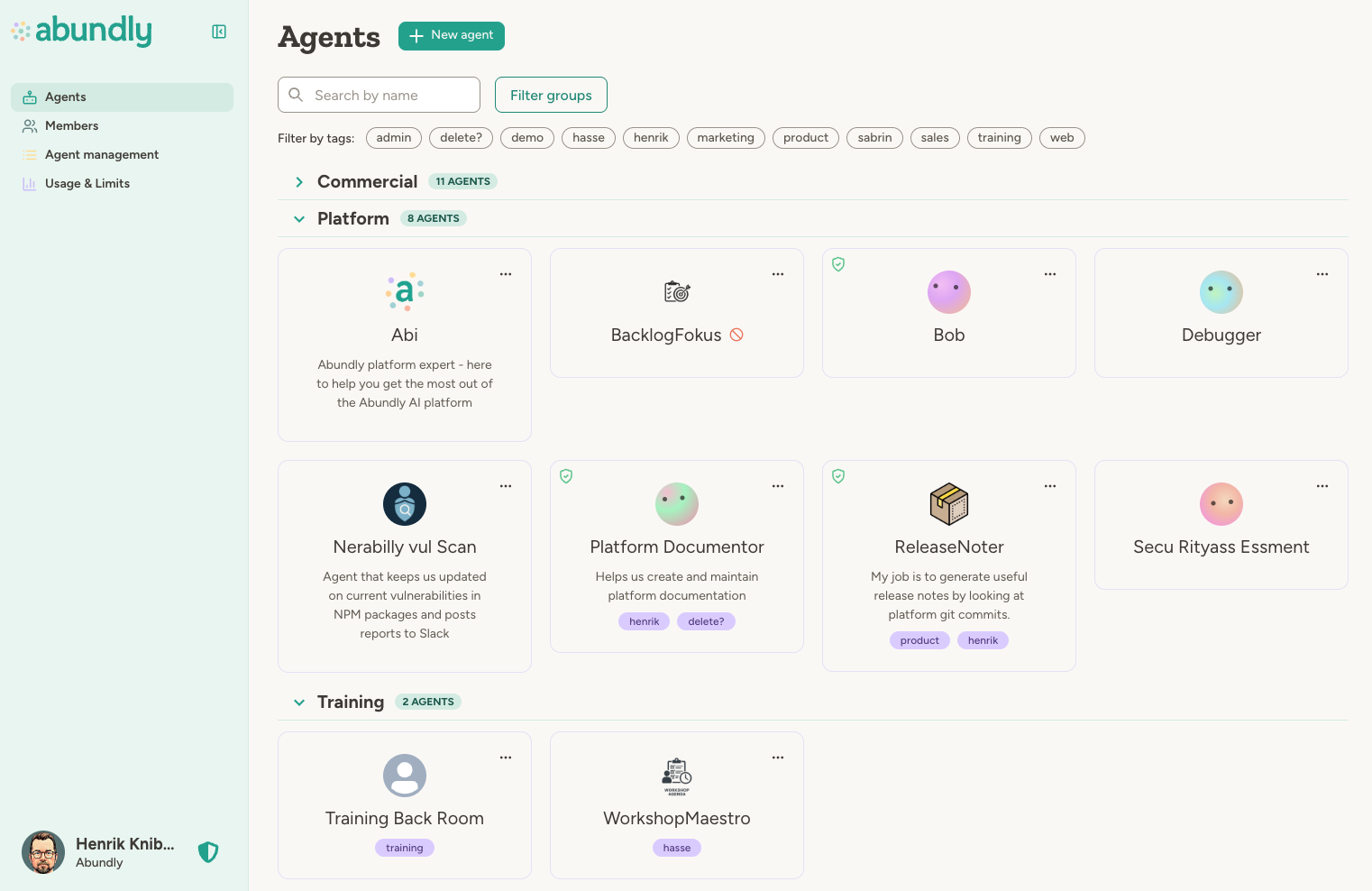
When to use teams
Teams are optional and work best for workspaces that need:- Departmental boundaries: Different departments working with different agents
- Delegated administration: Let team leads manage their own agents without full admin access
- Capability controls: Restrict certain integrations to specific teams
- Cleaner organization: Keep the agent list manageable as you scale
How teams work
When teams are enabled, agents and users are organized into teams. Each user can belong to multiple teams with different roles in each. Each team also has its own document library for files that should be shared within the team but not the whole workspace.User roles
Workspace-level roles:
Team-level roles:
Creating agents with teams
When you create a new agent, you’ll choose which team it belongs to. If you only have one option (a single team with global agents disabled), the agent is assigned automatically without showing a dropdown.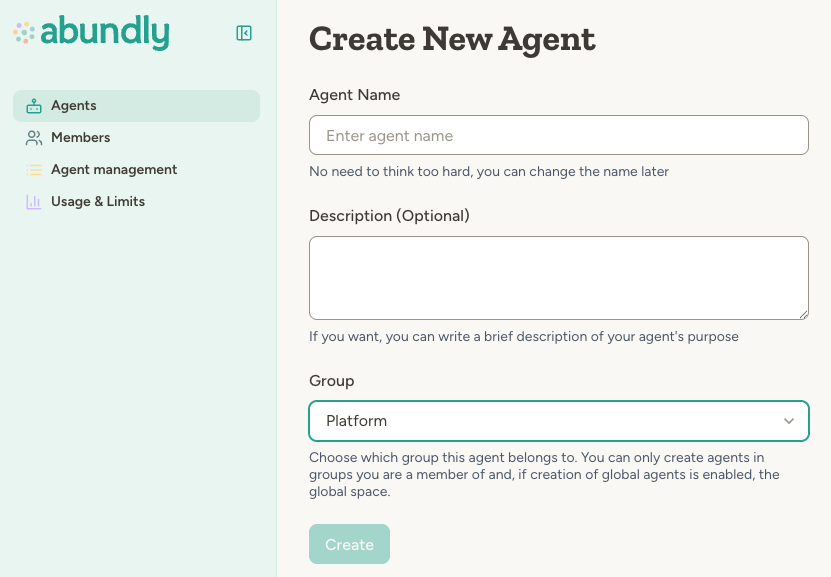
Sharing an agent with other teams
An agent normally stays inside its own team. To let others use it, open the agent’s Settings → User access → Beyond [team] panel and pick either selected teams or the entire workspace. The agent keeps its own team, and its credit usage is always counted there. People reached this way can chat with the agent and trigger it, but never edit it — see Access control for how this combines with the agent’s other access rules.Managing teams
Managing teams happens in a few places:- Workspace Members list: Workspace admins (and team admins, for teams they admin) can manage an existing person’s teams from their row — Manage teams in Actions, or the Add / Edit chip next to their team badges. The picker shows current teams (remove or change role) and lets you add more, using the same control as when inviting someone new.
- Teams page: A card-based overview of every team you have access to. Each card shows the team’s member and agent counts plus its monthly credit usage, with a “Team admin” badge highlighting teams where you can manage settings. Search by team name, pick a person to see only the teams they belong to, show or hide teams without members, or filter by tags. Click a card to open the team’s home page.
- Team home page: Lists the people, agents, and shared documents that make up the team, and is also where all team-level admin actions live.
- The People & Agents tab shows members, pending invites, and (for workspace admins) support-access users as cards in one grid — not separate tables. Use the search field to find someone by name or email, or type support, invite, pending, or expired to focus on those cards. All, People, and Agents filter chips narrow which section is visible.
- Any member can remove themselves with the Leave team button in the page header — unless they are the team’s only admin, in which case another admin must be appointed first.
- Team admins (and workspace admins) get Invite and Add existing on the People header, plus per-card controls to change roles and remove members. Pending and expired invitations appear as cards in the same grid; expired invites are hidden by default — use Show next to the People heading to reveal them, then Resend or Revoke as needed.
- Workspace admins also get a settings kebab menu in the page header to Rename the team or Delete the team. Monthly credit limits and other team settings live on the Settings tab. (Team admins can manage their team’s people but not the team’s existence or budget.)
- If someone holds the support role on your workspace, they count as a member of every team and appear in the people grid with an expiry line; workspace admins can revoke the role from the card. The People heading shows a separate support count badge when support users are present.

Team capabilities
Each team can have its own capability settings that override the workspace defaults. This lets you:- Enable integrations for a specific team that are off by default
- Restrict certain capabilities to authorized teams only
- Set different defaults for different teams
- Choose which capabilities new agents in the team start with
- Give a capability extra instructions that apply to every agent in the team
- Set default or locked values for a capability’s settings, such as requiring approval for outgoing email
Capabilities disabled at the workspace level can’t be enabled at the team level, and a setting locked at the
workspace level can’t be changed for a team. Team settings can only be more restrictive than workspace settings, or
enable capabilities that are set to “default off” at the workspace level. Which capabilities new agents start with
can be set freely per team.
Team-specific capabilities
Some capabilities are designed specifically for teams:- Team Analytics — Gives team admins visibility into their team’s usage metrics, member activity, and agent performance, scoped to their team.
- Team Explorer — Provides read-only access for team admins to browse documents and data across agents within the team, except restricted and personal agents.
Global agents
Agents that don’t belong to any team are called “global agents.” Your workspace can control who can create these:- Everyone: Any user can create global agents
- Admins only: Only workspace administrators
- Nobody: All agents must belong to a team
Personal agents
Sometimes an agent works for one person rather than a team — an email assistant, an executive overview agent connected to someone’s own mailbox, a sounding board that knows your role and company, or an experiment you’re not ready to share. Personal agents let people keep such agents in the company workspace, where they can still use the workspace’s integrations and talk to other agents, without putting them in a shared team. Every person has their own personal team, which holds only their personal agents. A personal agent:- Only for the people it names: only the owner, and the people they add by name under Settings → User access, can see and use it. Others can get Use or Edit access, but a personal agent has only one owner. For example, an executive can give their assistant Use access to their personal agent.
- Outside the shared teams: team admins don’t see it. It follows the capability rules workspace admins set for personal agents (see below), and uses the workspace document library plus its own documents.
- Listed under Personal agents: on the Agents page, your personal agents have their own section. Personal agents someone has shared with you appear under that person’s name.
- Talks to other agents: by default, only your other personal agents can reach it. Agents set to be discoverable by everyone can be called from a personal agent as usual.
Managing personal agents
Workspace admins control personal agents in three places:- Workspace → Settings → Personal agents: turn personal agents on or off, and set a monthly credit limit per person, shared by all of that person’s personal agents.
- Capabilities → Personal agents: what personal agents may use, edited like a team’s capability settings. You can switch off capabilities the workspace allows, choose which ones new personal agents start with, lock settings such as requiring approval for outgoing email, and add extra instructions.
- Agent management → Agent Limits: a daily and a monthly credit limit for a single personal agent, like for any other agent.
Personal agents come with Teams. A workspace admin turns them on under Workspace → Settings → Personal agents:
they start on in workspaces created after the feature launched, and off in older ones. Collaborators and Guests can’t
have personal agents.
FAQ
Can a user be in multiple teams?
Can a user be in multiple teams?
Yes. Users can belong to any number of teams and have different roles in each—for example, an admin in one team and a member in another.
Can agents be in multiple teams?
Can agents be in multiple teams?
No. Each agent belongs to exactly one team, or to no team: a global agent (if allowed) or a personal
agent.
Can my workspace admin see what my personal agent does?
Can my workspace admin see what my personal agent does?
Only from the outside. They see its description, value statement and key metrics (the totals, not the individual
records) and what it costs, but not its instructions, chats or documents. To let an admin look inside, add them by
name under Settings → User access.
What happens to my personal agents if I leave the workspace?
What happens to my personal agents if I leave the workspace?
They keep running until a workspace admin disables or deletes them, and only the people you added by name can still
open them. If someone should take one over, move it into a team they belong to and make them an owner before you leave.
Do personal agents use my team's credit budget?
Do personal agents use my team's credit budget?
No. Their credits count toward the monthly limit per person that workspace admins can set, shared by all of one
person’s personal agents.
What happens if personal agents are switched off?
What happens if personal agents are switched off?
Nobody can create new ones. Existing personal agents keep working, still only for the people named on them. Their owners can move them into a
team, and workspace admins can delete them.
Does an agent have to be in a team?
Does an agent have to be in a team?
An agent that isn’t in a team is called a “global agent.” Whether global agents are allowed depends on how your workspace is configured:
- Global agents are allowed, and anyone can create them
- Global agents are allowed, but only workspace administrators can create them
- Global agents are not allowed—all agents must belong to a team
What happens when I delete a team?
What happens when I delete a team?
The team’s agents are deleted along with it, together with the team’s shared documents. The confirmation dialog tells
you how many active and disabled agents the team has — to keep any of them, cancel and move them to another team
first. Users aren’t removed from the workspace—just from that team.
How do I enable teams for my workspace?
How do I enable teams for my workspace?
Teams are typically enabled for larger workspaces that need team-level access controls. Contact support@abundly.ai to discuss whether teams are right for your workspace. Once enabled, workspace admins can create new teams from the Teams overview page.Enabling teams doesn’t change who can use your existing agents — they become global agents and keep their current access settings. Creators who aren’t in a team yet can’t create new agents until they’re added to one, or until global agent creation is allowed for the workspace.
Learn more
Agent management
Administer agents and capabilities
Access control
Security roles and permissions