

Conversation context indicator
On desktop, the chat action bar includes a small circular indicator that shows how full the current conversation context is. As the conversation grows, the ring fills and changes color from gray to yellow, orange, and red. Hover the indicator to see the current percentage and guidance. Click it to open a popover with detailed context usage information and links to optimization tips. Once the conversation reaches 80% of the context limit, a New chat with summary button also appears next to the indicator. Click it to start a fresh, summarized chat proactively — the same handoff flow as the warning bar, but before the conversation gets very long. The indicator is specific to each conversation. Starting a new chat gives you a fresh context window. When a conversation grows very long, a warning bar appears above the chat input suggesting you continue in a new chat. Click New chat with summary and the agent generates a handoff recap of the current conversation — your goal, progress so far, pending items, key decisions, and links to any documents involved — then opens a fresh chat with that recap plus a short, abridged copy of the most recent messages so you can pick up where you left off without dragging the full history along. The recap is written by the chat’s own model in the language of the conversation, and any documents attached to the original chat are carried into the new one. You don’t have to wait for either prompt. Any chat’s menu includes Summarize for new chat, which runs the same handoff flow on demand. If a conversation passes the limit before you act, the chat stops taking new messages and the agent’s reply is replaced by a card explaining that the conversation no longer fits the model. New chat with summary on that card is the way to continue — see Troubleshooting for the two limits this can hit.When to use the chat
The role of the chat depends a lot on what the agent’s job is. During initial setup and tuning, the chat is particularly useful for:- Discussing and updating the agent’s instructions “I want you to help me handle incoming invoices, check that they are valid, and then route them to the right team. What do you need from me to do this?”
- Testing the agent: “Check this incoming order PDF and process it according to the instructions, as if you received it in an email. Don’t interact with any external systems, just tell me what you would have done.”
- Understanding and improving the agent’s behavior: “You flagged the latest invoice as potentially fraudulent, even though you’ve processed similar invoices before without any issues. Can you analyze your instructions and docs and figure out why? And then suggest how we can improve your instructions to avoid this in the future?”
- Adding more context: “Since you keep asking me about people’s contact info, here is a link to our contacts page. Update your instructions to use this as a source of information.”
- Some agents are very chat-centric, where most of the interaction happens in the chat. For example if the job of the agent is to analyze the competitive landscape, you might use the chat as the primary interface for discussing this.
- Some agents use other channels mostly, such as email or Slack. In that case the built-in chat has a secondary role.
- Some agents handle a workflow automatically and rarely need to chat at all. For example, once the invoice router is up and running and doing its job, it will work silently in the background for the most part, except for when it needs tuning.
File uploads
You can upload files directly in the chat, using drag drop or by clicking the upload button.- Images — The agent can analyze and describe images, extract text, or use them as context
- Documents — PDFs, Word documents, spreadsheets, and presentations
- Audio — Recordings that can be transcribed and analyzed
- Data files — CSV, JSON, and other structured data
Working with agent documents
From the chat, you can ask the agent to read, create, or update its agent documents and databases. This makes it easy to build up the agent’s knowledge base through natural conversation.- Saving documents: “Save these updated guidelines as an agent doc please”
- Reading documents: (drop a PDF) “Check if this PDF complies with the guidelines document”
- Updating databases: (after brainstorming) “Those are great ideas, please add them to the brainstorm database”
- Creating databases: (paste a whiteboard photo) “Here are some notes from our product planning session, please create a database and store the product ideas, with suitable fields like category, prio, etc”.
Rich responses
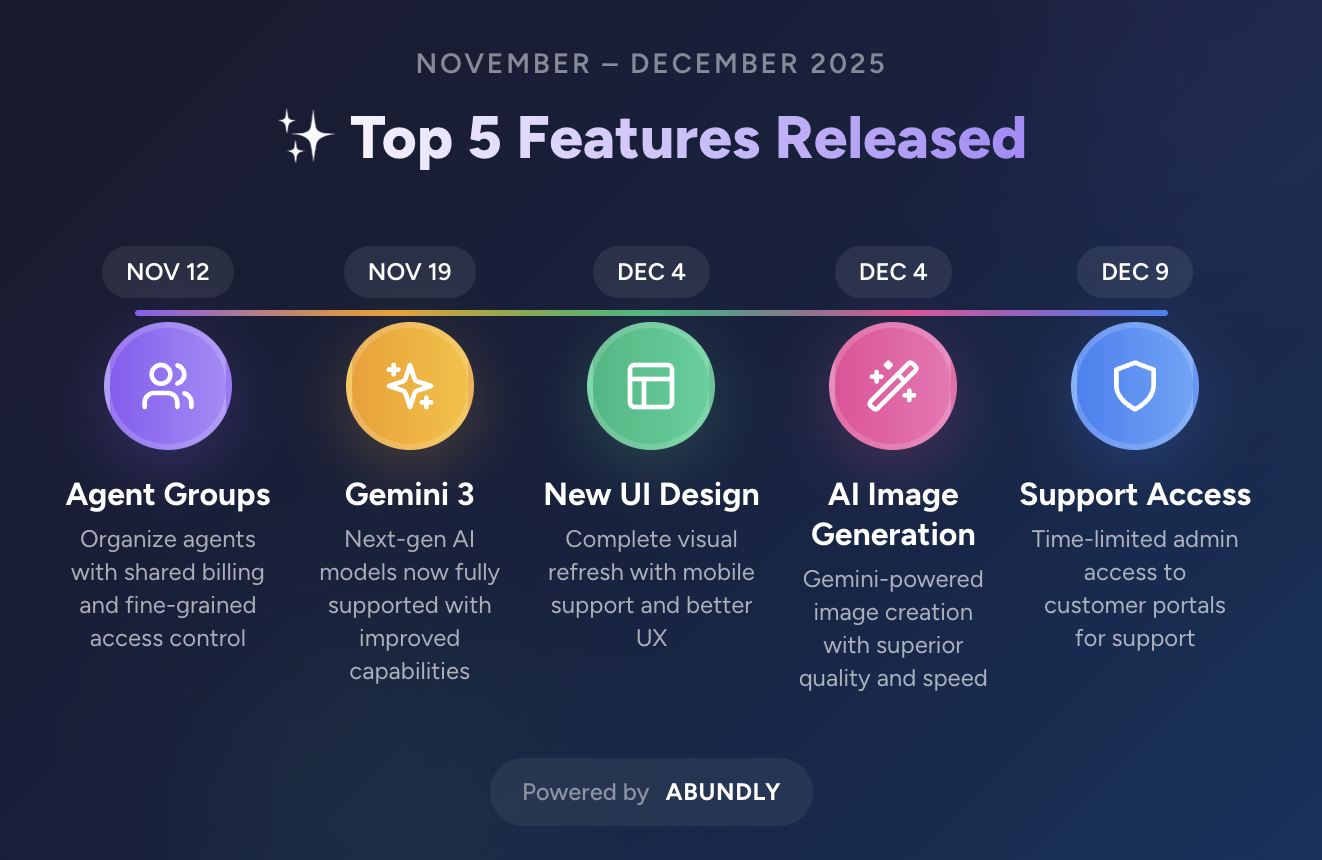
Agents can respond with more than plain text. They can respond with formatted text, diagrams, images, and voiceovers.- Formatted text: “Make a nice-looking draft blog post based on my messy brainstorm notes”
- Diagrams: “Show me a flowchart of your workflow”
- Images: “Create a nice-looking infographic of the given meeting notes”
- Voiceovers - “Email me a voiceover of this article, using a casual female british accent”
- Mixed formats: “Create a nice-looking draft blog post based on my messy brainstorm notes, include a suitable image and visual overview, and a voiceover link.”
Interactive applications
Agents can generate interactive applications directly in the chat. This allows agents to create custom interfaces for specific tasks:- Dashboards: “Create a nice-looking interactive dashboard for our OKRs, where you can browse progress per team, and aggregate the progress by quarter.”
- Forms — “Create a user feedback form that saves data to the user feedback database”
Interactive applications are rendered using React components that the agent generates on the fly. The agent can iterate on these based on your feedback.
Code execution
If you enable the Code execution capability, the agent can execute code directly in the chat. This is useful for situations where large amounts of data need to be processed, or where the agent needs to perform complex calculations.- “Calculate the total cost of the project, including materials and labor”
- “Generate a report of the sales data, including charts and tables”
- “Aggregate the sales data in the database and store in a new database called ‘Sales by product category’”
Voice input
You don’t have to type—press the microphone button to speak, and your speech is transcribed to text. This works in most languages, and is often a huge time saver.Editing sent messages
You can edit a message you already sent if you want to correct it or add missing details. This is useful when a small wording change would otherwise require restarting the discussion. When you send an edited message, the conversation continues from that updated point and messages below it are removed so the agent can respond to the revised context. You can also use voice input while editing, so you can dictate changes instead of typing. Editing isn’t available in remote chats, such as conversations that happen in Slack, Microsoft Teams, Google Chat, or WhatsApp, since the original conversation lives in the other app and can’t be rewritten. Use Copy chat from the chat menu to continue in a regular portal chat instead.Copy chat
Any chat can be duplicated from the chat menu or from the chats list. Copy chat creates a new portal chat with the full conversation history and any documents that were attached, so you can branch off in a different direction, hand a starting point to a teammate, or keep a snapshot before making changes — all without disturbing the original chat. Conversations that started outside the portal — Slack, Microsoft Teams, WhatsApp, Google Chat, and the chat widget — can be copied too. The copy is a regular portal chat you can continue in the app, which is useful when a thread that began on another channel is easier to carry on with the full chat interface.Text-to-speech
If you hover over a chat message, you can click on the “speak” button below to have it read aloud. This is useful for situations such as taking a walk, where you don’t want to look at your phone more than necessary. There is also a walk-and-talk mode that is optimized for this use case. See Voice communication for more on voice features, including walk-and-talk mode.Multi-user chat
The chat is collaborative—different users in your workspace can talk to the same agent, and multiple people can participate in the same conversation. Responses are live-streamed, so if several users are watching the same chat, they all see the response as it generates.Conversation history
All conversations are saved automatically. The sidebar lists every chat you have with the agent, and a filter at the top lets you switch between all chats, my chats (chats where you’ve sent at least one message), and starred chats only. A List view link opens a full chats page where you can search, sort, bulk-manage conversations, and apply the same filter. From the chats page or the sidebar you can:- Continue a previous conversation by opening it
- Rename a chat
- Copy a chat, including remote chats from Slack, Teams, WhatsApp, Google Chat, or the chat widget
- Star important chats and switch to the Starred chats filter to see only those
- Delete chats individually, or select multiple on the chats page and bulk delete
- Share conversation links with teammates