

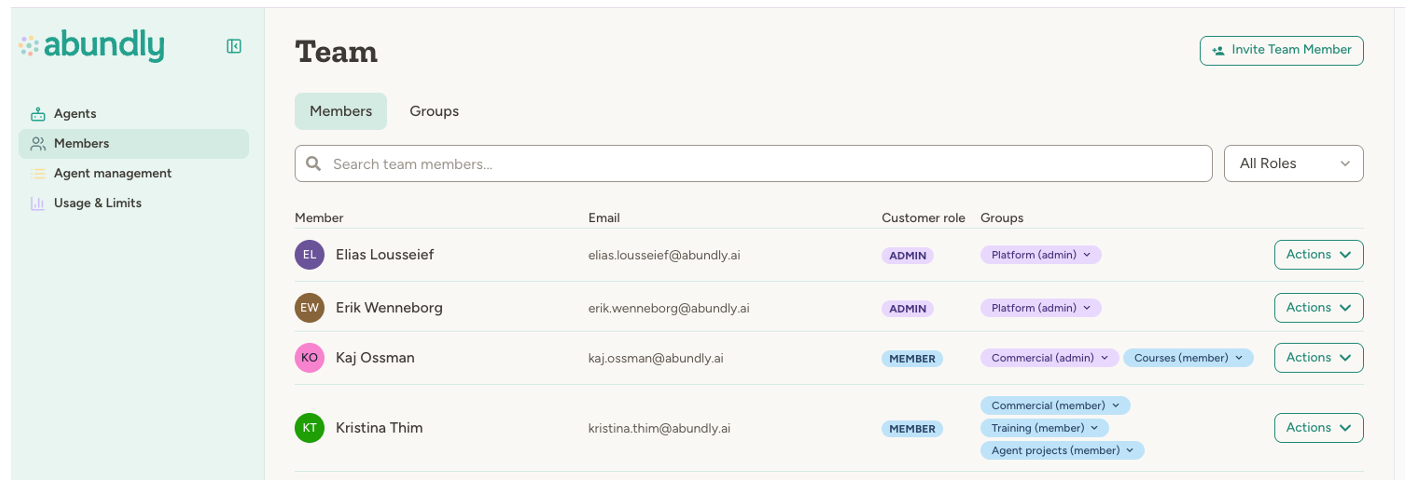
Organization roles
Every user in your organization has one of three roles:| Role | Description |
|---|---|
| Admin | Full control—can manage members, billing, capabilities, and all agents |
| Member | Standard access—can create and use agents based on agent-level settings |
| Guest | Limited access—can only access agents they’ve been explicitly invited to |
Inviting team members
Admins can invite new members by clicking Invite Team Member at the top of the page.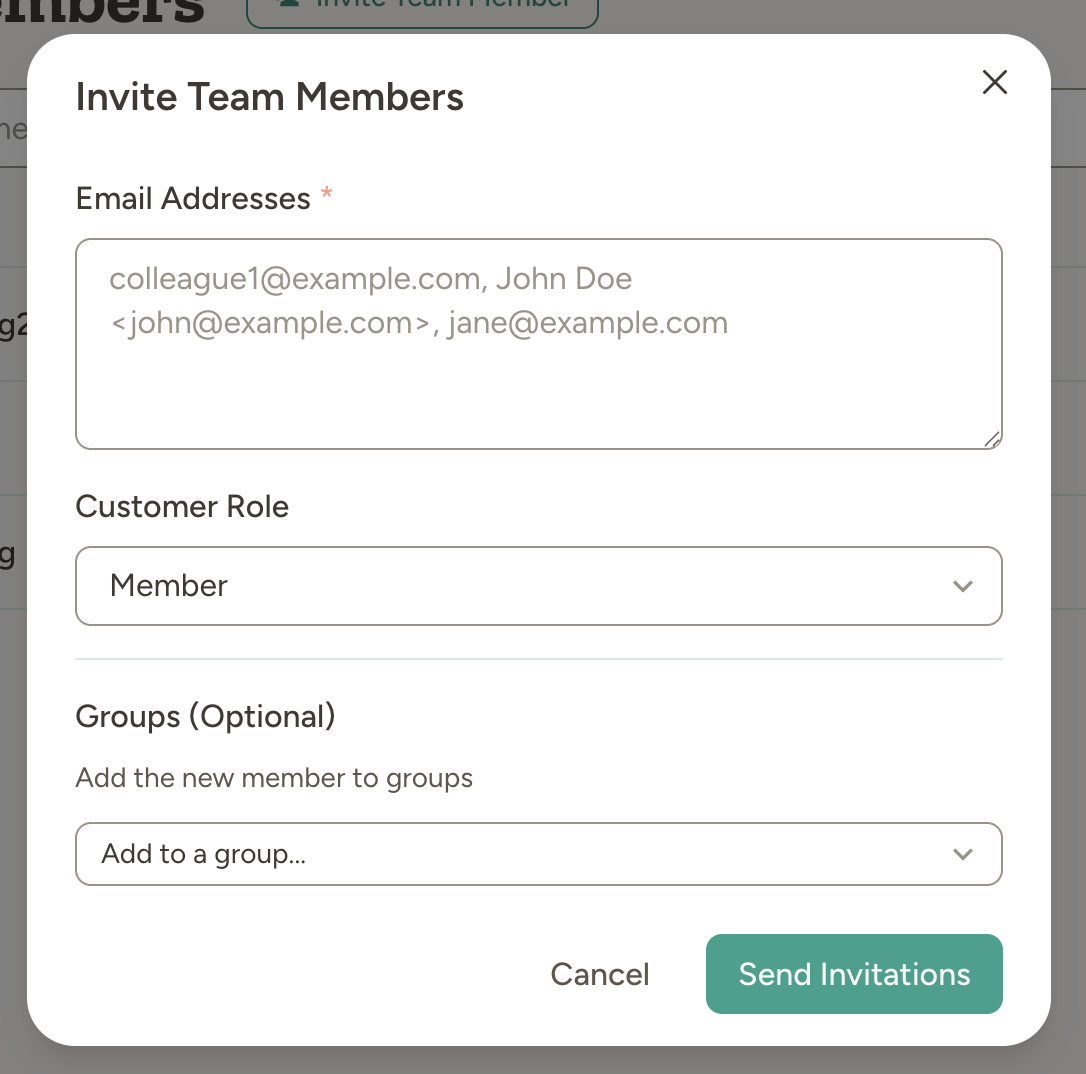
colleague@example.com) or include names (John Doe <john@example.com>). Separate multiple addresses with commas.
Select the role for all invitees—Admin or Member. If your organization uses groups, you can also add invitees directly to specific groups.
Invitations are sent immediately. Each recipient gets an email with a link to join your organization.
Managing members
Use the search box to find members by name or email. Filter by role using the dropdown to show only Admins, or Members. Admins can change a member’s role or remove them from the organization using the Actions menu on each row.Every organization must have at least one Admin. You can’t demote or remove the last Admin—promote another member first.
Pending invitations
Below the members list, you’ll see any invitations that haven’t been accepted yet. Each shows the email address, assigned role, and invitation status.
Support access
If you’ve granted Abundly support staff temporary access to help troubleshoot an issue, this section shows who has access and when it expires. You can revoke support access at any time.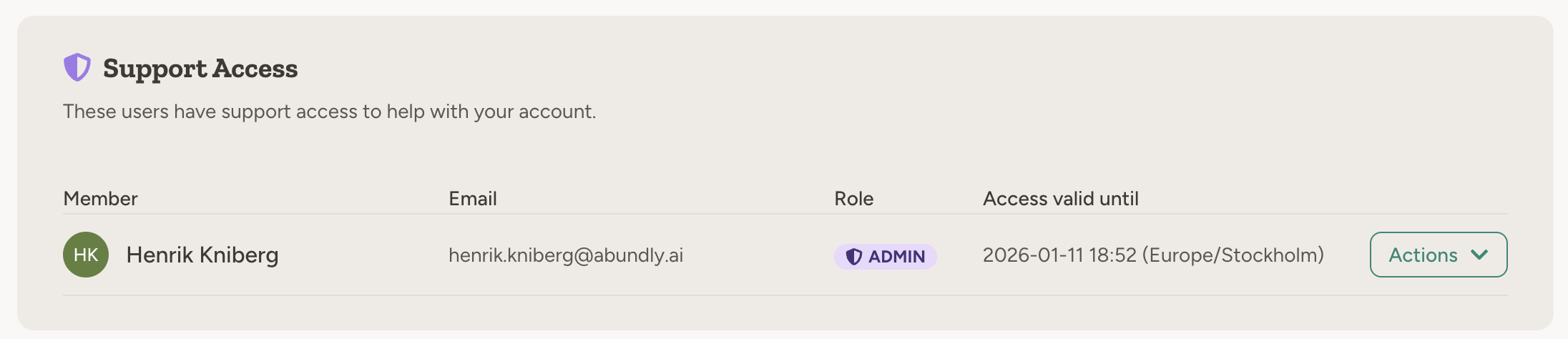
Working with groups
For larger organizations, groups let you organize members by team or department. When groups are enabled, you’ll see a Groups tab next to the members list. Groups add a layer of organization:- Agents can belong to a group
- Members must be in that group to access those agents
- Group admins can manage members within their group
Groups are an enterprise feature. Contact support@abundly.ai to enable them.
FAQ
What happens when I remove someone from the organization?
What happens when I remove someone from the organization?
They immediately lose access to all agents and data. Their past conversations and actions remain in the logs for audit purposes. Removing someone from the organization doesn’t delete their Abundly account—they simply no longer have access to your organization.
Can Members invite other members?
Can Members invite other members?
No. Only Admins can invite new members, change roles, or remove people from the organization.
What's the difference between Guest and Member?
What's the difference between Guest and Member?
Members have default access to team agents (based on each agent’s team access settings). Guests have no default access—they can only see agents they’ve been explicitly invited to. Use Guest for external collaborators who should only access specific agents.