

Groups are an enterprise feature enabled by Abundly staff on request. Contact support@abundly.ai if you’re interested.
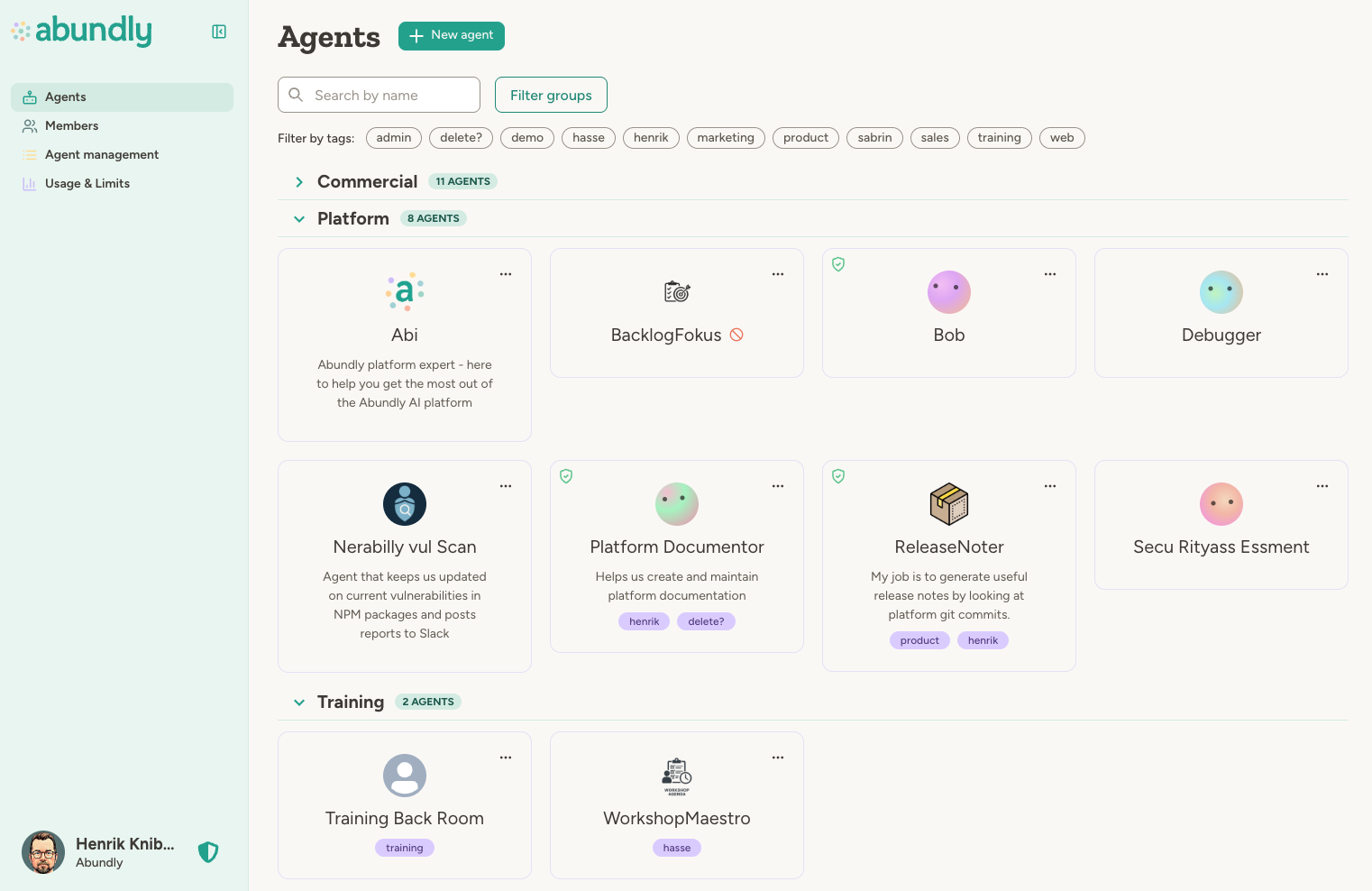
When to use groups
Groups are optional and work best for organizations that need:- Team boundaries: Different departments working with different agents
- Delegated administration: Let team leads manage their own agents without full admin access
- Capability controls: Restrict certain integrations to specific teams
- Cleaner organization: Keep the agent list manageable as you scale
How groups work
When groups are enabled, agents and users are organized into groups. Each user can belong to multiple groups with different roles in each.User roles
Organization-level roles:| Role | Access |
|---|---|
| Admin | Full access to all groups, agents, and settings |
| Member | Access based on group memberships |
| Guest | Limited, invitation-only access |
| Role | Access |
|---|---|
| Admin | Manage group members, invite users, configure group settings |
| Member | Create and use agents within the group |
| Guest | View-only access to group agents |
Creating agents with groups
When you create a new agent, you’ll choose which group it belongs to. If you only have one option (a single group with global agents disabled), the agent is assigned automatically without showing a dropdown.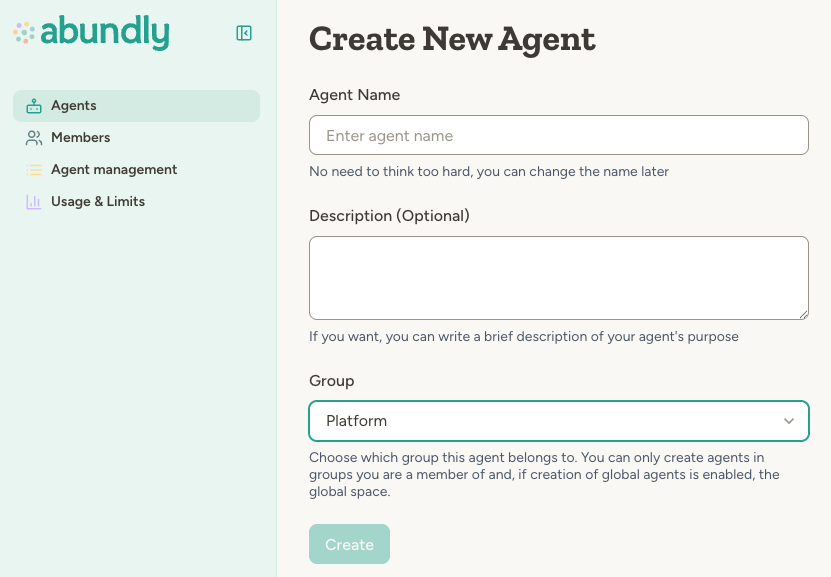
Managing groups
Organization administrators can create, rename, and delete groups from the Members page. Group administrators can manage membership and settings for their groups.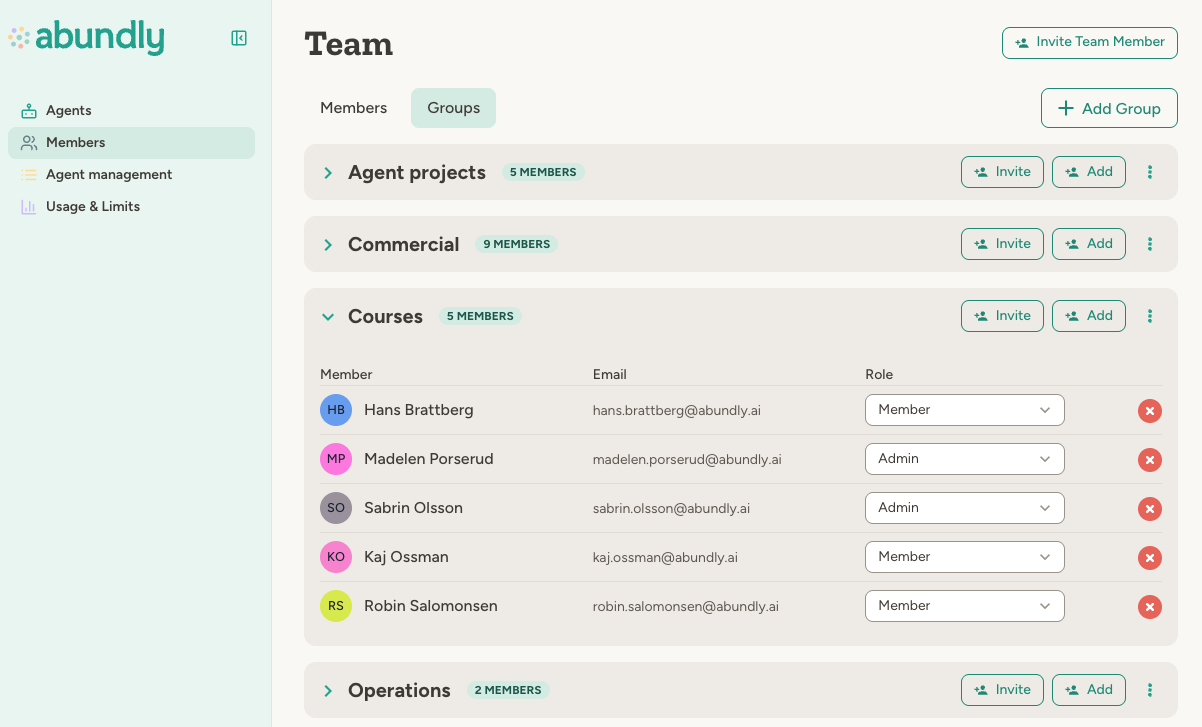
Group capabilities
Each group can have its own capability settings that override the organization defaults. This lets you:- Enable integrations for a specific team that are off by default
- Restrict certain capabilities to authorized groups only
- Set different defaults for different teams
Capabilities disabled at the organization level can’t be enabled at the group level. Group settings can only be more restrictive than organization settings, or enable capabilities that are set to “default off” at the organization level.
Global agents
Agents that don’t belong to any group are called “global agents.” Your organization can control who can create these:- Everyone: Any user can create global agents
- Admins only: Only organization administrators
- Nobody: All agents must belong to a group
FAQ
Can a user be in multiple groups?
Can a user be in multiple groups?
Yes. Users can belong to any number of groups and have different roles in each—for example, an admin in one group and a member in another.
Can agents be in multiple groups?
Can agents be in multiple groups?
No. Each agent belongs to exactly one group (or no group, if global agents are allowed).
Does an agent have to be in a group?
Does an agent have to be in a group?
An agent that isn’t in a group is called a “global agent.” Whether global agents are allowed depends on how your organization is configured:
- Global agents are allowed, and anyone can create them
- Global agents are allowed, but only organization administrators can create them
- Global agents are not allowed—all agents must belong to a group
What happens when I delete a group?
What happens when I delete a group?
Agents in the group become global agents (if allowed) or need to be reassigned. Users aren’t removed from the organization—just from that group.
How do I enable groups for my organization?
How do I enable groups for my organization?
Groups are typically enabled for larger organizations that need team-level access controls. Contact support@abundly.ai to discuss whether groups are right for your organization. Once enabled, you can start creating groups from the Members page.