

Workspace page
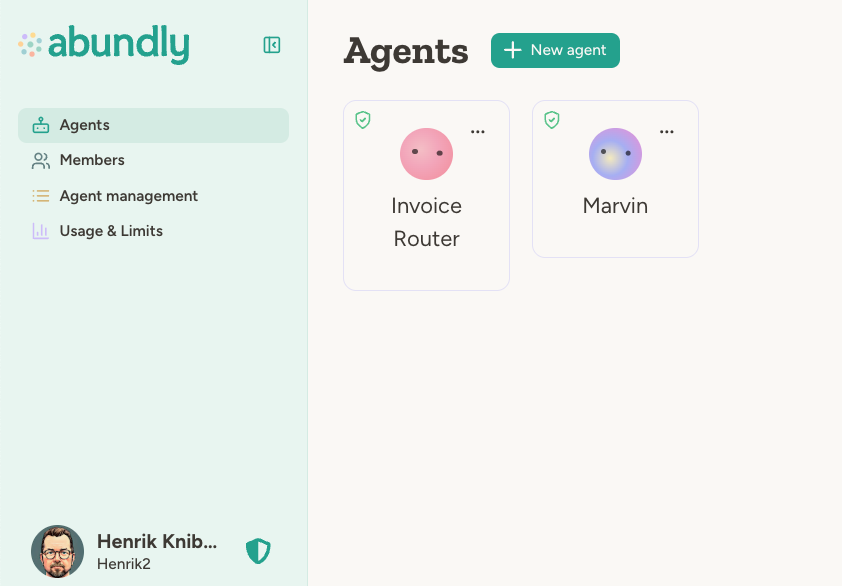
- Starred — Agents you’ve bookmarked for quick access. Star an agent from its card.
- All agents — Everything else, grouped by team when your workspace uses teams.
- Agents — The main view showing all agents for you and your workspace
- Workspace — Members and invitations, shared documents, and — for Creators and Admins — the Secrets and Outgoing APIs your agents use to reach external services. Admins also find workspace settings, model selection, data processors, and API keys here.
- Management — A dedicated section for admin-oriented tools, including Agent management (security, access controls) and Usage & Limits (credit monitoring and spending limits).
- Help & support — Links to documentation, what’s new (the latest product update and changelog), contact support, service status, and more
You can get back to the workspace page at any time by clicking the Abundly logo in the top left.
Agent page
When you click on an agent, you’ll be taken to the agent page. There you can configure, monitor, and interact with the agent.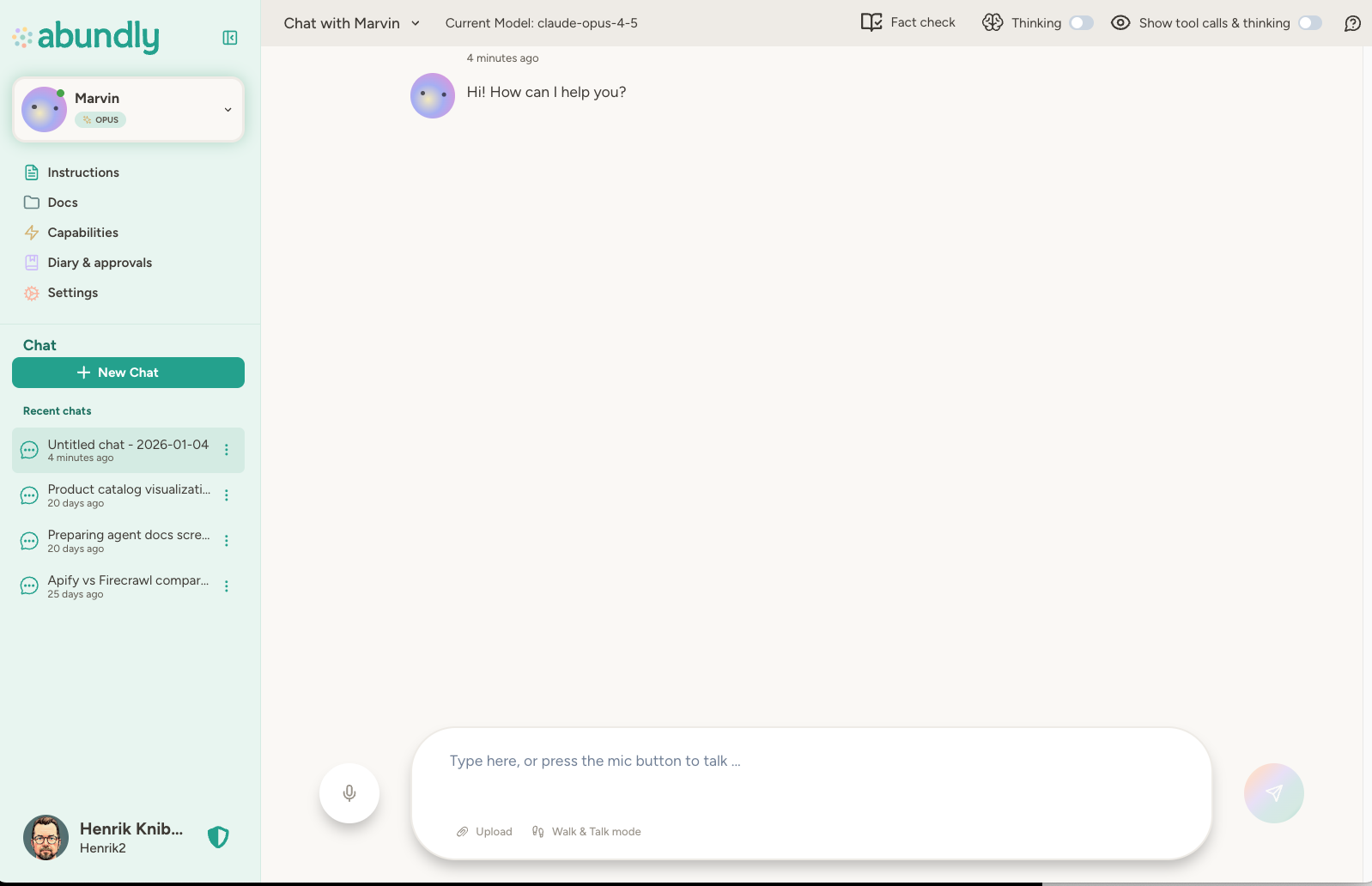
Agent selector
The agent selector dropdown at the top left lets you quickly switch between agents. Once the workspace has six or more agents, the dropdown adds a search box so you can jump to one by typing part of its name.Sidebar links
These sidebar links let you configure and monitor the agent:- Instructions — The agent’s job description and behavioral guidelines
- Docs — Files and documents the agent can reference
- Capabilities — Configure integrations, MCP servers, and skills for your agent.
- Activity — Activity log and pending approval requests
- Settings — Agent configuration, organized in tabs:
- Main Settings — Name, avatar, and description; email address and chat settings; daily credit usage and limits; turn the agent on/off, clone, export, or delete it
- Value — Track the value the agent delivers
- User access — Control which workspace or team members can access this agent
- Agent-to-Agent Communication — Configure which other agents this agent can communicate with
- Model Selection — Default model, backup model, and per-context model and effort settings
- Public sharing — Make this agent available for others to clone
- API Access — Expose your agent as an HTTP API, an MCP server, a webhook receiver, or a chat widget
Chat links
Below the sidebar are the chat links:- + New Chat — Start a fresh conversation with the agent
- Recent chats — Access previous conversations to continue where you left off
Chat
The main area where you interact with your agent. The chat input at the bottom lets you:- Type messages — Just like any chat interface
- Use voice — Click the mic button to speak instead of type
- Upload files — Share documents, images, or data for the agent to process (you can also drag and drop files into the chat)
- Walk & Talk mode — Have a mostly hands-free conversation while moving around
Chat settings
The top bar provides an interactive model picker — click it to switch the AI model for this chat only — and toggles and links to chat features (see Model Selection):- Chat documents - Opens the chat document panel so you can browse files connected to the current conversation.
- Help - Opens contextual help for the chat experience.
- Effort - Choose between Faster, Balanced, and Smarter for the conversation. Smarter makes the agent reason more deeply before responding, which can improve quality but can be slower and costs more; Balanced uses the model’s recommended default.
- Show details - Shows details about the tools the agent is using, and the agent’s reasoning process. Useful for getting a better understanding of how the agent is working.
If you want a different default effort for new chats, you can configure that under Settings → Model Selection, in the Chat section.
Account menu
Click your profile image at the bottom left to access personal settings, open My chats (your own chats with every agent across all your workspaces), switch workspaces (if you are a member of multiple workspaces), or sign out.Next steps
Getting Started
Create your first agent step by step
Instructions
Learn how to configure agent behavior
Capabilities
Explore available tools and integrations
Chat
Deep dive into the chat interface