

How to enable
The recommended route is the Rovo MCP server: an Atlassian organization admin must first allow Abundly to access your Atlassian instance, after which each user authenticates with their own Atlassian account. If your admin can’t allow the domain, connect with an API token instead.1
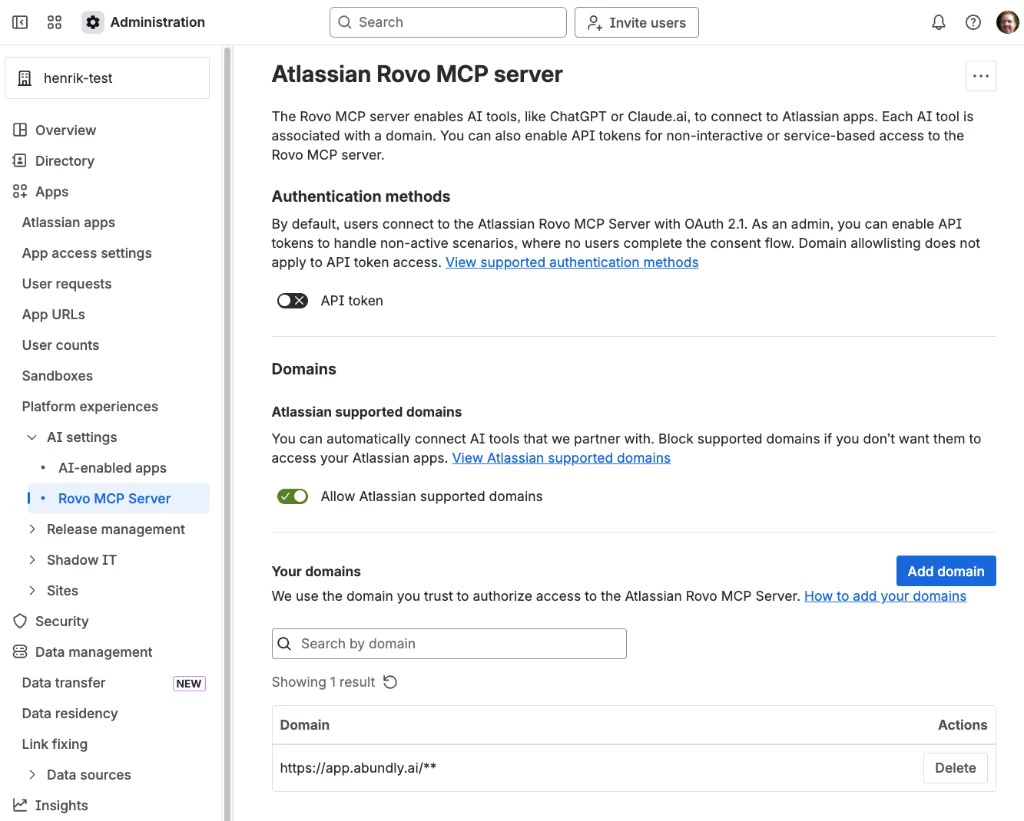
Allow Abundly in your Atlassian admin console
- Go to admin.atlassian.com
- In the sidebar, navigate to Apps → Platform experiences → AI settings → Rovo MCP Server
- Click Add domain and enter your Abundly app domain with
/**(for example,https://app.abundly.ai/**orhttps://your-tenant.app.abundly.ai/**)
2
Add Atlassian to your agent
Go to the MCP Servers tab in your agent’s capabilities. You’ll find Atlassian in the “Add a server” section — click it to add.
3
Authenticate your account
Click Connect, then Continue with OAuth and complete the OAuth flow to connect your Atlassian account.
Connecting with an API token instead
The Rovo MCP server is the easiest route, but it isn’t the only one. You can also give an agent direct access to the Jira and Confluence REST APIs with an Atlassian API token, defined as an Outgoing API. This is worth considering when:- Your Atlassian admin can’t or won’t allow the Abundly domain in the Rovo MCP settings
- The agent should act as its own dedicated Atlassian account rather than on behalf of a person
- You need endpoints or fields the MCP server doesn’t expose
1
Create the API token
Go to id.atlassian.com/manage-profile/security/api-tokens while signed in as the account the agent should act as, and create either a classic token or a token with scopes (see below). Copy the value immediately — it’s only shown once.
2
Store it as a Secret
In Workspace → Secrets, create a secret whose value is the Atlassian account email and the token joined by a colon:Store it unencoded — the platform Base64-encodes it and adds the
Basic prefix when calling the API.3
Define the Outgoing API
In Workspace → Outgoing APIs, create an outgoing API, add the secret with the Basic auth injection method, and add the endpoint pattern for your token type. Then enable it on the agent’s Capabilities page. The general HTTP Requests capability is not required — an Outgoing API works on its own.
Classic vs. scoped tokens
Atlassian offers two kinds of API token, and they are called against different base URLs — this is the detail most setups get wrong.
Prefer a scoped token: it limits the damage a leaked credential can do, and it lets you give the agent read-only access where that’s enough. Pick the smallest set of scopes that covers the agent’s job — read-only on issues is enough for reporting and triage suggestions, and you only need write scopes if the agent should change anything. Confluence uses the same pattern with
ex/confluence in place of ex/jira.
To find your cloudId, open https://your-site.atlassian.net/_edge/tenant_info in a browser — or simply ask the agent to fetch it.
Once the agent has a working call, ask it to write the details into its instructions — base URL, JQL it used, fields it needs. That turns trial and error into a repeatable routine.
Example use cases
- Issue triage — “Every morning, check Jira for new unassigned issues in the Support project and suggest an assignee based on workload”
- Sprint reporting — “Summarize the current sprint progress and post an update to Slack every Friday”
- Documentation sync — “When a Jira epic is marked as done, create a Confluence page documenting what was shipped”
- Cross-platform updates — “When someone mentions a Jira ticket in Slack, look it up and post a summary with the current status”