

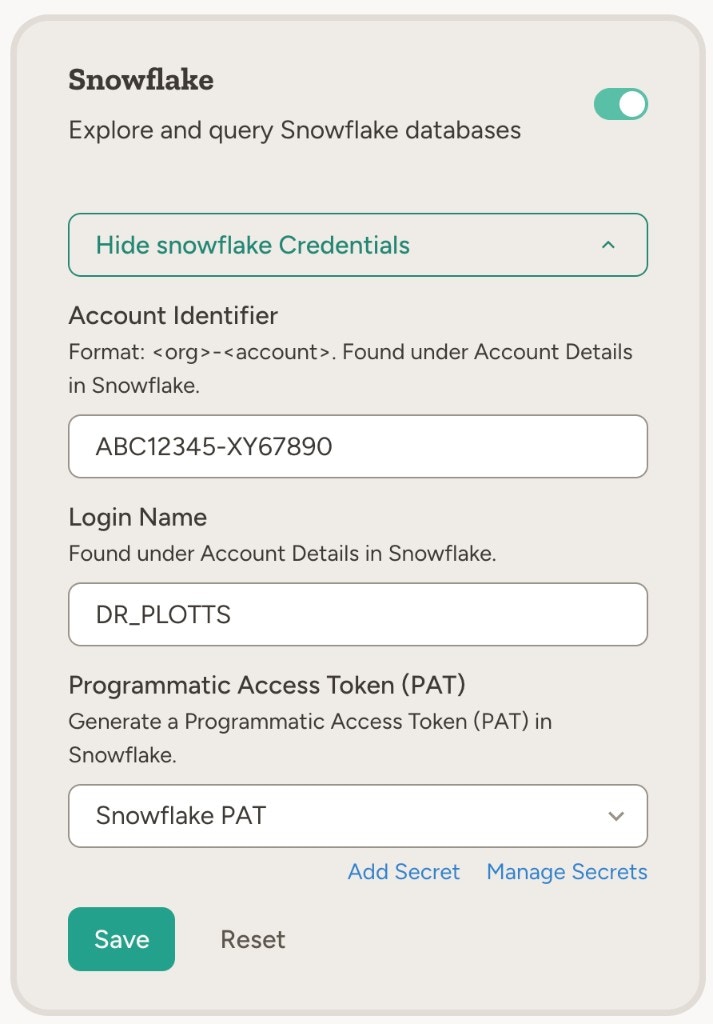
How to enable
Go to Settings → Capabilities and enable Snowflake, then link a workspace secret containing your Account Identifier, Login Name, and Programmatic Access Token (PAT). The same secret can be reused across agents and teams.Example use cases
- Revenue and rankings — “Query our Snowflake sales table and show top 10 customers by revenue this year”
- Scheduled reports — “Every Friday, run a query for weekly signups and post a summary to Slack”
- Data reconciliation — “Compare yesterday’s order count in Snowflake with the count in our CRM and flag any mismatch”
- Schema discovery — “List the tables in our analytics schema and describe the columns in the events table”
- Ad-hoc analysis — “What were our top-performing campaigns last month by spend and conversions? Use the marketing schema in Snowflake”
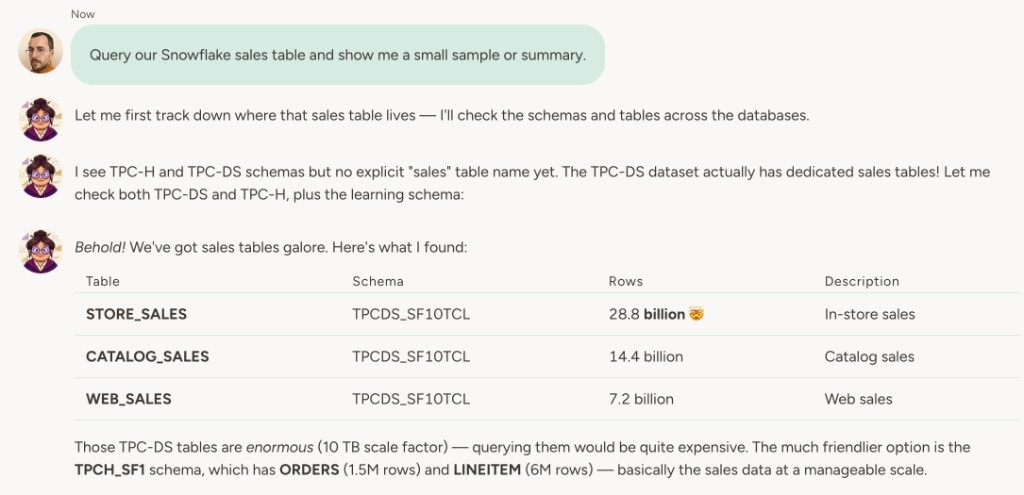
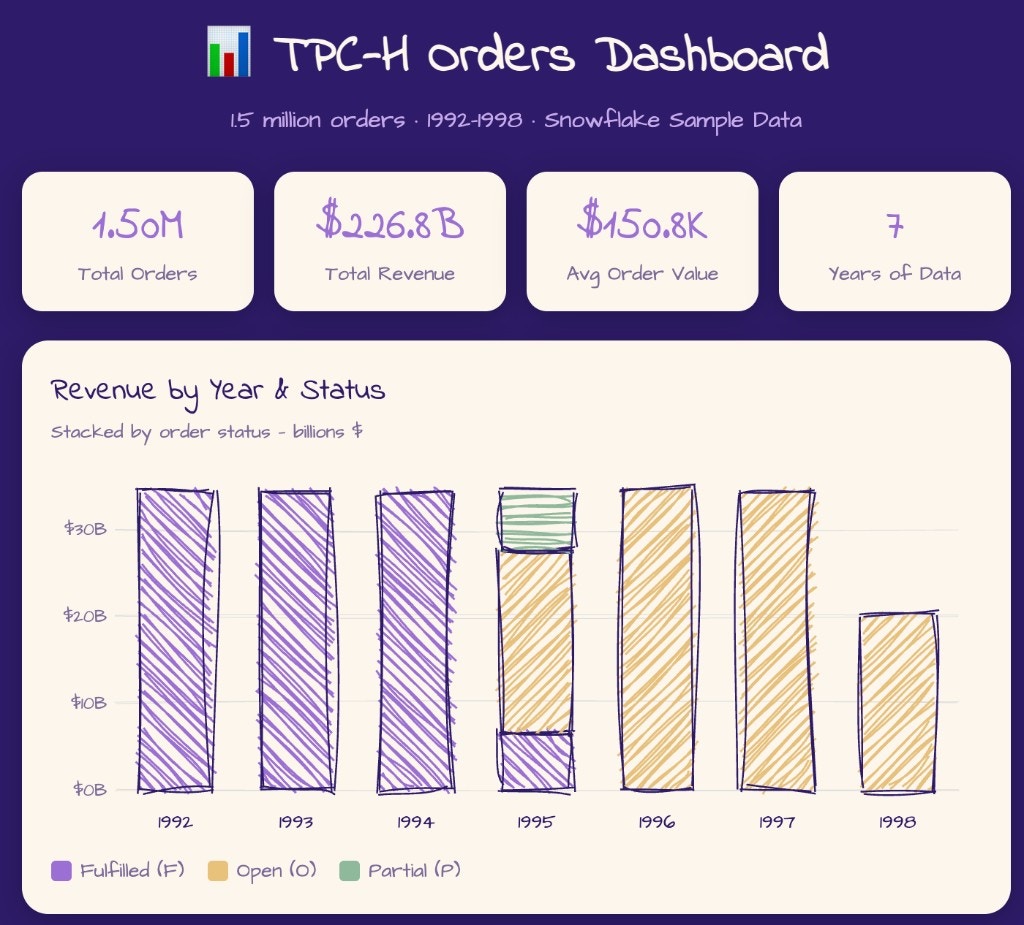
The agent supports read-only operations only (e.g. querying data, listing tables, describing schemas). No DDL or DML.
How to connect Snowflake
1
Get your account identifier and login name
In Snowflake, open Account Details. Note your Account Identifier (format:
<org>-<account>) and Login Name (username).2
Create a Programmatic Access Token (PAT)
Generate a PAT in Snowflake for programmatic access — see Snowflake’s PAT documentation for how to create one. The PAT is used instead of a password for the integration.
3
Configure in Abundly
Go to Settings → Capabilities, enable Snowflake, and create a new workspace secret of type Snowflake. Paste in the Account Identifier, Login Name, and Programmatic Access Token (PAT).All three values live in a single workspace secret, so you only have to enter them once and can share the same secret across multiple agents.
Learn more
BigQuery
Query and explore your Google BigQuery data from the agent.
Steep
Query metrics from your Steep semantic layer without writing SQL.