> ## Documentation Index
> Fetch the complete documentation index at: https://docs.abundly.ai/llms.txt
> Use this file to discover all available pages before exploring further.
# Guardrails
> Technical constraints enforced by code, not LLM reasoning
Guardrails are technical constraints enforced by platform code—not by LLM reasoning. This is a critical distinction: even if an agent is manipulated through prompt injection or given conflicting instructions, guardrails cannot be bypassed. The platform simply won't execute the action.
## Why guardrails matter
Telling an agent "don't email external domains" in its instructions is helpful, but not foolproof. LLMs can be tricked, confused, or make mistakes. Guardrails provide a hard limit that works regardless of what the agent thinks it should do.
The agent never gets a chance to override this—the check happens at the platform level before the action executes.
## Capability-specific guardrails
Different capabilities have different guardrail options. Configure these in each capability's settings.
### Email
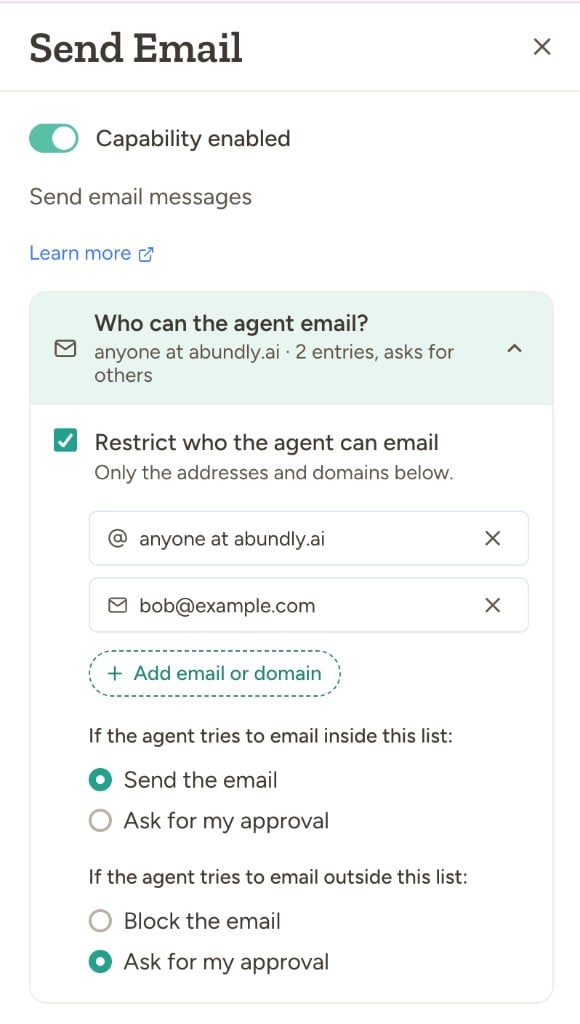 | Setting | Options | What it does |
| ------------------------------------------------ | --------------------------------------------------------- | --------------------------------------------- |
| **Restrict who the agent can email** | Off, or on with an allow-list of addresses and/or domains | Hard limit on who the agent can contact |
| **If the agent tries to email inside the list** | Send the email, or ask for your approval | Behavior for recipients on the allow-list |
| **If the agent tries to email outside the list** | Block the email, or ask for your approval | Behavior for recipients not on the allow-list |
A typical setup is restrict-on with "send inside" and "ask outside" — the agent can email known contacts freely, and you review anything new. When restriction is off, you instead get a single "ask before every email" toggle. See [User Approval](/security/user-approval) for how the approval flow works.
### Other capabilities
* **SMS and Phone calls** — Same allow-list plus inside/outside-list approval model. See [Email & SMS](/features/messaging) and [Voice](/features/voice) for details.
* **HTTP requests** — Optional approval for each request. See [HTTP Requests](/features/http) for details.
## Configuring guardrails
1. Open the agent and navigate to **Capabilities** in the sidebar
2. Click on the capability you want to configure (Email, SMS, Phone, etc.)
3. Choose whether to restrict recipients, configure the allow-list, and set the inside-list and outside-list rules
4. Test by trying an action that should be blocked or require approval
You can see guardrail settings at a glance in the capability card — each card summarises the current allow-list and
approval rules in one line.
## Workspace-level controls
Workspace administrators can control which capabilities are available to agents across the workspace. This is configured in **Workspace management** under the **Capabilities** tab. They can also limit which **LLM models** agents may pick for new work under **Workspace management → Model selection** (models disabled platform-wide by Abundly cannot be turned on there).
| Setting | Options | What it does |
| ------------------------------------------------ | --------------------------------------------------------- | --------------------------------------------- |
| **Restrict who the agent can email** | Off, or on with an allow-list of addresses and/or domains | Hard limit on who the agent can contact |
| **If the agent tries to email inside the list** | Send the email, or ask for your approval | Behavior for recipients on the allow-list |
| **If the agent tries to email outside the list** | Block the email, or ask for your approval | Behavior for recipients not on the allow-list |
A typical setup is restrict-on with "send inside" and "ask outside" — the agent can email known contacts freely, and you review anything new. When restriction is off, you instead get a single "ask before every email" toggle. See [User Approval](/security/user-approval) for how the approval flow works.
### Other capabilities
* **SMS and Phone calls** — Same allow-list plus inside/outside-list approval model. See [Email & SMS](/features/messaging) and [Voice](/features/voice) for details.
* **HTTP requests** — Optional approval for each request. See [HTTP Requests](/features/http) for details.
## Configuring guardrails
1. Open the agent and navigate to **Capabilities** in the sidebar
2. Click on the capability you want to configure (Email, SMS, Phone, etc.)
3. Choose whether to restrict recipients, configure the allow-list, and set the inside-list and outside-list rules
4. Test by trying an action that should be blocked or require approval
You can see guardrail settings at a glance in the capability card — each card summarises the current allow-list and
approval rules in one line.
## Workspace-level controls
Workspace administrators can control which capabilities are available to agents across the workspace. This is configured in **Workspace management** under the **Capabilities** tab. They can also limit which **LLM models** agents may pick for new work under **Workspace management → Model selection** (models disabled platform-wide by Abundly cannot be turned on there).
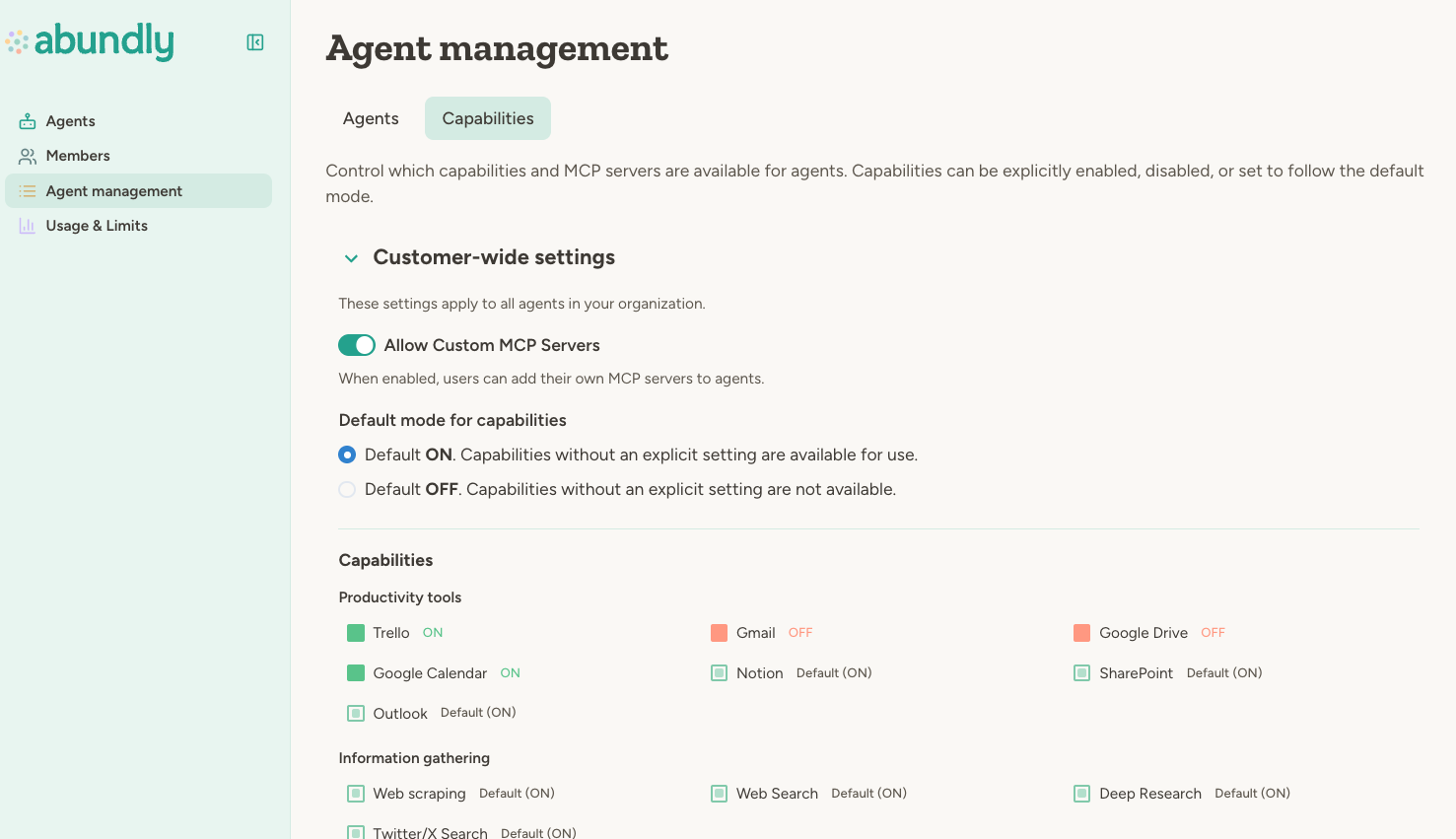 | Control | What it does |
| ---------------------- | ---------------------------------------------------------- |
| **Capability toggles** | Enable or disable specific capabilities workspace-wide |
| **Default mode** | Whether new capabilities are allowed or blocked by default |
| **Custom MCP servers** | Allow or block users from adding their own MCP servers |
Capabilities disabled at the workspace level cannot be enabled by individual agents.
Workspace administrators can also configure attack detection notification behavior in **Workspace → Settings**.
| Security setting | What it does |
| --------------------------- | --------------------------------------------------------------------------------------------------------------------------- |
| **Alert recipients** | Choose whether blocked attack alerts go to all workspace admins, admins plus additional emails, or a custom email list only |
| **Include blocked content** | Optionally include the blocked trigger payload in alert emails for debugging |
If your workspace uses [teams](/features/teams), team administrators can set additional restrictions for their team,
but cannot enable capabilities that are disabled at the workspace level.
## Best practices
**Start restrictive.** Begin with tight guardrails—require approval for external communication, limit capabilities to what's needed. You can always loosen them as you gain confidence.
**Combine an allow-list with "ask for approval" outside it.** This lets agents work freely with known contacts inside your organization while routing anything new through you. It's a good balance of autonomy and safety.
**Review blocked and approved actions.** Check the [activity log](/features/monitoring) periodically to see what's being blocked or approved. This helps you identify false positives (legitimate actions being blocked) and tune your configuration.
**Match guardrails to risk.** A customer-facing agent needs tighter guardrails than an internal research assistant. See [Risk & Autonomy](/security/risk-autonomy) for guidance on assessing risk.
## FAQ
No. Guardrails are enforced by platform code, not LLM reasoning. The agent can't talk its way past an allow-list check—the platform simply won't execute the blocked action.
If the outside-list rule is "Ask for approval", the action goes to the approval queue (see [User
Approval](/security/user-approval)). If the outside-list rule is "Block", the action fails outright and the agent is
notified that the recipient isn't allowed.
Yes. Workspace administrators can disable capabilities workspace-wide in Workspace management → Capabilities. Per-agent guardrails (like allow-lists) are still configured individually.
## Learn more
How the approval queue works
Automated screening of untrusted trigger content
Workspace-level capability controls
| Control | What it does |
| ---------------------- | ---------------------------------------------------------- |
| **Capability toggles** | Enable or disable specific capabilities workspace-wide |
| **Default mode** | Whether new capabilities are allowed or blocked by default |
| **Custom MCP servers** | Allow or block users from adding their own MCP servers |
Capabilities disabled at the workspace level cannot be enabled by individual agents.
Workspace administrators can also configure attack detection notification behavior in **Workspace → Settings**.
| Security setting | What it does |
| --------------------------- | --------------------------------------------------------------------------------------------------------------------------- |
| **Alert recipients** | Choose whether blocked attack alerts go to all workspace admins, admins plus additional emails, or a custom email list only |
| **Include blocked content** | Optionally include the blocked trigger payload in alert emails for debugging |
If your workspace uses [teams](/features/teams), team administrators can set additional restrictions for their team,
but cannot enable capabilities that are disabled at the workspace level.
## Best practices
**Start restrictive.** Begin with tight guardrails—require approval for external communication, limit capabilities to what's needed. You can always loosen them as you gain confidence.
**Combine an allow-list with "ask for approval" outside it.** This lets agents work freely with known contacts inside your organization while routing anything new through you. It's a good balance of autonomy and safety.
**Review blocked and approved actions.** Check the [activity log](/features/monitoring) periodically to see what's being blocked or approved. This helps you identify false positives (legitimate actions being blocked) and tune your configuration.
**Match guardrails to risk.** A customer-facing agent needs tighter guardrails than an internal research assistant. See [Risk & Autonomy](/security/risk-autonomy) for guidance on assessing risk.
## FAQ
No. Guardrails are enforced by platform code, not LLM reasoning. The agent can't talk its way past an allow-list check—the platform simply won't execute the blocked action.
If the outside-list rule is "Ask for approval", the action goes to the approval queue (see [User
Approval](/security/user-approval)). If the outside-list rule is "Block", the action fails outright and the agent is
notified that the recipient isn't allowed.
Yes. Workspace administrators can disable capabilities workspace-wide in Workspace management → Capabilities. Per-agent guardrails (like allow-lists) are still configured individually.
## Learn more
How the approval queue works
Automated screening of untrusted trigger content
Workspace-level capability controls