> ## Documentation Index
> Fetch the complete documentation index at: https://docs.abundly.ai/llms.txt
> Use this file to discover all available pages before exploring further.
# Access Control
> Role-based permissions for users and agents
Control who can access which agents and what actions they can perform. Access control operates on three layers: workspace membership, team membership (if enabled), and per-agent access settings.
 ## Workspace roles
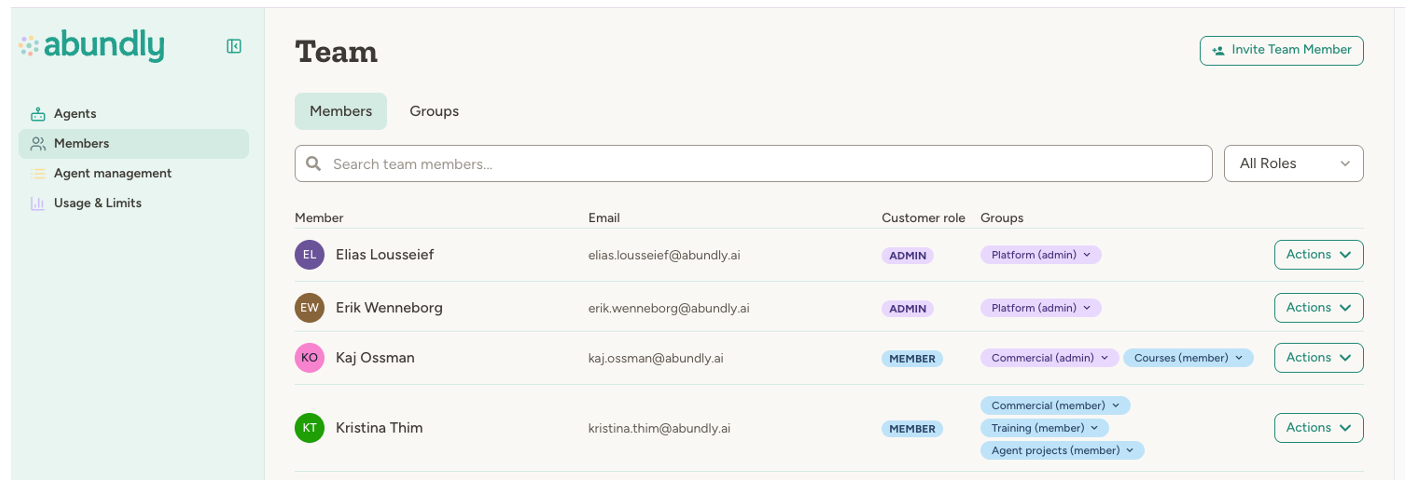
Every user in your workspace has a role that determines their base level of access:
| Role | Description |
| ---------------- | ------------------------------------------------------------------------------------------------------------------- |
| **Admin** | Full control over the workspace—can manage members, billing, capabilities, and all agents |
| **Creator** | Standard workspace member—can access agents based on agent-level settings, and can create, clone, and import agents |
| **Collaborator** | Same as Creator, but cannot create, clone, or import agents, or manage workspace secrets and API capabilities |
| **Guest** | Limited access—can only access agents they've been explicitly granted access to |
Workspace admins automatically have Full Access to all agents in the workspace, regardless of agent-specific settings. See [Workspace Members](/features/workspace-members) for how to assign roles.
## Agent access levels
Each agent has access settings that control what workspace members can do with it. There are four levels:
| Level | What it allows |
| --------------- | -------------------------------------------------------------------------------- |
| **Full Access** | Full control: delete agent, change access settings, edit configuration, interact |
| **Edit** | Modify instructions, capabilities, documents, and interact with the agent |
| **Use** | Interact with the agent (chat), but cannot change anything |
| **Nothing** | Cannot see or interact with the agent |
The hierarchy is: **Full Access > Edit > Use > Nothing**
## Default access vs. user-specific access
Agent access is controlled through two settings, found in the agent's **Settings > User access** tab:
## Workspace roles
Every user in your workspace has a role that determines their base level of access:
| Role | Description |
| ---------------- | ------------------------------------------------------------------------------------------------------------------- |
| **Admin** | Full control over the workspace—can manage members, billing, capabilities, and all agents |
| **Creator** | Standard workspace member—can access agents based on agent-level settings, and can create, clone, and import agents |
| **Collaborator** | Same as Creator, but cannot create, clone, or import agents, or manage workspace secrets and API capabilities |
| **Guest** | Limited access—can only access agents they've been explicitly granted access to |
Workspace admins automatically have Full Access to all agents in the workspace, regardless of agent-specific settings. See [Workspace Members](/features/workspace-members) for how to assign roles.
## Agent access levels
Each agent has access settings that control what workspace members can do with it. There are four levels:
| Level | What it allows |
| --------------- | -------------------------------------------------------------------------------- |
| **Full Access** | Full control: delete agent, change access settings, edit configuration, interact |
| **Edit** | Modify instructions, capabilities, documents, and interact with the agent |
| **Use** | Interact with the agent (chat), but cannot change anything |
| **Nothing** | Cannot see or interact with the agent |
The hierarchy is: **Full Access > Edit > Use > Nothing**
## Default access vs. user-specific access
Agent access is controlled through two settings, found in the agent's **Settings > User access** tab:
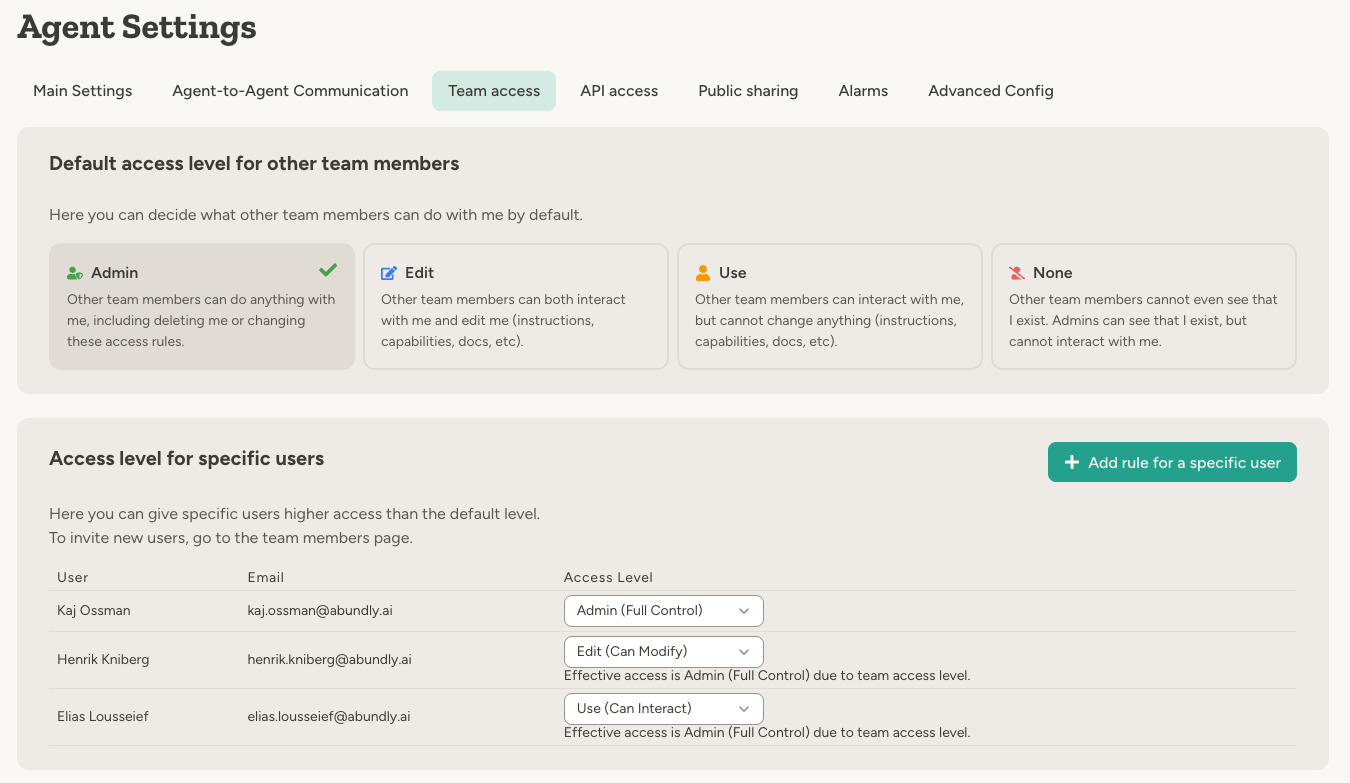 **Default access** (top section) sets the baseline for everyone who can see the agent—all workspace members if the agent is not assigned to a team, or all members of that team if it is. If you set this to "Edit," everyone in that scope can modify the agent.
**User-specific access** (bottom section) lets you give individual users a different access level. For example, you might set the default to "Use" but give a specific colleague "Full Access".
To remove a user-specific override entirely and revert the user to the workspace default, click the red trash button next to their row. A confirmation modal prevents accidental removal.
For most access levels, the system grants the **highest** access between the default and user-specific access—so user-specific rules are typically used to grant **more** access. The exception is **Nothing (No Access)**: when set as a user-specific override, it acts as an explicit deny, blocking access regardless of the default level.
### Private agents
When you set the default access to "Nothing," the agent becomes private:
* Other workspace or team members cannot see the agent—it won't appear in their agent list
* Workspace administrators (and team administrators, if the agent is assigned to a team) can still see the agent in the management view — including its description, instructions, agent-to-agent connections, and exposure hooks (MCP server, HTTP API, webhooks, widget) — but cannot interact with it directly
* Only users with explicit user-specific access can interact with it
This is useful for agents that handle sensitive data or are still in development.
### Inviting guests by email
The **Invite by email** section on the agent's User access tab lets you grant access to this agent by email address — including to people who are not in your workspace yet:
* If the email belongs to an existing workspace member, they get the chosen access level directly.
* Otherwise an invitation is sent (the email is optional — the invite also appears when the person logs in). When they accept, they join the workspace as a **Guest** and receive the chosen access level on the agent.
Guests can log in but only see the agents they've been granted access to — no workspace, team, or member surfaces. They don't count toward your plan's member limit, and they're only visible to workspace admins on the Members page (and to team admins in their teams). Pending guest invitations are listed on the agent's User access tab, where they can be revoked.
From the UI, guests can be granted **Use** or **Edit** access. Their access to the agent works exactly like any other user-specific access rule.
## Admin-restricted agents
In each agent's **Settings > User access** tab, users with Full Access can narrow who in the portal can see and interact with the agent. There are three tiers:
| Tier | Who can see the agent |
| ---------------------------- | --------------------------------------------------------------------------------------------------------- |
| **No restriction** (default) | Anyone with access via the rules above |
| **Team admins only** | Workspace admins, plus team admins of this agent's team (only available when the agent belongs to a team) |
| **Workspace admins only** | Workspace admins only |
When a restriction is active, the agent — its chats, instructions, capabilities, and configuration — is hidden from anyone outside the chosen admin tier, regardless of any default or user-specific access rules above.
Use the tighter tiers for agents that work with internal data — billing, analytics, member lists, audit logs — that the rest of the workspace or team shouldn't see. Some capabilities (for example workspace and team analytics) are also gated behind the matching admin tier for the same reason.
Admin restrictions narrow the **portal** only. External entry points an admin has enabled — embeddable widget, HTTP API, MCP, webhooks, public clone link — keep working under their own authentication. Agent-to-agent communication is also unaffected, so other agents can still reach the agent if they're configured to.
## Teams
For larger workspaces, [teams](/features/teams) add another layer of access control between the workspace and individual agents:
* Agents can belong to a team
* Users must be members of that team to access the agent (unless they're workspace admins)
* Team admins can manage agents within their team
If an agent belongs to a team, access is determined by the user's role in that specific team—not their workspace-wide role.
Teams are an enterprise feature. Contact [support@abundly.ai](mailto:support@abundly.ai) to enable them for your workspace.
## Agent-to-agent access
Agent-to-agent access is configured per agent in Settings → Agent Communication, and has two sides:
* **Discoverability (inbound)** — who is even *allowed* to reach this agent: **No one**, **Team** (agents in the same team, default), or **Everyone** (any agent in the workspace, including across teams).
* **Outbound** — which other agents this agent is configured to call. Picked explicitly per target from the communication graph.
**Default access** (top section) sets the baseline for everyone who can see the agent—all workspace members if the agent is not assigned to a team, or all members of that team if it is. If you set this to "Edit," everyone in that scope can modify the agent.
**User-specific access** (bottom section) lets you give individual users a different access level. For example, you might set the default to "Use" but give a specific colleague "Full Access".
To remove a user-specific override entirely and revert the user to the workspace default, click the red trash button next to their row. A confirmation modal prevents accidental removal.
For most access levels, the system grants the **highest** access between the default and user-specific access—so user-specific rules are typically used to grant **more** access. The exception is **Nothing (No Access)**: when set as a user-specific override, it acts as an explicit deny, blocking access regardless of the default level.
### Private agents
When you set the default access to "Nothing," the agent becomes private:
* Other workspace or team members cannot see the agent—it won't appear in their agent list
* Workspace administrators (and team administrators, if the agent is assigned to a team) can still see the agent in the management view — including its description, instructions, agent-to-agent connections, and exposure hooks (MCP server, HTTP API, webhooks, widget) — but cannot interact with it directly
* Only users with explicit user-specific access can interact with it
This is useful for agents that handle sensitive data or are still in development.
### Inviting guests by email
The **Invite by email** section on the agent's User access tab lets you grant access to this agent by email address — including to people who are not in your workspace yet:
* If the email belongs to an existing workspace member, they get the chosen access level directly.
* Otherwise an invitation is sent (the email is optional — the invite also appears when the person logs in). When they accept, they join the workspace as a **Guest** and receive the chosen access level on the agent.
Guests can log in but only see the agents they've been granted access to — no workspace, team, or member surfaces. They don't count toward your plan's member limit, and they're only visible to workspace admins on the Members page (and to team admins in their teams). Pending guest invitations are listed on the agent's User access tab, where they can be revoked.
From the UI, guests can be granted **Use** or **Edit** access. Their access to the agent works exactly like any other user-specific access rule.
## Admin-restricted agents
In each agent's **Settings > User access** tab, users with Full Access can narrow who in the portal can see and interact with the agent. There are three tiers:
| Tier | Who can see the agent |
| ---------------------------- | --------------------------------------------------------------------------------------------------------- |
| **No restriction** (default) | Anyone with access via the rules above |
| **Team admins only** | Workspace admins, plus team admins of this agent's team (only available when the agent belongs to a team) |
| **Workspace admins only** | Workspace admins only |
When a restriction is active, the agent — its chats, instructions, capabilities, and configuration — is hidden from anyone outside the chosen admin tier, regardless of any default or user-specific access rules above.
Use the tighter tiers for agents that work with internal data — billing, analytics, member lists, audit logs — that the rest of the workspace or team shouldn't see. Some capabilities (for example workspace and team analytics) are also gated behind the matching admin tier for the same reason.
Admin restrictions narrow the **portal** only. External entry points an admin has enabled — embeddable widget, HTTP API, MCP, webhooks, public clone link — keep working under their own authentication. Agent-to-agent communication is also unaffected, so other agents can still reach the agent if they're configured to.
## Teams
For larger workspaces, [teams](/features/teams) add another layer of access control between the workspace and individual agents:
* Agents can belong to a team
* Users must be members of that team to access the agent (unless they're workspace admins)
* Team admins can manage agents within their team
If an agent belongs to a team, access is determined by the user's role in that specific team—not their workspace-wide role.
Teams are an enterprise feature. Contact [support@abundly.ai](mailto:support@abundly.ai) to enable them for your workspace.
## Agent-to-agent access
Agent-to-agent access is configured per agent in Settings → Agent Communication, and has two sides:
* **Discoverability (inbound)** — who is even *allowed* to reach this agent: **No one**, **Team** (agents in the same team, default), or **Everyone** (any agent in the workspace, including across teams).
* **Outbound** — which other agents this agent is configured to call. Picked explicitly per target from the communication graph.
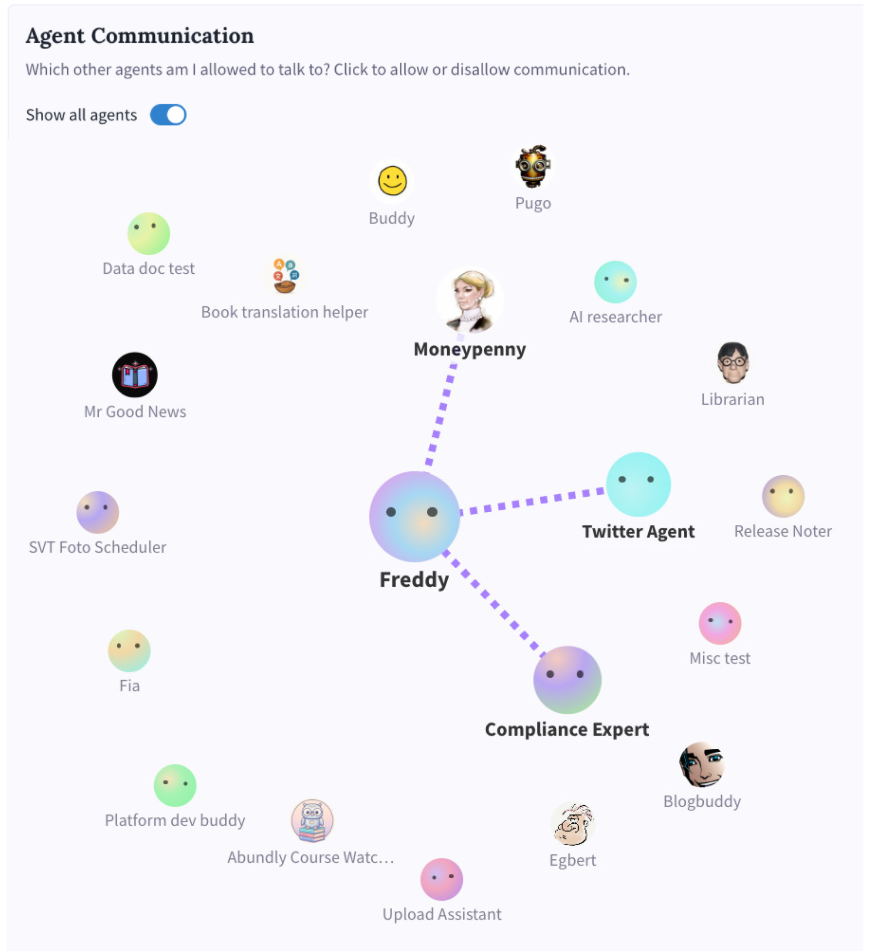 Agents only exchange messages when both sides align: the target must be discoverable by the caller, and the caller must explicitly allow the target in its outbound list. Tightening a target's discoverability (e.g. from **Everyone** back to **Team**) immediately blocks existing outbound connections from callers that can no longer reach it.
See [Multi-Agent Collaboration](/features/multi-agent) for more on agent-to-agent communication patterns.
Agent-to-agent communication can create indirect access paths. If Agent A can talk to Agent B, and Agent B has access to sensitive data, users who talk to Agent A may be able to access that data indirectly. Be deliberate about setting an agent's discoverability to **Everyone** — it broadens the set of agents (and, transitively, users) that can reach it.
## Best practices
**Start with restrictive defaults.** Set the default access to "Use" or "Nothing" for sensitive agents, then grant higher access to specific users who need it.
**Use teams for scale.** If you have many agents or multiple departments, teams make access management much simpler than per-agent user rules.
**Review access after membership changes.** When someone leaves or changes roles, audit their access to ensure it's still appropriate.
**Keep at least one user with Full Access.** The platform prevents you from removing all Full Access from an agent—every agent needs at least one user with Full Access.
## FAQ
**Edit** access lets you modify how the agent works—instructions, capabilities, documents, and other settings.
**Full Access** includes everything in Edit, plus the ability to delete the agent and change who else can access it.
Yes—set their user-specific access to **Nothing (No Access)**. This acts as an explicit deny, blocking access regardless of the default level. To remove an override and revert a user to the default instead, click the red trash button next to their row.
Guests cannot access agents through the default access level—they need explicit user-specific access to each agent. This makes the Guest role useful for external collaborators who should only see specific agents.
Yes. If an agent belongs to a team, you must be a member of that team to access it. The exception is workspace administrators, who automatically have access to all teams.
Only if you explicitly configure agent-to-agent communication between them. By default, agents are isolated—they can't see each other's documents, databases, or conversations.
Remove them from the workspace in the Members page. They'll immediately lose access to all agents and data. Their past conversations and actions remain in the logs.
## Learn more
Workspace-level agent and capability controls
Organize agents and users by department or function
How agents collaborate and communicate
Agents only exchange messages when both sides align: the target must be discoverable by the caller, and the caller must explicitly allow the target in its outbound list. Tightening a target's discoverability (e.g. from **Everyone** back to **Team**) immediately blocks existing outbound connections from callers that can no longer reach it.
See [Multi-Agent Collaboration](/features/multi-agent) for more on agent-to-agent communication patterns.
Agent-to-agent communication can create indirect access paths. If Agent A can talk to Agent B, and Agent B has access to sensitive data, users who talk to Agent A may be able to access that data indirectly. Be deliberate about setting an agent's discoverability to **Everyone** — it broadens the set of agents (and, transitively, users) that can reach it.
## Best practices
**Start with restrictive defaults.** Set the default access to "Use" or "Nothing" for sensitive agents, then grant higher access to specific users who need it.
**Use teams for scale.** If you have many agents or multiple departments, teams make access management much simpler than per-agent user rules.
**Review access after membership changes.** When someone leaves or changes roles, audit their access to ensure it's still appropriate.
**Keep at least one user with Full Access.** The platform prevents you from removing all Full Access from an agent—every agent needs at least one user with Full Access.
## FAQ
**Edit** access lets you modify how the agent works—instructions, capabilities, documents, and other settings.
**Full Access** includes everything in Edit, plus the ability to delete the agent and change who else can access it.
Yes—set their user-specific access to **Nothing (No Access)**. This acts as an explicit deny, blocking access regardless of the default level. To remove an override and revert a user to the default instead, click the red trash button next to their row.
Guests cannot access agents through the default access level—they need explicit user-specific access to each agent. This makes the Guest role useful for external collaborators who should only see specific agents.
Yes. If an agent belongs to a team, you must be a member of that team to access it. The exception is workspace administrators, who automatically have access to all teams.
Only if you explicitly configure agent-to-agent communication between them. By default, agents are isolated—they can't see each other's documents, databases, or conversations.
Remove them from the workspace in the Members page. They'll immediately lose access to all agents and data. Their past conversations and actions remain in the logs.
## Learn more
Workspace-level agent and capability controls
Organize agents and users by department or function
How agents collaborate and communicate