> ## Documentation Index
> Fetch the complete documentation index at: https://docs.abundly.ai/llms.txt
> Use this file to discover all available pages before exploring further.
# Snowflake
> Turn your Snowflake data into answers — query and explore your warehouse in plain English
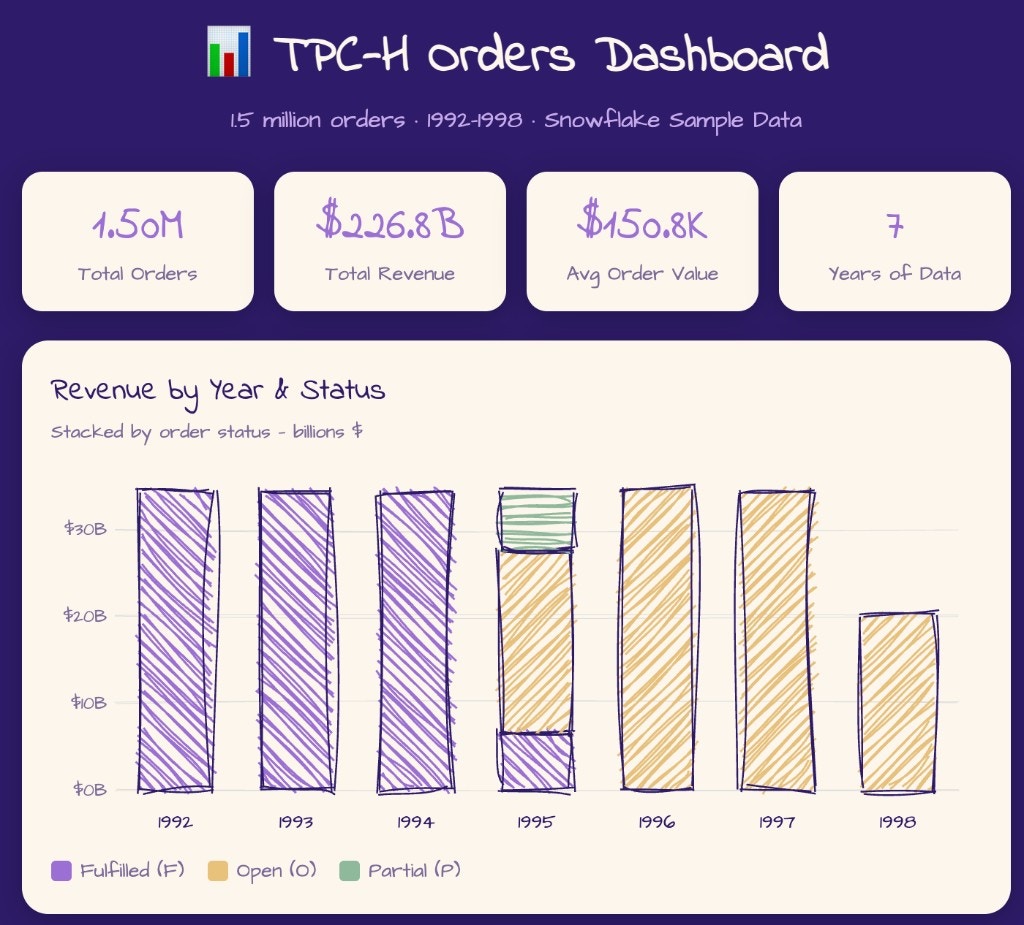
Your agent can explore your Snowflake databases and run read-only queries so you get insights, reports, and data checks without writing SQL. Ask in natural language and get answers. Authentication uses a Snowflake [Programmatic Access Token (PAT)](https://docs.snowflake.com/en/user-guide/programmatic-access-tokens) — no password — and queries time out after 30 seconds.
 ## How to enable
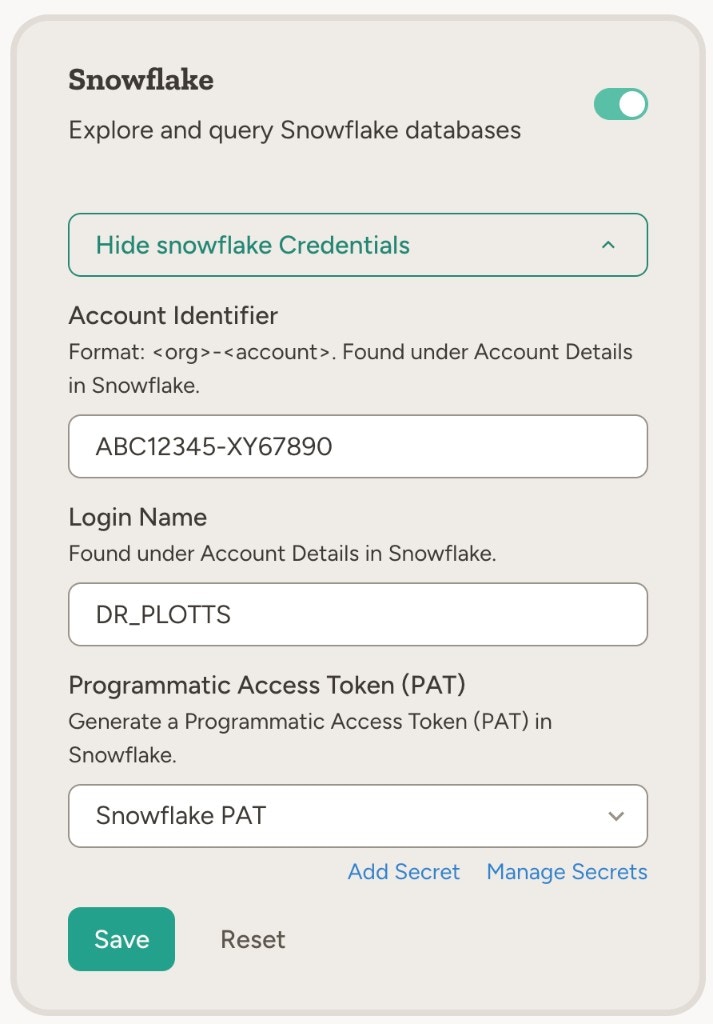
Go to **Settings → Capabilities** and enable **Snowflake**, then link a workspace secret containing your **Account Identifier**, **Login Name**, and **Programmatic Access Token (PAT)**. The same secret can be reused across agents and teams.
## Example use cases
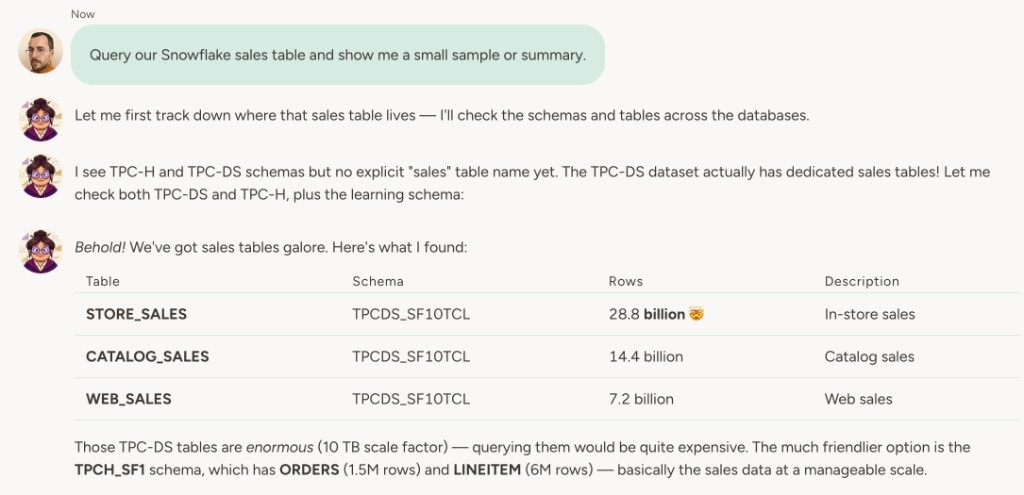
* **Revenue and rankings** — "Query our Snowflake sales table and show top 10 customers by revenue this year"
* **Scheduled reports** — "Every Friday, run a query for weekly signups and post a summary to Slack"
* **Data reconciliation** — "Compare yesterday's order count in Snowflake with the count in our CRM and flag any mismatch"
* **Schema discovery** — "List the tables in our analytics schema and describe the columns in the events table"
* **Ad-hoc analysis** — "What were our top-performing campaigns last month by spend and conversions? Use the marketing schema in Snowflake"
## How to enable
Go to **Settings → Capabilities** and enable **Snowflake**, then link a workspace secret containing your **Account Identifier**, **Login Name**, and **Programmatic Access Token (PAT)**. The same secret can be reused across agents and teams.
## Example use cases
* **Revenue and rankings** — "Query our Snowflake sales table and show top 10 customers by revenue this year"
* **Scheduled reports** — "Every Friday, run a query for weekly signups and post a summary to Slack"
* **Data reconciliation** — "Compare yesterday's order count in Snowflake with the count in our CRM and flag any mismatch"
* **Schema discovery** — "List the tables in our analytics schema and describe the columns in the events table"
* **Ad-hoc analysis** — "What were our top-performing campaigns last month by spend and conversions? Use the marketing schema in Snowflake"
 The agent supports read-only operations only (e.g. querying data, listing tables, describing schemas). No DDL or DML.
## How to connect Snowflake
In Snowflake, open **Account Details**. Note your **Account Identifier** (format:
The agent supports read-only operations only (e.g. querying data, listing tables, describing schemas). No DDL or DML.
## How to connect Snowflake
In Snowflake, open **Account Details**. Note your **Account Identifier** (format: \-\) and **Login Name** (username).
Generate a PAT in Snowflake for programmatic access — see [Snowflake's PAT documentation](https://docs.snowflake.com/en/user-guide/programmatic-access-tokens) for how to create one. The PAT is used instead of a password for the integration.
Go to **Settings → Capabilities**, enable **Snowflake**, and create a new workspace secret of type **Snowflake**. Paste in the **Account Identifier**, **Login Name**, and **Programmatic Access Token (PAT)**.
All three values live in a single workspace secret, so you only have to enter them once and can share the same secret across multiple agents.
## Learn more
Query and explore your Google BigQuery data from the agent.
Query metrics from your Steep semantic layer without writing SQL.