> ## Documentation Index
> Fetch the complete documentation index at: https://docs.abundly.ai/llms.txt
> Use this file to discover all available pages before exploring further.
# OpenAI
> GPT models, image generation, voice, and vision capabilities
OpenAI provides a wide range of AI capabilities for your agent, from language models to image generation and voice features.
## GPT models
OpenAI's GPT models are available as an alternative to the default model for your agent. Configure model selection under **Settings → Advanced Config**.
See [Model Selection](/features/model-selection) for the full list of available models and guidance on choosing the right one.
## Image generation
GPT image generation is the default provider for new agents.
Generate images from text descriptions using OpenAI's GPT image generation.
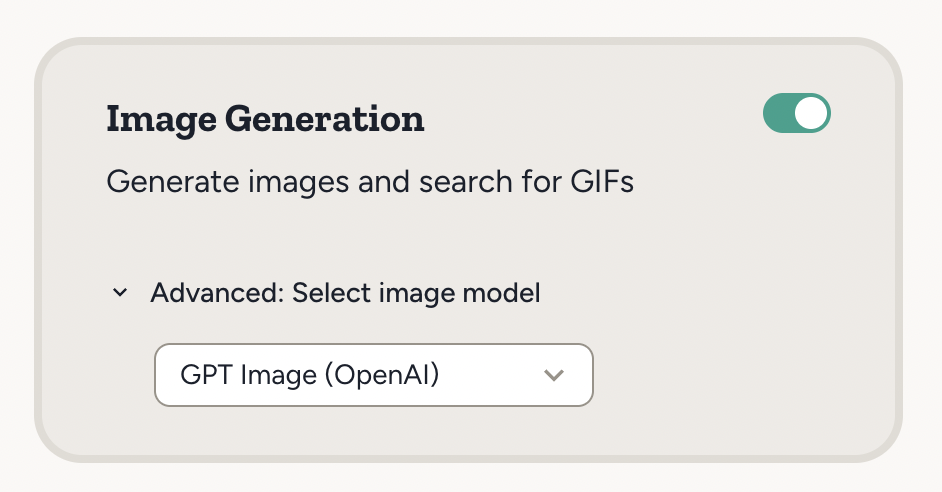
**How to enable:** Toggle on the **Image generation** capability on your agent, and select GPT.
 **Quality levels:** You can ask the agent to generate images at `low`, `medium`, or `high` quality. Medium is the default and works well for most use cases. Low is faster and cheaper, and fine for drafts and simple scenes. High is best for complex scenes with many details or precise text and typography.
**Source images:** You can provide up to 16 source images as references for editing, compositing, or style transfer.
**Example use cases:**
* "Generate a hero image for our blog post about sustainable energy"
* "Create an illustration showing our product workflow"
* "Create a high-quality poster with the headline 'Summer Sale — 30% off'"
* "Combine these product photos into a lifestyle scene"
## Voice transcription
Transcribe spoken audio to text using OpenAI's Whisper model.
**How to use:** Press the mic button in the chat, or drop an audio file to transcribe.
**Example use cases:**
* Talk instead of typing to your agent
* Drop a meeting recording file and ask the agent to transcribe it
See [Voice Communication](/features/voice) for details on voice input and walk-and-talk mode.
## Text to speech
Convert text to natural-sounding speech using OpenAI's TTS models.
**How to use:** Press the speak button under any chat message to hear it read aloud.
**Example use cases:**
* Listen to a long response while making coffee or taking a walk
* Have your agent read out a summary or report
See [Voice Communication](/features/voice) for details on text to speech and walk-and-talk mode.
## Realtime voice API
The OpenAI Realtime API enables low-latency, speech-to-speech interactions with AI models. The Abundly platform uses this in combination with [Twilio](/integrations/twilio) to handle voice calls — your agent can make and receive phone calls with natural conversation flow.
**How to enable:**
* Enable **Make Phone Call** and/or **Receive Phone Call** in **Settings → Capabilities**.
* NOTE: These capabilities are currently hidden. Contact [support@abundly.ai](mailto:support@abundly.ai) to enable them for your account.
See [Voice Communication](/features/voice) for details on voice calls and other voice features.
## Image recognition
Your agent can analyze and understand images automatically.
**How to use:** Provide an image through the chat interface, agent documents, or email attachments.
**Example use cases:**
* "Look at this screenshot and tell me what's wrong with the layout"
* "Read this invoice image and extract the key details"
* "Read this chart image and add the data to my spreadsheet"
**Quality levels:** You can ask the agent to generate images at `low`, `medium`, or `high` quality. Medium is the default and works well for most use cases. Low is faster and cheaper, and fine for drafts and simple scenes. High is best for complex scenes with many details or precise text and typography.
**Source images:** You can provide up to 16 source images as references for editing, compositing, or style transfer.
**Example use cases:**
* "Generate a hero image for our blog post about sustainable energy"
* "Create an illustration showing our product workflow"
* "Create a high-quality poster with the headline 'Summer Sale — 30% off'"
* "Combine these product photos into a lifestyle scene"
## Voice transcription
Transcribe spoken audio to text using OpenAI's Whisper model.
**How to use:** Press the mic button in the chat, or drop an audio file to transcribe.
**Example use cases:**
* Talk instead of typing to your agent
* Drop a meeting recording file and ask the agent to transcribe it
See [Voice Communication](/features/voice) for details on voice input and walk-and-talk mode.
## Text to speech
Convert text to natural-sounding speech using OpenAI's TTS models.
**How to use:** Press the speak button under any chat message to hear it read aloud.
**Example use cases:**
* Listen to a long response while making coffee or taking a walk
* Have your agent read out a summary or report
See [Voice Communication](/features/voice) for details on text to speech and walk-and-talk mode.
## Realtime voice API
The OpenAI Realtime API enables low-latency, speech-to-speech interactions with AI models. The Abundly platform uses this in combination with [Twilio](/integrations/twilio) to handle voice calls — your agent can make and receive phone calls with natural conversation flow.
**How to enable:**
* Enable **Make Phone Call** and/or **Receive Phone Call** in **Settings → Capabilities**.
* NOTE: These capabilities are currently hidden. Contact [support@abundly.ai](mailto:support@abundly.ai) to enable them for your account.
See [Voice Communication](/features/voice) for details on voice calls and other voice features.
## Image recognition
Your agent can analyze and understand images automatically.
**How to use:** Provide an image through the chat interface, agent documents, or email attachments.
**Example use cases:**
* "Look at this screenshot and tell me what's wrong with the layout"
* "Read this invoice image and extract the key details"
* "Read this chart image and add the data to my spreadsheet"