> ## Documentation Index
> Fetch the complete documentation index at: https://docs.abundly.ai/llms.txt
> Use this file to discover all available pages before exploring further.
# MCP Servers
> Connect external tools via the Model Context Protocol
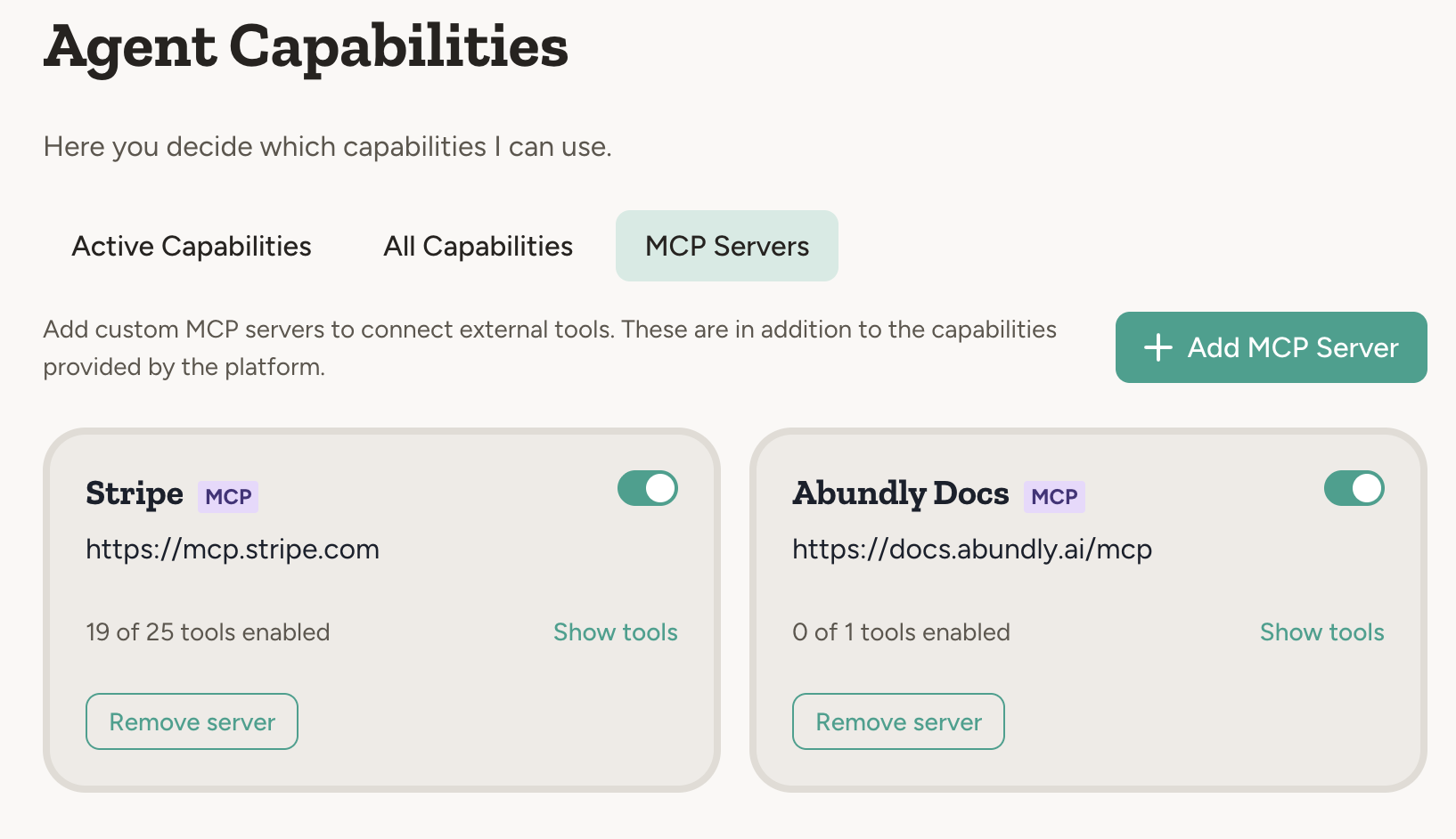
MCP (Model Context Protocol) is an open protocol that standardizes how AI applications connect to external tools. You can give your agent access to an MCP server by simply pasting the server URL into the MCP Servers tab.
Benefits:
* **Extend beyond built-in integrations** — Add capabilities that aren't provided by Abundly yet
* **Use community servers** — Tap into the growing ecosystem of MCP servers
* **Connect internal systems** — Build an MCP server for your in-house systems (CRM, inventory, custom database, etc.) and make them available to your agents
* **No waiting** — Add new integrations yourself, without waiting for platform updates
Learn more about the Model Context Protocol (MCP) in the official MCP documentation.
 ## How to add an MCP server
You can add an MCP server from the built-in library or by entering a URL manually.
### From the library
Go to the **MCP Servers** tab in your agent's capabilities. The "Add a server" section shows popular MCP servers you can add with one click — Atlassian, Stripe, Sentry, Linear, and more. Click any of them to add it to your agent, then authenticate if needed.
### By URL
Get the URL of an MCP server — from the community, a vendor, or one you've built yourself.
Click **Connect by URL** in the MCP Servers tab and paste the server URL.
The platform automatically detects if authentication is required. Choose OAuth (recommended) or API token.
If the server requires non-standard OAuth settings, expand the **Advanced** section in the connection dialog. There you can set a **custom token endpoint URL** (for servers like NetSuite where the token endpoint lives on a different host), specify an explicit **scope string**, and enter your own **Client ID and Client Secret**.
Once connected, the platform discovers available tools. Toggle individual tools on or off.
Your MCP server will now be listed among your agent's capabilities, and the tools it exposes will be available to your agent. Try it in the chat!
## Security
**Be careful with third-party MCP servers.** Only add servers from sources you trust. An MCP server has access to perform actions on your behalf, so verify the source before connecting — especially for servers that aren't from official vendors or well-known open source projects.
### Workspace control
Workspace admins can allow or disallow MCP servers for the whole workspace — or per team — using the **Allow MCP Servers** setting under capability settings. When disallowed, users can't add MCP servers, and servers already added to agents are disabled: their tools become unavailable to the agent until MCP servers are allowed again.
MCP credentials are encrypted using hybrid AES+RSA encryption. OAuth tokens are never exposed to the AI model directly — the platform handles authentication.
## Exposing your agent as an MCP server
You can also go the other way — expose your Abundly agent as an MCP server so external AI apps (Claude Desktop, Cursor, n8n, etc.) can call it as a tool. See [API access](/features/agent-api-endpoint) for details.
## How to add an MCP server
You can add an MCP server from the built-in library or by entering a URL manually.
### From the library
Go to the **MCP Servers** tab in your agent's capabilities. The "Add a server" section shows popular MCP servers you can add with one click — Atlassian, Stripe, Sentry, Linear, and more. Click any of them to add it to your agent, then authenticate if needed.
### By URL
Get the URL of an MCP server — from the community, a vendor, or one you've built yourself.
Click **Connect by URL** in the MCP Servers tab and paste the server URL.
The platform automatically detects if authentication is required. Choose OAuth (recommended) or API token.
If the server requires non-standard OAuth settings, expand the **Advanced** section in the connection dialog. There you can set a **custom token endpoint URL** (for servers like NetSuite where the token endpoint lives on a different host), specify an explicit **scope string**, and enter your own **Client ID and Client Secret**.
Once connected, the platform discovers available tools. Toggle individual tools on or off.
Your MCP server will now be listed among your agent's capabilities, and the tools it exposes will be available to your agent. Try it in the chat!
## Security
**Be careful with third-party MCP servers.** Only add servers from sources you trust. An MCP server has access to perform actions on your behalf, so verify the source before connecting — especially for servers that aren't from official vendors or well-known open source projects.
### Workspace control
Workspace admins can allow or disallow MCP servers for the whole workspace — or per team — using the **Allow MCP Servers** setting under capability settings. When disallowed, users can't add MCP servers, and servers already added to agents are disabled: their tools become unavailable to the agent until MCP servers are allowed again.
MCP credentials are encrypted using hybrid AES+RSA encryption. OAuth tokens are never exposed to the AI model directly — the platform handles authentication.
## Exposing your agent as an MCP server
You can also go the other way — expose your Abundly agent as an MCP server so external AI apps (Claude Desktop, Cursor, n8n, etc.) can call it as a tool. See [API access](/features/agent-api-endpoint) for details.