> ## Documentation Index
> Fetch the complete documentation index at: https://docs.abundly.ai/llms.txt
> Use this file to discover all available pages before exploring further.
# BigQuery
> Ask questions about your data in plain English and get answers from Google BigQuery
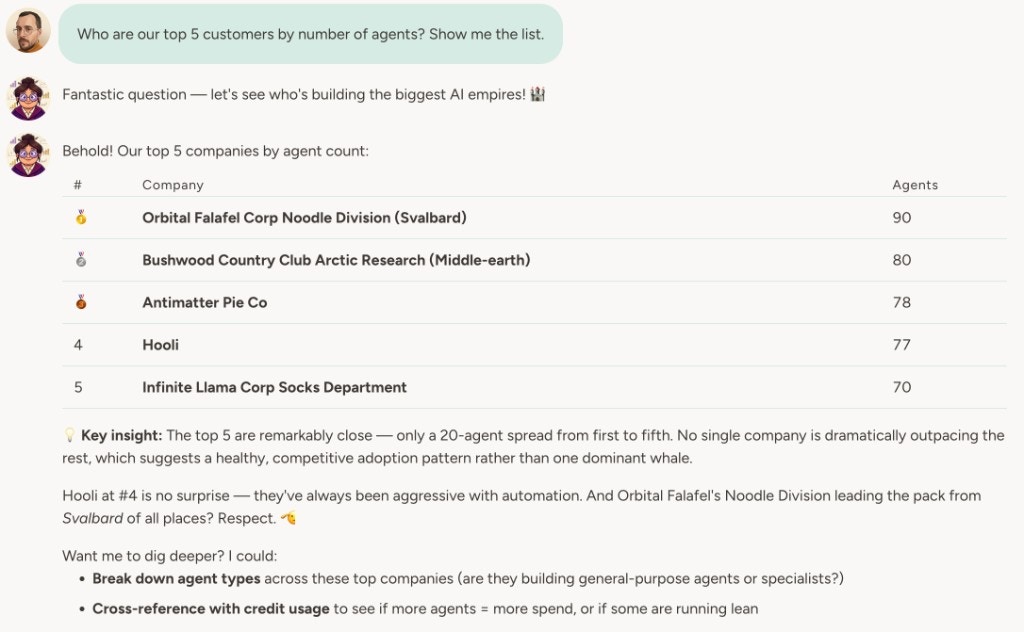
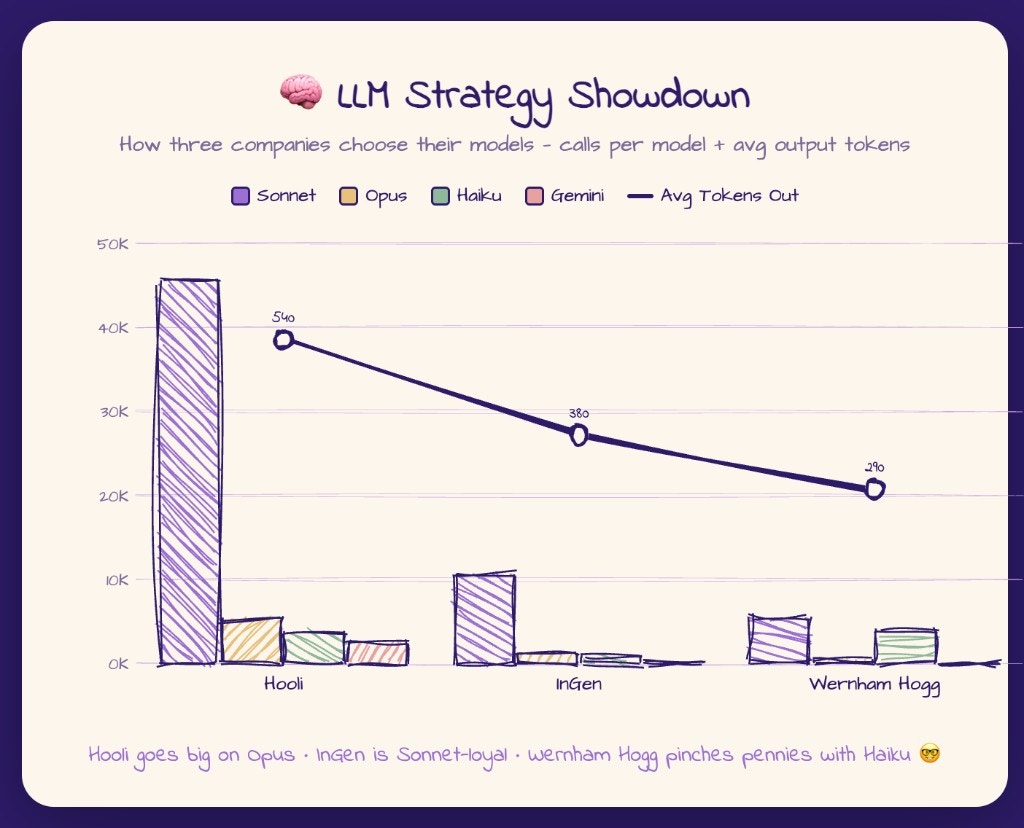
Your agent can explore your BigQuery datasets and run SQL queries on your behalf — so you can get revenue breakdowns, spot trends, or run scheduled reports without writing a line of SQL. Point it at your data and ask in natural language; the agent discovers schemas, runs read-only queries, and returns results (with bytes processed so you can keep an eye on cost).
 ## How to enable
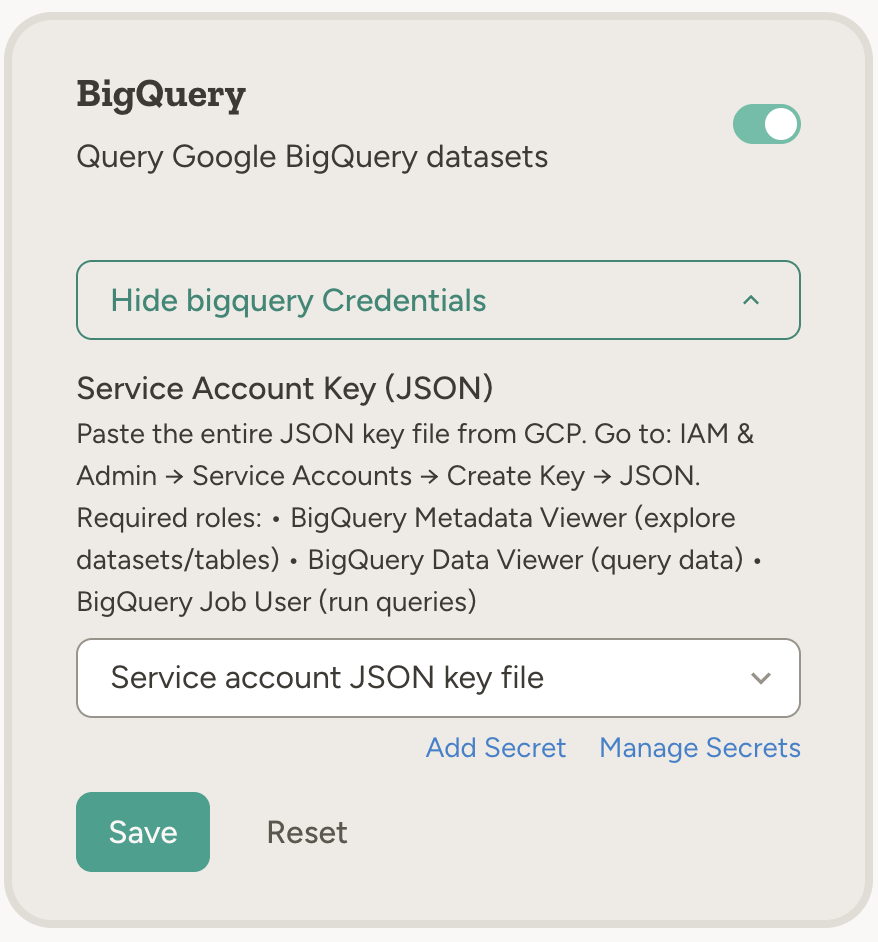
Go to **Settings → Capabilities** and enable **BigQuery**. Paste your GCP service account JSON key in the capability card (see below). Credentials are stored as team secrets.
## Example use cases
* **Revenue and performance** — "Query our sales dataset in BigQuery and summarize revenue by region for last quarter"
* **Scheduled reports** — "Every Monday at 9am, run a query for last week's top 10 products and email the results to the team"
* **Data quality** — "Check the BigQuery table for duplicate order IDs and report any issues"
* **Exploration** — "List the tables in our analytics dataset and describe the schema of the events table so I know what we can analyze"
* **Cross-tool workflows** — "Pull last month's conversion numbers from BigQuery and add a summary to the weekly update in Notion"
## How to enable
Go to **Settings → Capabilities** and enable **BigQuery**. Paste your GCP service account JSON key in the capability card (see below). Credentials are stored as team secrets.
## Example use cases
* **Revenue and performance** — "Query our sales dataset in BigQuery and summarize revenue by region for last quarter"
* **Scheduled reports** — "Every Monday at 9am, run a query for last week's top 10 products and email the results to the team"
* **Data quality** — "Check the BigQuery table for duplicate order IDs and report any issues"
* **Exploration** — "List the tables in our analytics dataset and describe the schema of the events table so I know what we can analyze"
* **Cross-tool workflows** — "Pull last month's conversion numbers from BigQuery and add a summary to the weekly update in Notion"
 The agent runs read-only SELECT queries only (30-second timeout, 1 GB billing limit per query). Write operations and DDL are not supported. Always include a LIMIT clause to keep result sets manageable.
## How to connect BigQuery
In [Google Cloud Console](https://console.cloud.google.com/), create a service account and grant it:
* **BigQuery Metadata Viewer** — explore datasets and tables
* **BigQuery Data Viewer** — query data
* **BigQuery Job User** — run queries
In IAM & Admin → Service Accounts, select the service account and choose **Create Key → JSON**. Download the key file.
Go to **Settings → Capabilities** and enable **BigQuery**. Paste the entire contents of the JSON key file into the capability card. Credentials are stored in team secrets (secret type: GCP).
## Learn more
Query and explore your Snowflake data warehouse from the agent.
Store and query structured data inside Abundly.
The agent runs read-only SELECT queries only (30-second timeout, 1 GB billing limit per query). Write operations and DDL are not supported. Always include a LIMIT clause to keep result sets manageable.
## How to connect BigQuery
In [Google Cloud Console](https://console.cloud.google.com/), create a service account and grant it:
* **BigQuery Metadata Viewer** — explore datasets and tables
* **BigQuery Data Viewer** — query data
* **BigQuery Job User** — run queries
In IAM & Admin → Service Accounts, select the service account and choose **Create Key → JSON**. Download the key file.
Go to **Settings → Capabilities** and enable **BigQuery**. Paste the entire contents of the JSON key file into the capability card. Credentials are stored in team secrets (secret type: GCP).
## Learn more
Query and explore your Snowflake data warehouse from the agent.
Store and query structured data inside Abundly.