> ## Documentation Index
> Fetch the complete documentation index at: https://docs.abundly.ai/llms.txt
> Use this file to discover all available pages before exploring further.
# Value tracking
> Say what each agent is worth to you, rate how critical it is, and count the outcomes it produces — all next to its usage and cost
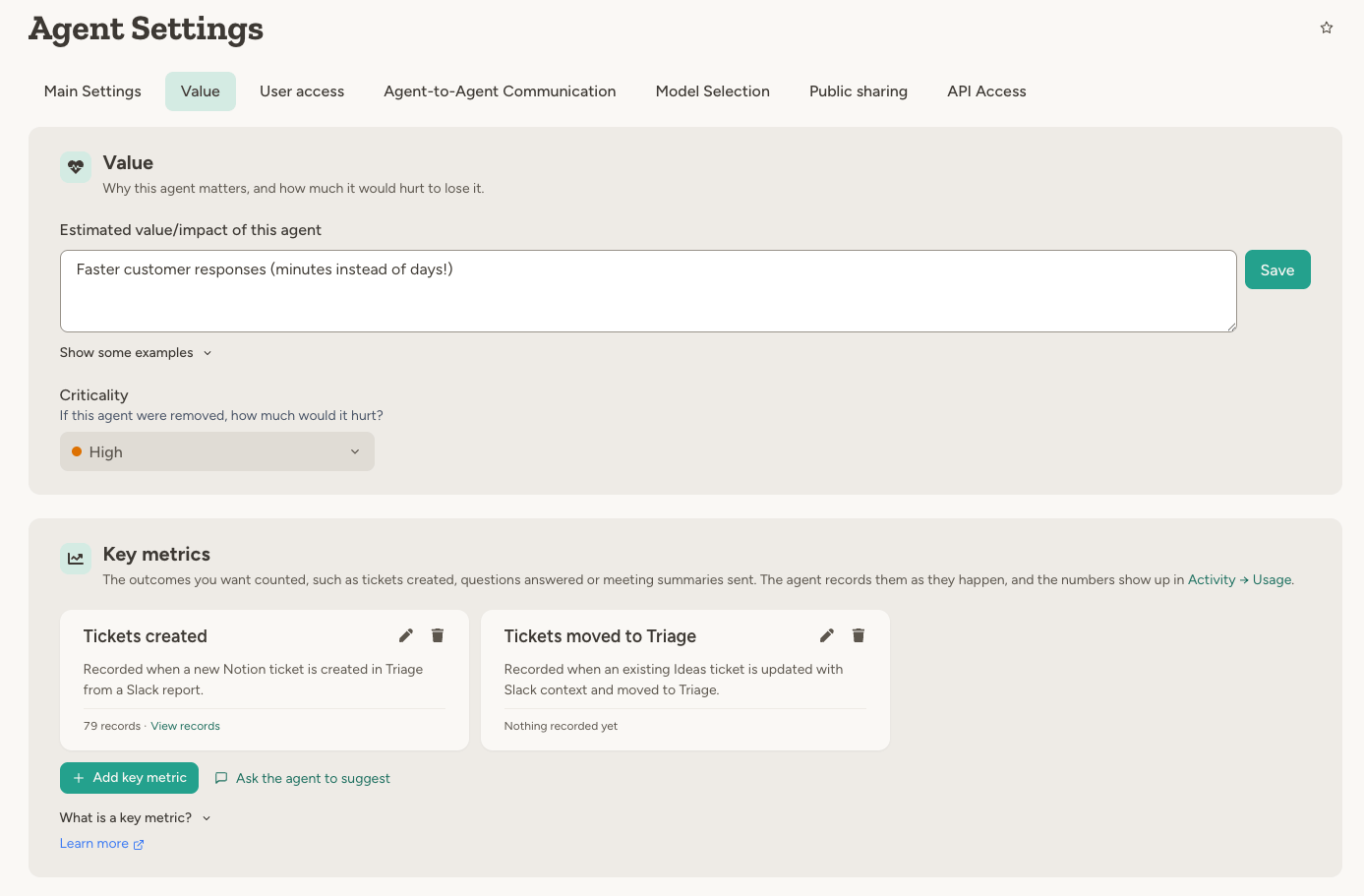
Usage tells you how often an agent ran and what it cost. Value tracking answers the other half: is the agent worth it? Every agent has a **Settings → Value** tab with three things its owner fills in:
* A **value statement**: what the agent does for you, in your own words.
* A **criticality** rating: how critical the agent is to your operations.
* **Key metrics**: the outcomes worth counting, which the agent records as they happen.
The first two are the owner's judgement. Key metrics are numbers the agent produces itself. Together they let anyone reviewing the agent, from its owner to a workspace admin looking at the whole fleet, see what it delivers next to what it costs.
 ## Value statement
One or two sentences answering "what is the point of this agent" or "why is this worth paying for". This is your assessment, so anything you would say to a colleague belongs here: the problem it removes, the time or money it saves, the risk it catches, or what you hope it will do once it has proved itself. Estimates are fine here; they are yours, not the agent's.
Some examples:
* Saves about 10 hours of tedious work per week for engineers
* Ideas and bug reports in Slack no longer get lost or duplicated
* Catches vendor maintenance windows before they show up as unexplained outages
* If this works, on-call engineers stop being paged for false alarms
The agent sees its value statement and its key metrics in its system prompt, so it knows what it is for and what to count. Criticality is for you and the admins; the agent does not see it.
## Criticality
How critical is this agent to your operations? Pick **Critical**, **High**, **Medium** or **Low**. An agent without a rating shows as **Not rated**. Criticality is the quickest way to sort a large fleet: the Agent usage table and Agent management both filter and sort by it.
## Key metrics
A key metric is a simple way to track and visualise the value an agent creates. You define the outcomes worth counting, and the agent records them with a built-in tool as they happen. No extra setup is needed. Sample metrics: **Tickets created**, **Meeting summaries sent**, **PRs merged**, **Questions answered**, **Alerts handled**.
For example, each time it has created a ticket, the agent calls:
```
record_key_metrics(name: "Tickets created", ref: "PROJ-142")
```
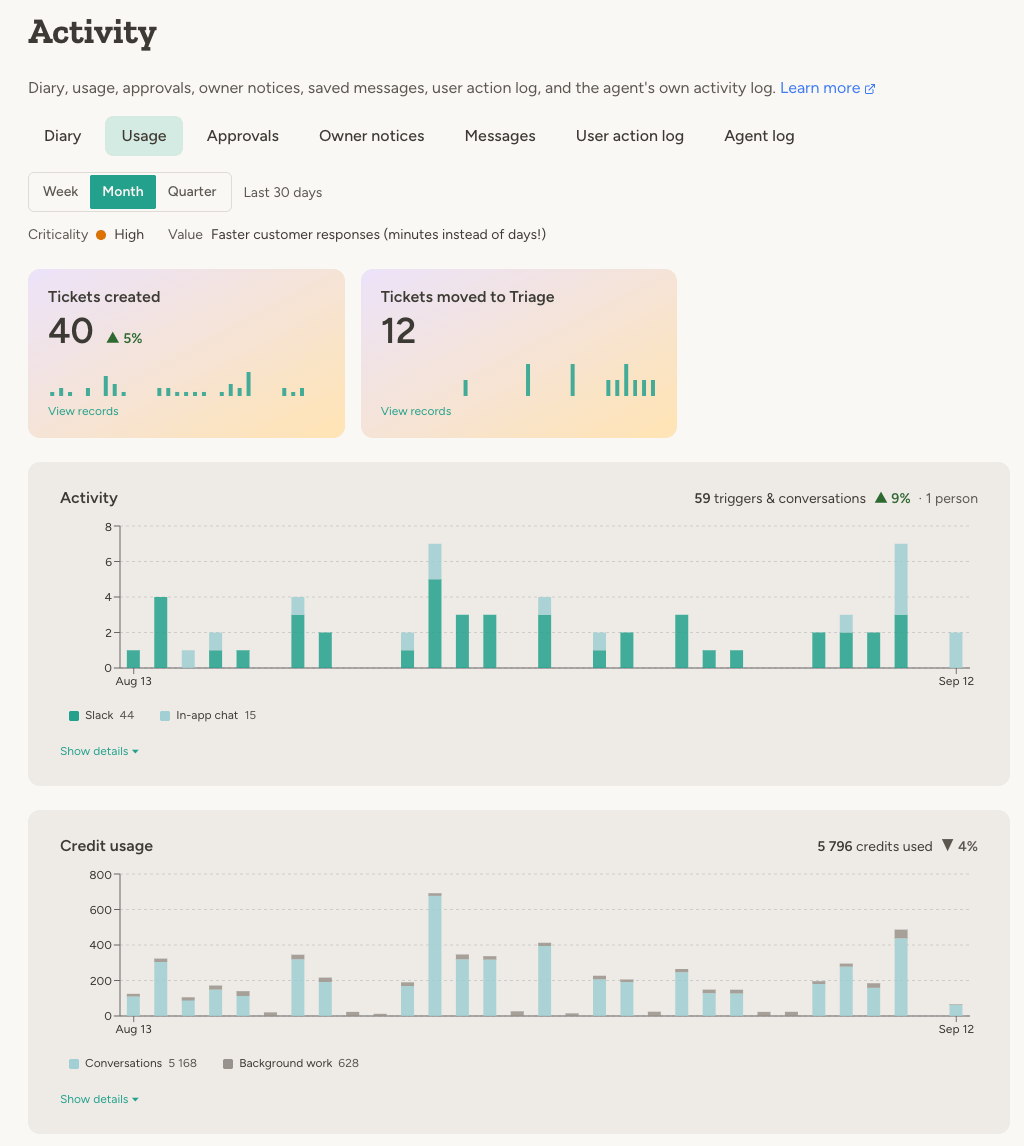
The counts show up on the agent's **Activity → Usage** tab and in the workspace **Agent usage** table, with trends and the individual records.
## Value statement
One or two sentences answering "what is the point of this agent" or "why is this worth paying for". This is your assessment, so anything you would say to a colleague belongs here: the problem it removes, the time or money it saves, the risk it catches, or what you hope it will do once it has proved itself. Estimates are fine here; they are yours, not the agent's.
Some examples:
* Saves about 10 hours of tedious work per week for engineers
* Ideas and bug reports in Slack no longer get lost or duplicated
* Catches vendor maintenance windows before they show up as unexplained outages
* If this works, on-call engineers stop being paged for false alarms
The agent sees its value statement and its key metrics in its system prompt, so it knows what it is for and what to count. Criticality is for you and the admins; the agent does not see it.
## Criticality
How critical is this agent to your operations? Pick **Critical**, **High**, **Medium** or **Low**. An agent without a rating shows as **Not rated**. Criticality is the quickest way to sort a large fleet: the Agent usage table and Agent management both filter and sort by it.
## Key metrics
A key metric is a simple way to track and visualise the value an agent creates. You define the outcomes worth counting, and the agent records them with a built-in tool as they happen. No extra setup is needed. Sample metrics: **Tickets created**, **Meeting summaries sent**, **PRs merged**, **Questions answered**, **Alerts handled**.
For example, each time it has created a ticket, the agent calls:
```
record_key_metrics(name: "Tickets created", ref: "PROJ-142")
```
The counts show up on the agent's **Activity → Usage** tab and in the workspace **Agent usage** table, with trends and the individual records.
 ### Choosing key metrics
* Pick concrete outcomes the agent can see and count for itself: a ticket it created, a question it answered, a summary it sent. Avoid subjective estimates such as time saved; those belong in the value statement.
* One or two metrics is usually enough. Pick what you would put in a status report.
* Prefer the end result over the intermediate step when the agent can observe it: PRs merged rather than PRs opened.
| Agent | Key metrics |
| --------------------------------------------------------- | ------------------------------------------------------------------------ |
| Turns meeting recordings into summaries for the attendees | **Meeting summaries sent** |
| Generates branded images from sketches and slides | **Images generated** (revisions of one image count once) |
| Explains monthly revenue deviations for the finance team | **Deviations explained automatically**, **Deviations routed to billing** |
| First-line support in Slack | **Questions answered**, **Tickets diagnosed** |
| Watches platform alerts and vendor notices overnight | **Alerts handled**, **Runs outside working hours** |
| Turns Slack threads into backlog tickets | **Tickets created** |
| Writes code changes for the engineering team | **PRs merged** |
### Defining a key metric
A key metric has:
* **Name** — for example "Meeting summaries sent". This is both what people see and what the agent uses when recording, so you can refer to it by name in the agent's instructions. Renaming a metric keeps its history.
* **Description** — the agent sees this. Say when it should record the metric, unless the name makes that obvious: *Record when you have sent a reply to a support ticket.* or *Record once per image, not once per revision.* Anything longer belongs in the agent's instructions.
* **Measurement**, optionally — when the amount matters and not just the count: minutes of audio transcribed, or cycle time of merged PRs. Give it a unit and say whether to show the total or the average.
### How recording works
The agent's system prompt lists its key metrics. When one of those outcomes has actually happened, the agent calls `record_key_metrics` with the metric's name, a value for measured metrics, and, when the outcome has one, a **ref** such as a ticket number, a meeting date or a link. Recording the same ref again updates the earlier record instead of duplicating it, so retries and repeats are safe. The agent can also pass an earlier timestamp to backfill history, for example tickets it created last month, and read its own records with `get_key_metric_records` when you ask it how it is doing.
If the agent records a name that is not defined, the tool tells it which names exist and how to get a new one added.
Removing a key metric hides its records but does not delete them; adding a metric with the same name again brings them back.
## Letting the agent help
You can fill in the Value tab yourself, or ask the agent in chat:
* **Key metrics** — **Ask the agent to suggest** on the Value tab opens a chat where the agent reads its own instructions, proposes outcomes it can actually observe, and adds them after you confirm. It can also edit or remove definitions when you ask.
* **Value statement** — ask the agent to write or update it, for example after telling it what the agent has achieved. The agent only changes it when you ask.
Both go through the **Update Agent Settings** capability, which is on by default (see [Self-modification](/features/personalization#self-modification)).
Recording never needs the capability. Every agent with at least one key metric can record and read its records.
## Where value tracking shows up
* **The agent's Activity → Usage tab** — its value statement and criticality, and a card per key metric with the count, trend and daily records for the period.
* **The workspace Usage → Agent usage table** — one row per agent with criticality, key metrics, triggers & chats and credits side by side, so you can compare what agents deliver with what they cost. See [Usage & limits](/features/usage#agent-usage).
* **Agent management** — filter agents by criticality, and by whether they have a value statement or key metrics.
* **Workspace Explorer and Team Explorer agents** — can read all three, and summarise key metrics across the workspace or a team.
* **Workspace API** — the agent object carries the value statement, criticality and key metric definitions, and the agent usage and key metrics endpoints return the figures. See [Workspace API](/features/workspace-api#agent-usage).
Key metrics are defined per agent, so compare an agent with itself over time rather than ranking agents against each other.
## FAQ
Yes. The value statement is your assessment, so an estimate or an observed saving is exactly what belongs there.
Keep such estimates out of key metrics, which should only count outcomes the agent can observe itself.
Anyone with Edit access to the agent, plus workspace admins and team admins of the agent's team. With the Update
Agent Settings capability, the agent can too, when you ask it.
No. Recording is on as soon as the agent has a key metric; the capability only lets the agent change its own
settings, including the key metric definitions.
Removing a key metric hides its records but keeps them; adding a metric with the same name brings them back.
Renaming moves the history to the new name.
## Learn more
Triggers, chats, channels and credits per agent
The admin view of every agent, with criticality filters
### Choosing key metrics
* Pick concrete outcomes the agent can see and count for itself: a ticket it created, a question it answered, a summary it sent. Avoid subjective estimates such as time saved; those belong in the value statement.
* One or two metrics is usually enough. Pick what you would put in a status report.
* Prefer the end result over the intermediate step when the agent can observe it: PRs merged rather than PRs opened.
| Agent | Key metrics |
| --------------------------------------------------------- | ------------------------------------------------------------------------ |
| Turns meeting recordings into summaries for the attendees | **Meeting summaries sent** |
| Generates branded images from sketches and slides | **Images generated** (revisions of one image count once) |
| Explains monthly revenue deviations for the finance team | **Deviations explained automatically**, **Deviations routed to billing** |
| First-line support in Slack | **Questions answered**, **Tickets diagnosed** |
| Watches platform alerts and vendor notices overnight | **Alerts handled**, **Runs outside working hours** |
| Turns Slack threads into backlog tickets | **Tickets created** |
| Writes code changes for the engineering team | **PRs merged** |
### Defining a key metric
A key metric has:
* **Name** — for example "Meeting summaries sent". This is both what people see and what the agent uses when recording, so you can refer to it by name in the agent's instructions. Renaming a metric keeps its history.
* **Description** — the agent sees this. Say when it should record the metric, unless the name makes that obvious: *Record when you have sent a reply to a support ticket.* or *Record once per image, not once per revision.* Anything longer belongs in the agent's instructions.
* **Measurement**, optionally — when the amount matters and not just the count: minutes of audio transcribed, or cycle time of merged PRs. Give it a unit and say whether to show the total or the average.
### How recording works
The agent's system prompt lists its key metrics. When one of those outcomes has actually happened, the agent calls `record_key_metrics` with the metric's name, a value for measured metrics, and, when the outcome has one, a **ref** such as a ticket number, a meeting date or a link. Recording the same ref again updates the earlier record instead of duplicating it, so retries and repeats are safe. The agent can also pass an earlier timestamp to backfill history, for example tickets it created last month, and read its own records with `get_key_metric_records` when you ask it how it is doing.
If the agent records a name that is not defined, the tool tells it which names exist and how to get a new one added.
Removing a key metric hides its records but does not delete them; adding a metric with the same name again brings them back.
## Letting the agent help
You can fill in the Value tab yourself, or ask the agent in chat:
* **Key metrics** — **Ask the agent to suggest** on the Value tab opens a chat where the agent reads its own instructions, proposes outcomes it can actually observe, and adds them after you confirm. It can also edit or remove definitions when you ask.
* **Value statement** — ask the agent to write or update it, for example after telling it what the agent has achieved. The agent only changes it when you ask.
Both go through the **Update Agent Settings** capability, which is on by default (see [Self-modification](/features/personalization#self-modification)).
Recording never needs the capability. Every agent with at least one key metric can record and read its records.
## Where value tracking shows up
* **The agent's Activity → Usage tab** — its value statement and criticality, and a card per key metric with the count, trend and daily records for the period.
* **The workspace Usage → Agent usage table** — one row per agent with criticality, key metrics, triggers & chats and credits side by side, so you can compare what agents deliver with what they cost. See [Usage & limits](/features/usage#agent-usage).
* **Agent management** — filter agents by criticality, and by whether they have a value statement or key metrics.
* **Workspace Explorer and Team Explorer agents** — can read all three, and summarise key metrics across the workspace or a team.
* **Workspace API** — the agent object carries the value statement, criticality and key metric definitions, and the agent usage and key metrics endpoints return the figures. See [Workspace API](/features/workspace-api#agent-usage).
Key metrics are defined per agent, so compare an agent with itself over time rather than ranking agents against each other.
## FAQ
Yes. The value statement is your assessment, so an estimate or an observed saving is exactly what belongs there.
Keep such estimates out of key metrics, which should only count outcomes the agent can observe itself.
Anyone with Edit access to the agent, plus workspace admins and team admins of the agent's team. With the Update
Agent Settings capability, the agent can too, when you ask it.
No. Recording is on as soon as the agent has a key metric; the capability only lets the agent change its own
settings, including the key metric definitions.
Removing a key metric hides its records but keeps them; adding a metric with the same name brings them back.
Renaming moves the history to the new name.
## Learn more
Triggers, chats, channels and credits per agent
The admin view of every agent, with criticality filters