> ## Documentation Index
> Fetch the complete documentation index at: https://docs.abundly.ai/llms.txt
> Use this file to discover all available pages before exploring further.
# Usage & Limits
> Track credit consumption, agent activity, and set daily limits for your agents
Monitor your workspace from the **Usage** page in the left navigation. Three tabs give you different views:
* **Credit usage** — How credits are being consumed (billing and cost control)
* **Agent usage** — How agents are being used across channels and people (demand and reach)
* **Member adoption** — How actively your workspace members are using Abundly
* **Action history** — Append-only log of workspace configuration changes (audit trail)
Workspace admins can view workspace-wide data and manage all limits. Team admins see data scoped to teams they administer and can manage limits for those teams' agents.
## Agent usage
The **Agent usage** tab on the workspace **Usage** page shows how your agents are being used across the workspace — which channels they're active on, how many people they're reaching, and how triggers & messages volume is trending. Agents with default access set to **Nothing** (fully private) are excluded from this workspace-wide view so usage analytics stay aligned with who can actually use those agents.
To see usage for a single agent you can access, open that agent's **Activity** page and use the **Usage** tab there.
* **Total triggers & messages** — trigger runs plus inbound user messages across all agents (agent replies are not counted)
* **Active agents** — how many agents had at least one trigger or message in the selected period
* **Active channels** — how many distinct communication channels (Slack, email, in-app chat, etc.) saw activity
* **Users** — how many workspace members sent messages or triggered agents through the portal
Each metric includes a trend comparison against the prior period of equal length. Hover the **Total triggers & messages** label for a full definition of what is counted.
### Filtering
Use the scope panel to narrow results by specific agents or channels, and choose a time range (day, week, or month). When you filter by channel, only triggers and messages from those channels are included in the counts and chart.
### Top agents and channels
Ranked lists show which agents are handling the most triggers & messages and which channels are seeing the most activity. If your workspace uses Slack, a separate Slack channel breakdown shows per-channel volumes.
### Triggers & messages per member
A table at the bottom lists workspace members and named Slack or Teams participants, with how many triggers & messages each had in the selected period. The **Users** KPI counts only workspace members who interacted through the portal; external contacts (email senders, phone callers, Slack-only names) are not included in that count.
Team administrators see agent usage scoped to agents on teams they administer. Workspace administrators see all agents.
## Member adoption
The **Member adoption** tab shows how actively people in your workspace are using Abundly — useful for tracking rollout, identifying inactive seats, and spotting which teams have taken to the platform.
* **Active members** — How many workspace members were active (logged in or interacted with an agent) in the selected period
* **Adoption rate** — Active members as a share of total members
* **Average sessions per member** — Mean session count across active members
* **New members** — How many members joined the workspace in the period
A daily trend chart shows active members over time. A team filter and a paginated member table let you drill into individual people, with each row showing their last login and last activity.
Team administrators see member adoption scoped to teams they administer. Workspace administrators see all members.
## Credit usage
The **Credit usage** tab gives you full visibility into how credits are being consumed across your workspace:
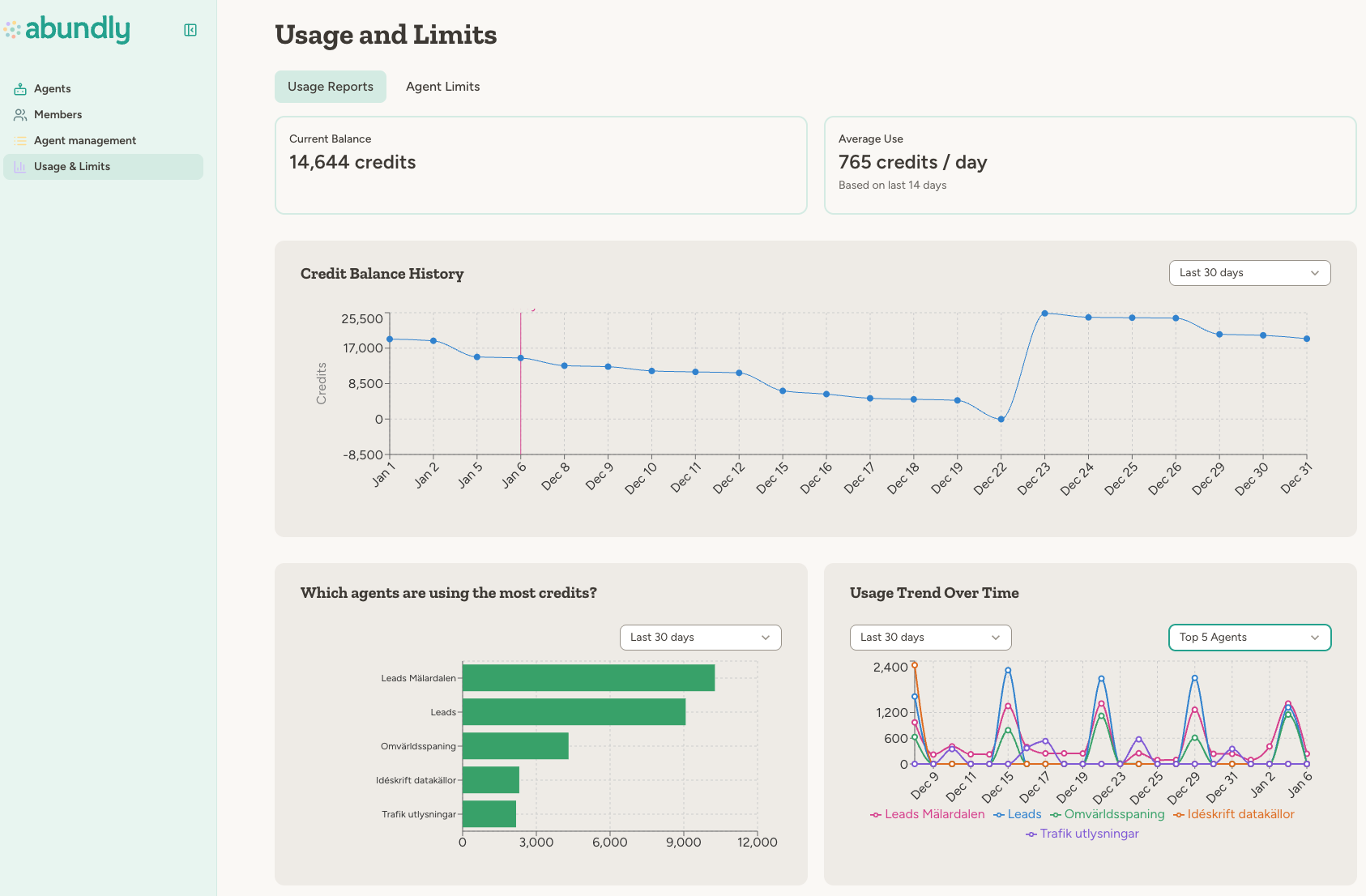 * **Current balance** — Your remaining credits at a glance
* **Average use per day** — Based on your recent usage history
* **Members** — Total members and how many were active in the last 14 days (login or in-app activity)
* **Agents** — Total agents and how many consumed credits in the last 14 days
* **Credit balance history** — A graph showing how your balance has changed over time
* **Top consumers** — See which agents are using the most credits
Team administrators see the member and agent counts scoped to teams they administer. Workspace administrators see workspace-wide totals.
You can also export usage data as a CSV file if you want to analyze spending in a spreadsheet or import it into other tools.
The export flow lets you:
* Pick a date range and reporting interval (daily, weekly, or monthly)
* Filter by agent, or by team when teams are enabled in your workspace
* Choose aggregation mode (per time period + agent, by agent total, by team + period, or by time period total)
* Optionally include extra agent details (team, admin emails, enabled, value / impact, description, capabilities, tags, last activity, last updated) for per-agent aggregations
Review your usage regularly to identify agents that may need optimization. High credit usage often indicates opportunities to simplify instructions or reduce context size.
## Agent limits
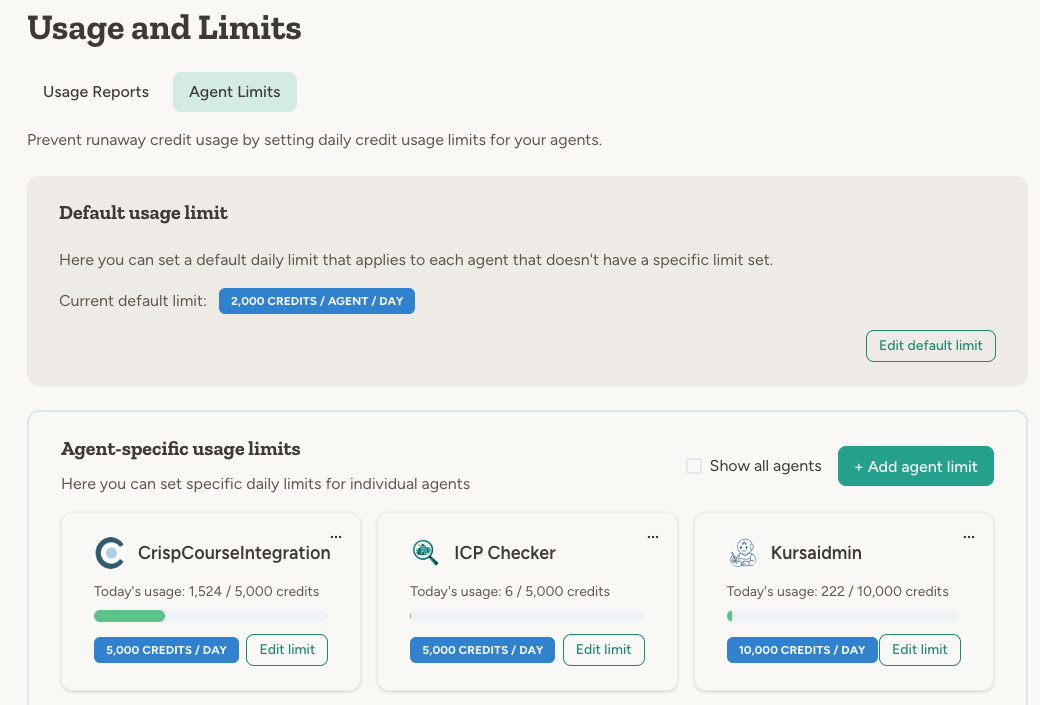
The **Agent limits** tab on the [Agent management page](/features/agent-management) lets you set daily limits for your agents to prevent runaway credit usage. When an agent reaches its limit, it pauses automatically until the next day (UTC midnight).
* **Current balance** — Your remaining credits at a glance
* **Average use per day** — Based on your recent usage history
* **Members** — Total members and how many were active in the last 14 days (login or in-app activity)
* **Agents** — Total agents and how many consumed credits in the last 14 days
* **Credit balance history** — A graph showing how your balance has changed over time
* **Top consumers** — See which agents are using the most credits
Team administrators see the member and agent counts scoped to teams they administer. Workspace administrators see workspace-wide totals.
You can also export usage data as a CSV file if you want to analyze spending in a spreadsheet or import it into other tools.
The export flow lets you:
* Pick a date range and reporting interval (daily, weekly, or monthly)
* Filter by agent, or by team when teams are enabled in your workspace
* Choose aggregation mode (per time period + agent, by agent total, by team + period, or by time period total)
* Optionally include extra agent details (team, admin emails, enabled, value / impact, description, capabilities, tags, last activity, last updated) for per-agent aggregations
Review your usage regularly to identify agents that may need optimization. High credit usage often indicates opportunities to simplify instructions or reduce context size.
## Agent limits
The **Agent limits** tab on the [Agent management page](/features/agent-management) lets you set daily limits for your agents to prevent runaway credit usage. When an agent reaches its limit, it pauses automatically until the next day (UTC midnight).
 ### Default limit
Set a default daily limit that applies to all agents without a specific limit. This acts as a safety net across your workspace.
Only workspace administrators can set or change the workspace default.
### Agent-specific limits
You can override the default limit for individual agents, for example to set a higher or lower limit. Setting the limit to 0 will effectively pause the agent.
Workspace administrators can set limits for all agents. Team administrators can set limits for agents in their teams.
### When limits are reached
When an agent hits its daily limit:
* The agent stops immediately and shows an error message
* No additional credits are consumed
* All data and configurations remain intact
* The limit resets automatically at UTC midnight
You'll see visual indicators in the UI:
* **Yellow badge** when an agent approaches its limit (80%+)
* **Red badge** when the limit is exceeded
Workspace administrators can set the workspace default daily limit, set team monthly limits, and edit limits for any agent. Team administrators can edit daily limits for agents in teams they administer.
## Team monthly limits
If your workspace uses [teams](/features/teams), workspace administrators can cap how many credits each team consumes per month. When a team reaches its monthly limit, every agent that belongs to the team pauses until the limit is raised or the calendar month rolls over.
Set monthly limits from the **Settings** tab on the Team management page. Each team card shows the current month's usage, the configured limit (if any), and a progress bar.
Team monthly limits are enforced in addition to per-agent daily limits — an agent is blocked if either its own daily limit or its team's monthly limit is exceeded.
Chat and banner messages adapt to the viewer's role:
* **Workspace admins** see a message with a link to edit the limit
* **Team admins** are told to ask a workspace admin to raise the limit
* **Members** are directed to their team administrator
## Sidebar usage widget
When you open an agent, the left sidebar can show a compact daily usage widget with:
* **Credits used today**
* **A progress bar** when the agent has a daily limit
* **A quick link** to that agent's **Settings → Usage & Limits**
This widget auto-refreshes as new usage is recorded, including after chat responses complete and when new activity log entries arrive.
To show this widget, turn on **Credit details** in the agent's **Settings → Usage & Limits** section.
## Resetting daily usage
You can manually reset an agent's daily credit counter at any time. This is useful if an agent hit its limit due to a one-time spike and you want to resume normal operation without waiting for midnight UTC.
### Default limit
Set a default daily limit that applies to all agents without a specific limit. This acts as a safety net across your workspace.
Only workspace administrators can set or change the workspace default.
### Agent-specific limits
You can override the default limit for individual agents, for example to set a higher or lower limit. Setting the limit to 0 will effectively pause the agent.
Workspace administrators can set limits for all agents. Team administrators can set limits for agents in their teams.
### When limits are reached
When an agent hits its daily limit:
* The agent stops immediately and shows an error message
* No additional credits are consumed
* All data and configurations remain intact
* The limit resets automatically at UTC midnight
You'll see visual indicators in the UI:
* **Yellow badge** when an agent approaches its limit (80%+)
* **Red badge** when the limit is exceeded
Workspace administrators can set the workspace default daily limit, set team monthly limits, and edit limits for any agent. Team administrators can edit daily limits for agents in teams they administer.
## Team monthly limits
If your workspace uses [teams](/features/teams), workspace administrators can cap how many credits each team consumes per month. When a team reaches its monthly limit, every agent that belongs to the team pauses until the limit is raised or the calendar month rolls over.
Set monthly limits from the **Settings** tab on the Team management page. Each team card shows the current month's usage, the configured limit (if any), and a progress bar.
Team monthly limits are enforced in addition to per-agent daily limits — an agent is blocked if either its own daily limit or its team's monthly limit is exceeded.
Chat and banner messages adapt to the viewer's role:
* **Workspace admins** see a message with a link to edit the limit
* **Team admins** are told to ask a workspace admin to raise the limit
* **Members** are directed to their team administrator
## Sidebar usage widget
When you open an agent, the left sidebar can show a compact daily usage widget with:
* **Credits used today**
* **A progress bar** when the agent has a daily limit
* **A quick link** to that agent's **Settings → Usage & Limits**
This widget auto-refreshes as new usage is recorded, including after chat responses complete and when new activity log entries arrive.
To show this widget, turn on **Credit details** in the agent's **Settings → Usage & Limits** section.
## Resetting daily usage
You can manually reset an agent's daily credit counter at any time. This is useful if an agent hit its limit due to a one-time spike and you want to resume normal operation without waiting for midnight UTC.
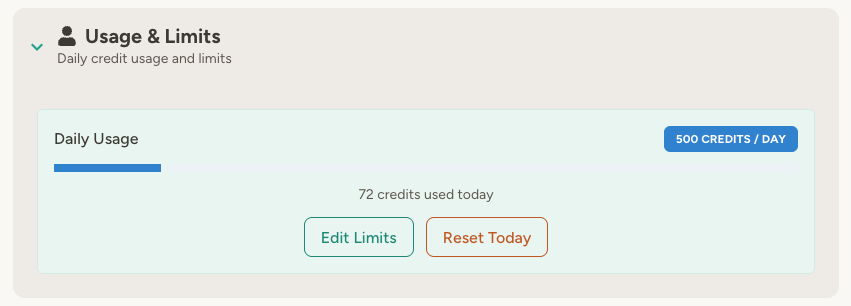 To reset an agent's usage:
1. Open the agent's settings
2. Under **Main Settings**, find **Usage & Limits**
3. Click **Reset Today**
## What counts toward credits
Both LLM usage (tokens) and tool usage count toward credits:
* **LLM tokens** — Input, output, and reasoning tokens are converted to credits based on model-specific rates
* **Tool usage** — Tools like web search, document processing, and external APIs also consume credits
All agent activity counts toward the daily limit, regardless of how it's triggered—chat conversations, scheduled jobs, webhooks, emails, or API calls.
## FAQ
UTC. The daily limit resets at midnight UTC, not your local time zone.
Not directly. If you want one agent to be unlimited while others have a default limit, set that agent's limit to a very high number (e.g., 999,999 credits/day).
## Learn more
Track agent activity, execution logs, and performance
Detailed examples of credit usage and optimization strategies
## Action history
The **Action history** tab gives workspace and team administrators an append-only audit trail of configuration changes across the workspace — useful for reviewing who changed what, spotting unexpected changes, and satisfying compliance requirements.
Tracked change types include:
* **Agents** — created, edited, enabled/disabled, deleted, ownership and team changes
* **Teams** — created, edited, membership and admin changes
* **Workspace settings** — configuration, capabilities, model selection, notification settings
* **Secrets** — created, updated, deleted
* **API capabilities** — created, updated, deleted
* **HTTP APIs and documents** — created, updated, deleted
Each row shows a timestamp, actor, resource, and a CRUD-colored badge (create / update / delete). Expand a row to see the specific fields that changed.
Sensitive text fields — such as agent instructions and prompts — are shown as short hash tokens rather than raw content. This lets admins confirm that content changed without exposing the underlying text.
Workspace administrators see the full workspace history. Team administrators see actions scoped to the agents, teams, and members they administer.
### Filtering and export
Filter by date range, actor, resource type, and action type. Export the filtered view as **CSV** or **JSONL** (up to 50,000 rows per export).
To reset an agent's usage:
1. Open the agent's settings
2. Under **Main Settings**, find **Usage & Limits**
3. Click **Reset Today**
## What counts toward credits
Both LLM usage (tokens) and tool usage count toward credits:
* **LLM tokens** — Input, output, and reasoning tokens are converted to credits based on model-specific rates
* **Tool usage** — Tools like web search, document processing, and external APIs also consume credits
All agent activity counts toward the daily limit, regardless of how it's triggered—chat conversations, scheduled jobs, webhooks, emails, or API calls.
## FAQ
UTC. The daily limit resets at midnight UTC, not your local time zone.
Not directly. If you want one agent to be unlimited while others have a default limit, set that agent's limit to a very high number (e.g., 999,999 credits/day).
## Learn more
Track agent activity, execution logs, and performance
Detailed examples of credit usage and optimization strategies
## Action history
The **Action history** tab gives workspace and team administrators an append-only audit trail of configuration changes across the workspace — useful for reviewing who changed what, spotting unexpected changes, and satisfying compliance requirements.
Tracked change types include:
* **Agents** — created, edited, enabled/disabled, deleted, ownership and team changes
* **Teams** — created, edited, membership and admin changes
* **Workspace settings** — configuration, capabilities, model selection, notification settings
* **Secrets** — created, updated, deleted
* **API capabilities** — created, updated, deleted
* **HTTP APIs and documents** — created, updated, deleted
Each row shows a timestamp, actor, resource, and a CRUD-colored badge (create / update / delete). Expand a row to see the specific fields that changed.
Sensitive text fields — such as agent instructions and prompts — are shown as short hash tokens rather than raw content. This lets admins confirm that content changed without exposing the underlying text.
Workspace administrators see the full workspace history. Team administrators see actions scoped to the agents, teams, and members they administer.
### Filtering and export
Filter by date range, actor, resource type, and action type. Export the filtered view as **CSV** or **JSONL** (up to 50,000 rows per export).