> ## Documentation Index
> Fetch the complete documentation index at: https://docs.abundly.ai/llms.txt
> Use this file to discover all available pages before exploring further.
# Agent Sharing and Cloning
> Clone agents within your workspace or share them publicly for others to use
Sometimes you want to duplicate an agent—either to create a variation for yourself, share it with another team, or let anyone on the internet use your creation. Abundly makes this easy with cloning.
 ## Internal cloning
Internal cloning lets you duplicate an agent within your own workspace or to another workspace you're a member of. This is useful when you want to:
* Create a variation of an existing agent with different instructions
* Set up a similar agent for a different team or project
* Make a "template" agent that you can clone and customize for different use cases
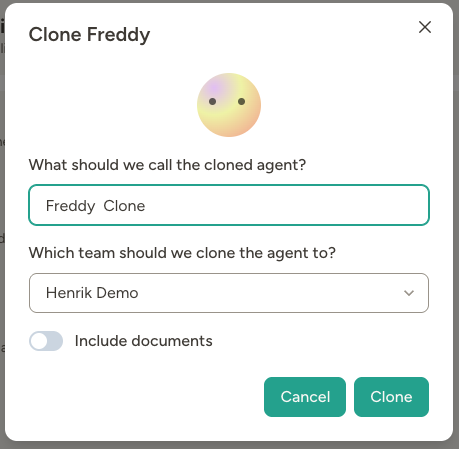
To clone an agent, open the agent's settings and click **Clone**. You'll be asked to name the new agent and choose which workspace to clone it to.
## Exporting and importing agent files
You can also move agents using JSON files. This is useful for backups, moving an agent between environments, or sharing a starting point outside direct clone flows.
### Export an agent to JSON
You can export from two places:
* **Agent settings** → **Clone / Export** → **Export Agent to File**
* The three-dot menu on any **agent card**, then **Export**
You'll be asked which optional pieces to include — documents, chats, evals (with the option to also include their historical run results), and API access settings — then the file downloads as `agent_.json`. Tool credentials, connected accounts, and other environment-specific secrets are never included.
### Import a JSON file as a new agent
1. Go to **+ New Agent** in your workspace.
2. Click **Import from file** and select the exported JSON file.
3. Review the suggested agent name and update it if needed.
4. Choose the target team (or the global space, if your permissions allow it).
5. Click **Import**.
The imported agent becomes a normal, independent agent in your workspace. Scheduled triggers start running automatically, but you'll need to reconnect any integrations that require authentication.
### What gets cloned
| Copied | NOT copied |
| -------------------------------------------- | ----------------------------------------------- |
| Name, description, tags, and profile picture | Tool credentials and connected accounts |
| Instructions | Access settings (new agent gets fresh defaults) |
| Capabilities | Instruction version history |
| LLM preferences and model | Public sharing settings |
| Scheduled triggers and jobs | Daily usage counters |
| MCP servers (without auth) | |
| Daily credit limit | |
Tool credentials are never copied — you'll need to reconnect any integrations that require authentication (email, Slack, Google Drive, etc.) after cloning or importing. MCP servers are carried over but marked as pending authentication until you re-authorize them.
### Including documents, chats, evals, and API access
The clone modal offers optional switches to include:
* **Documents** — agent documents, databases, and apps
* **Chats** — the agent's conversation history, including any files uploaded into those chats
* **Evals** — saved evaluations (shown only if the source agent has any)
* **API access settings** — webhooks, HTTP API, and MCP server exposure (shown only if the source agent exposes APIs)
API keys and webhook tokens are regenerated for the new agent. Capabilities that aren't available in the target workspace or team are removed, and you'll see a list of those before confirming.
### Access on cloned agents
The person who performs the clone automatically gets **Full Access** on the new agent. The new agent starts with default access settings for the target workspace and team, regardless of the source agent's settings — so clones don't carry over per-user permissions from the original.
## Public sharing
Public sharing lets you publish your agent so anyone with a link can clone it to their own workspace. This is perfect for sharing agent templates, showcasing your work, or letting others benefit from an agent you've built.
## Internal cloning
Internal cloning lets you duplicate an agent within your own workspace or to another workspace you're a member of. This is useful when you want to:
* Create a variation of an existing agent with different instructions
* Set up a similar agent for a different team or project
* Make a "template" agent that you can clone and customize for different use cases
To clone an agent, open the agent's settings and click **Clone**. You'll be asked to name the new agent and choose which workspace to clone it to.
## Exporting and importing agent files
You can also move agents using JSON files. This is useful for backups, moving an agent between environments, or sharing a starting point outside direct clone flows.
### Export an agent to JSON
You can export from two places:
* **Agent settings** → **Clone / Export** → **Export Agent to File**
* The three-dot menu on any **agent card**, then **Export**
You'll be asked which optional pieces to include — documents, chats, evals (with the option to also include their historical run results), and API access settings — then the file downloads as `agent_.json`. Tool credentials, connected accounts, and other environment-specific secrets are never included.
### Import a JSON file as a new agent
1. Go to **+ New Agent** in your workspace.
2. Click **Import from file** and select the exported JSON file.
3. Review the suggested agent name and update it if needed.
4. Choose the target team (or the global space, if your permissions allow it).
5. Click **Import**.
The imported agent becomes a normal, independent agent in your workspace. Scheduled triggers start running automatically, but you'll need to reconnect any integrations that require authentication.
### What gets cloned
| Copied | NOT copied |
| -------------------------------------------- | ----------------------------------------------- |
| Name, description, tags, and profile picture | Tool credentials and connected accounts |
| Instructions | Access settings (new agent gets fresh defaults) |
| Capabilities | Instruction version history |
| LLM preferences and model | Public sharing settings |
| Scheduled triggers and jobs | Daily usage counters |
| MCP servers (without auth) | |
| Daily credit limit | |
Tool credentials are never copied — you'll need to reconnect any integrations that require authentication (email, Slack, Google Drive, etc.) after cloning or importing. MCP servers are carried over but marked as pending authentication until you re-authorize them.
### Including documents, chats, evals, and API access
The clone modal offers optional switches to include:
* **Documents** — agent documents, databases, and apps
* **Chats** — the agent's conversation history, including any files uploaded into those chats
* **Evals** — saved evaluations (shown only if the source agent has any)
* **API access settings** — webhooks, HTTP API, and MCP server exposure (shown only if the source agent exposes APIs)
API keys and webhook tokens are regenerated for the new agent. Capabilities that aren't available in the target workspace or team are removed, and you'll see a list of those before confirming.
### Access on cloned agents
The person who performs the clone automatically gets **Full Access** on the new agent. The new agent starts with default access settings for the target workspace and team, regardless of the source agent's settings — so clones don't carry over per-user permissions from the original.
## Public sharing
Public sharing lets you publish your agent so anyone with a link can clone it to their own workspace. This is perfect for sharing agent templates, showcasing your work, or letting others benefit from an agent you've built.
 ### Enabling public sharing
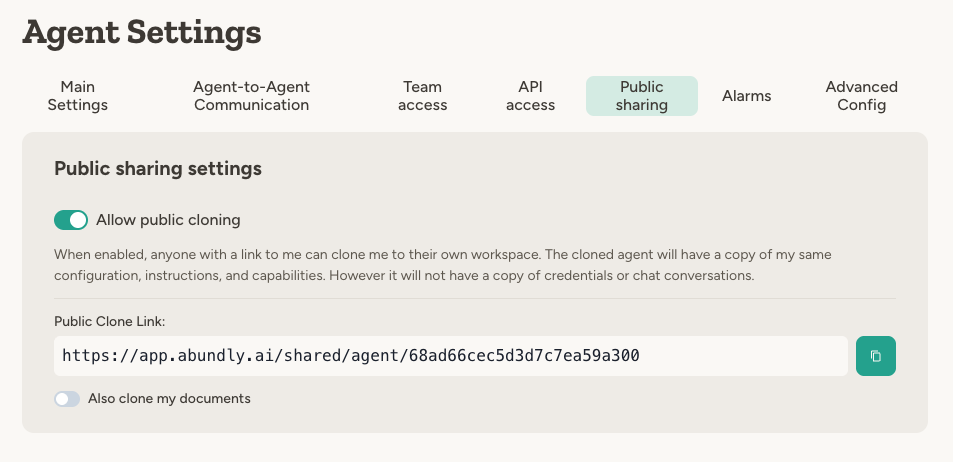
1. Go to the agent's **Settings** → **Public sharing** tab
2. Toggle **Allow public cloning** on
3. Copy the **Public Clone Link** to share with others
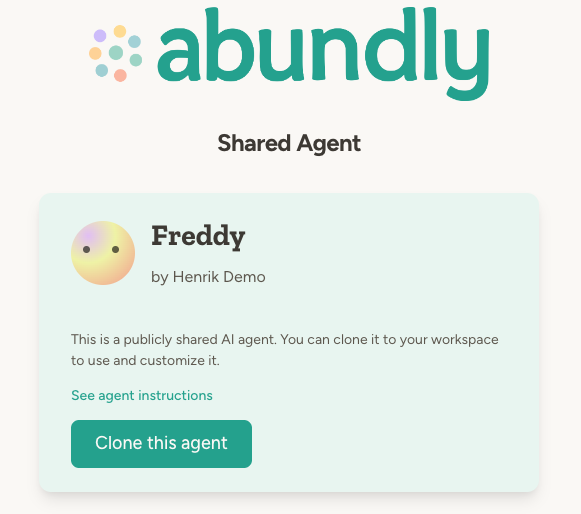
When someone clicks your link, they'll see a landing page with the agent's name, description, and a button to clone it.
### Enabling public sharing
1. Go to the agent's **Settings** → **Public sharing** tab
2. Toggle **Allow public cloning** on
3. Copy the **Public Clone Link** to share with others
When someone clicks your link, they'll see a landing page with the agent's name, description, and a button to clone it.
 ### What's publicly visible
When you enable public sharing, visitors can see:
* Agent name and description
* Your name (as the creator)
* The agent's instructions (they can click "See agent instructions" to view them)
Visitors cannot see chat conversations, credentials, or documents (unless you've enabled document cloning).
### Including documents in public shares
You can optionally allow people who clone your public agent to also receive copies of its documents. Enable **Also clone my documents** in the public sharing settings to include documents in the clone.
If your agent relies on specific reference documents to work properly, consider enabling document cloning so people get the full experience.
## Cloning someone else's public agent
When you find a public agent you want to clone:
1. Click the shared link to view the agent
2. Click **Clone this agent**
3. If you're not logged in, you'll be prompted to sign in or create an account
4. Choose a name for your clone and select which workspace to add it to
5. Click **Clone** to create your copy
The cloned agent is completely independent—changes you make won't affect the original, and updates to the original won't affect your clone.
## Example use cases
* **Template library:** Create a collection of "starter agents" that workspace members can clone and customize for their specific needs
* **Cross-team deployment:** Build an agent once, then clone it to multiple teams in your workspace
* **Community sharing:** Share useful agents with the broader Abundly community via public links
* **Backup and versioning:** Clone an agent before making major changes, keeping the original as a backup
## FAQ
Not currently. The system tracks clone relationships internally, but there's no UI to browse this data.
Cloned agents track their source internally, but they are completely independent. Changes to one don't affect the other, and if the original is deleted, the clone continues to work normally.
You need **Full Access** on the agent to change public sharing settings.
You need **Use** access on the source agent to clone it.
Yes. If your workspace uses teams, you can choose which team to place the cloned agent in. If you don't have permission to create global agents, you must select a team.
No. Clones are completely independent from the moment they're created. Updates to the original don't propagate to existing clones.
## Learn more
Organize and manage agents across your workspace
Organize agents and workspace members into teams
Configure who can access your agents
### What's publicly visible
When you enable public sharing, visitors can see:
* Agent name and description
* Your name (as the creator)
* The agent's instructions (they can click "See agent instructions" to view them)
Visitors cannot see chat conversations, credentials, or documents (unless you've enabled document cloning).
### Including documents in public shares
You can optionally allow people who clone your public agent to also receive copies of its documents. Enable **Also clone my documents** in the public sharing settings to include documents in the clone.
If your agent relies on specific reference documents to work properly, consider enabling document cloning so people get the full experience.
## Cloning someone else's public agent
When you find a public agent you want to clone:
1. Click the shared link to view the agent
2. Click **Clone this agent**
3. If you're not logged in, you'll be prompted to sign in or create an account
4. Choose a name for your clone and select which workspace to add it to
5. Click **Clone** to create your copy
The cloned agent is completely independent—changes you make won't affect the original, and updates to the original won't affect your clone.
## Example use cases
* **Template library:** Create a collection of "starter agents" that workspace members can clone and customize for their specific needs
* **Cross-team deployment:** Build an agent once, then clone it to multiple teams in your workspace
* **Community sharing:** Share useful agents with the broader Abundly community via public links
* **Backup and versioning:** Clone an agent before making major changes, keeping the original as a backup
## FAQ
Not currently. The system tracks clone relationships internally, but there's no UI to browse this data.
Cloned agents track their source internally, but they are completely independent. Changes to one don't affect the other, and if the original is deleted, the clone continues to work normally.
You need **Full Access** on the agent to change public sharing settings.
You need **Use** access on the source agent to clone it.
Yes. If your workspace uses teams, you can choose which team to place the cloned agent in. If you don't have permission to create global agents, you must select a team.
No. Clones are completely independent from the moment they're created. Updates to the original don't propagate to existing clones.
## Learn more
Organize and manage agents across your workspace
Organize agents and workspace members into teams
Configure who can access your agents