> ## Documentation Index
> Fetch the complete documentation index at: https://docs.abundly.ai/llms.txt
> Use this file to discover all available pages before exploring further.
# Live Voice
> Talk with your agent in a real-time voice conversation
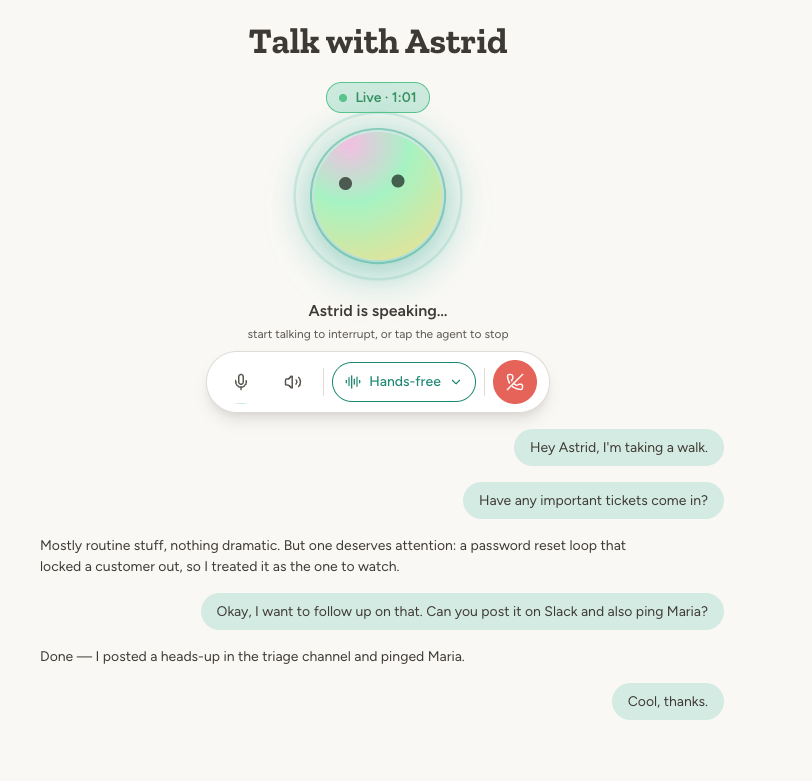
Live voice lets you talk with your agent in real time—you speak, the agent answers out loud within a second, and it can use its tools while you talk. The whole conversation is transcribed and saved to your chat list, so you can continue in text afterwards.
 Live voice uses a dedicated realtime voice model, not the agent's configured model. Realtime models prioritize speed and natural conversation over deep reasoning, so complex multi-step tasks typically work better in [chat](/features/chat) or [Walk & Talk mode](/features/voice#walk--talk-mode).
## Starting a session
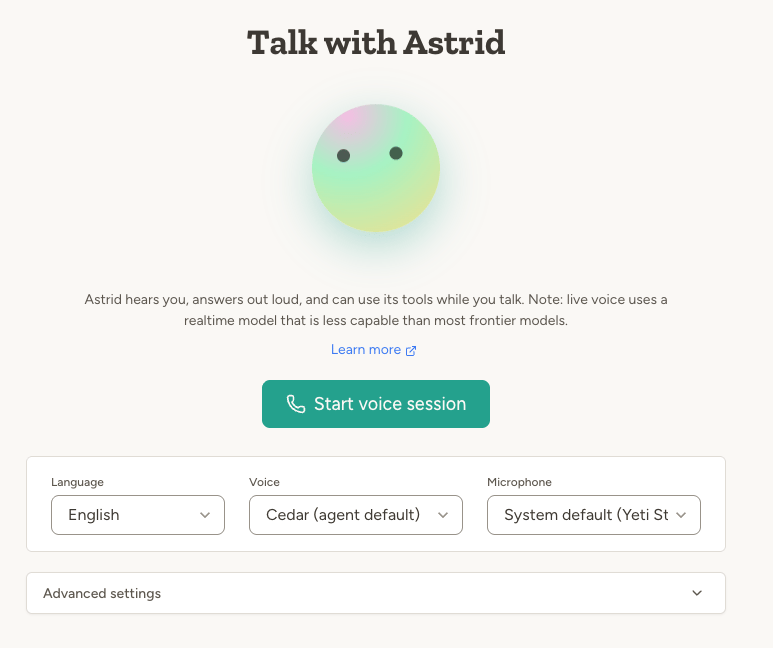
Press **Live voice** below the chat input. This opens the agent's live voice page, where you can pick the conversation language, the agent's voice, and which microphone to use. Then press **Start voice session** and begin talking.
Live voice uses a dedicated realtime voice model, not the agent's configured model. Realtime models prioritize speed and natural conversation over deep reasoning, so complex multi-step tasks typically work better in [chat](/features/chat) or [Walk & Talk mode](/features/voice#walk--talk-mode).
## Starting a session
Press **Live voice** below the chat input. This opens the agent's live voice page, where you can pick the conversation language, the agent's voice, and which microphone to use. Then press **Start voice session** and begin talking.
 If you open Live voice from inside an existing chat, the agent remembers that conversation—you can discuss something in text, switch to voice to talk it through, and switch back.
## During the call
* **Just talk.** By default the agent detects when you're done speaking and responds. You can interrupt it by speaking while it's answering.
* **Live transcript.** Everything you and the agent say appears as text on screen while you talk.
* **The agent can use its tools.** Ask it to check your calendar, search its documents, or send an email—the same [capabilities](/features/capabilities) it has in text chat.
* **Type and share images.** The message composer at the bottom lets you send text or paste an image mid-conversation—handy for URLs, email addresses, or showing the agent something.
* **The agent can show you things.** It can open one of its [documents](/features/documents) or a capability card in a side panel while you talk.
### Talk modes
If the default hands-free mode triggers too eagerly—for example in a noisy room—switch talk mode during the call:
| Mode | How it works |
| ------------------ | --------------------------------------------------------- |
| **Hands-free** | The agent detects when you're done speaking (default) |
| **Push to talk** | Hold the talk button while speaking, like a walkie-talkie |
| **Toggle to talk** | Tap to open the mic, tap again to send |
## After the call
When you end the session, the conversation stays in your chat list with an automatically generated title, just like a text chat. From there you can:
* **Continue in text**—open the chat and keep typing where the voice conversation left off.
* **Continue talking**—press **Start voice session** again to resume the same conversation, or **New Chat** to start fresh.
## Example use cases
* "Walk me through my calendar for tomorrow and reschedule anything that clashes."
* "I just got out of a client meeting—let me talk through what happened, then write up a summary and email it to the team."
* "Quiz me on the onboarding material in your documents."
* "Let's brainstorm names for the new product. Save the ones I like to a document."
## Advanced settings
The **Advanced settings** section on the start page lets you tune the session: response speed, turn detection behavior (how eagerly the agent decides you're done speaking), noise reduction for near-field or far-field microphones, transcription model, and a text-only output mode where you speak but the agent responds in writing.
The defaults work well for most people—you only need these if the conversation rhythm feels off in your environment.
## Current limitations
* **Reduced intelligence.** As noted above, live voice runs on a realtime voice model rather than the agent's configured model, so expect it to handle simple requests well and struggle with complex ones.
* **OpenAI voices only.** If your agent uses an [ElevenLabs](/integrations/elevenlabs) voice, it will speak with a standard voice during live voice sessions instead.
## FAQ
Both let you talk with your agent, but they work differently. Live voice is a real-time conversation: the agent responds within a second using a realtime voice model, which feels natural but limits its reasoning. [Walk & Talk](/features/voice#walk--talk-mode) is turn-based: your speech is transcribed and sent to the agent's configured model, so responses take a few seconds but the agent works at its full capacity. Use Live voice for natural conversation and quick questions, Walk & Talk for complex tasks.
Both are real-time voice conversations using the same underlying voice model. [Phone calls](/features/voice#phone-calls-beta) are pure voice with no UI at all—anyone can talk to your agent by calling a normal phone number, no computer or app needed. Live voice runs in the browser, which gives you a screen: a live transcript, talk modes like push-to-talk, the ability to type and share images, and documents the agent can show you. Sound quality is also better than over a phone line.
## Learn more
Voice input, text-to-speech, Walk & Talk mode, and phone calls
The full-capability text chat interface
The tools your agent can use during a conversation
If you open Live voice from inside an existing chat, the agent remembers that conversation—you can discuss something in text, switch to voice to talk it through, and switch back.
## During the call
* **Just talk.** By default the agent detects when you're done speaking and responds. You can interrupt it by speaking while it's answering.
* **Live transcript.** Everything you and the agent say appears as text on screen while you talk.
* **The agent can use its tools.** Ask it to check your calendar, search its documents, or send an email—the same [capabilities](/features/capabilities) it has in text chat.
* **Type and share images.** The message composer at the bottom lets you send text or paste an image mid-conversation—handy for URLs, email addresses, or showing the agent something.
* **The agent can show you things.** It can open one of its [documents](/features/documents) or a capability card in a side panel while you talk.
### Talk modes
If the default hands-free mode triggers too eagerly—for example in a noisy room—switch talk mode during the call:
| Mode | How it works |
| ------------------ | --------------------------------------------------------- |
| **Hands-free** | The agent detects when you're done speaking (default) |
| **Push to talk** | Hold the talk button while speaking, like a walkie-talkie |
| **Toggle to talk** | Tap to open the mic, tap again to send |
## After the call
When you end the session, the conversation stays in your chat list with an automatically generated title, just like a text chat. From there you can:
* **Continue in text**—open the chat and keep typing where the voice conversation left off.
* **Continue talking**—press **Start voice session** again to resume the same conversation, or **New Chat** to start fresh.
## Example use cases
* "Walk me through my calendar for tomorrow and reschedule anything that clashes."
* "I just got out of a client meeting—let me talk through what happened, then write up a summary and email it to the team."
* "Quiz me on the onboarding material in your documents."
* "Let's brainstorm names for the new product. Save the ones I like to a document."
## Advanced settings
The **Advanced settings** section on the start page lets you tune the session: response speed, turn detection behavior (how eagerly the agent decides you're done speaking), noise reduction for near-field or far-field microphones, transcription model, and a text-only output mode where you speak but the agent responds in writing.
The defaults work well for most people—you only need these if the conversation rhythm feels off in your environment.
## Current limitations
* **Reduced intelligence.** As noted above, live voice runs on a realtime voice model rather than the agent's configured model, so expect it to handle simple requests well and struggle with complex ones.
* **OpenAI voices only.** If your agent uses an [ElevenLabs](/integrations/elevenlabs) voice, it will speak with a standard voice during live voice sessions instead.
## FAQ
Both let you talk with your agent, but they work differently. Live voice is a real-time conversation: the agent responds within a second using a realtime voice model, which feels natural but limits its reasoning. [Walk & Talk](/features/voice#walk--talk-mode) is turn-based: your speech is transcribed and sent to the agent's configured model, so responses take a few seconds but the agent works at its full capacity. Use Live voice for natural conversation and quick questions, Walk & Talk for complex tasks.
Both are real-time voice conversations using the same underlying voice model. [Phone calls](/features/voice#phone-calls-beta) are pure voice with no UI at all—anyone can talk to your agent by calling a normal phone number, no computer or app needed. Live voice runs in the browser, which gives you a screen: a live transcript, talk modes like push-to-talk, the ability to type and share images, and documents the agent can show you. Sound quality is also better than over a phone line.
## Learn more
Voice input, text-to-speech, Walk & Talk mode, and phone calls
The full-capability text chat interface
The tools your agent can use during a conversation