> ## Documentation Index
> Fetch the complete documentation index at: https://docs.abundly.ai/llms.txt
> Use this file to discover all available pages before exploring further.
# Agent Documents
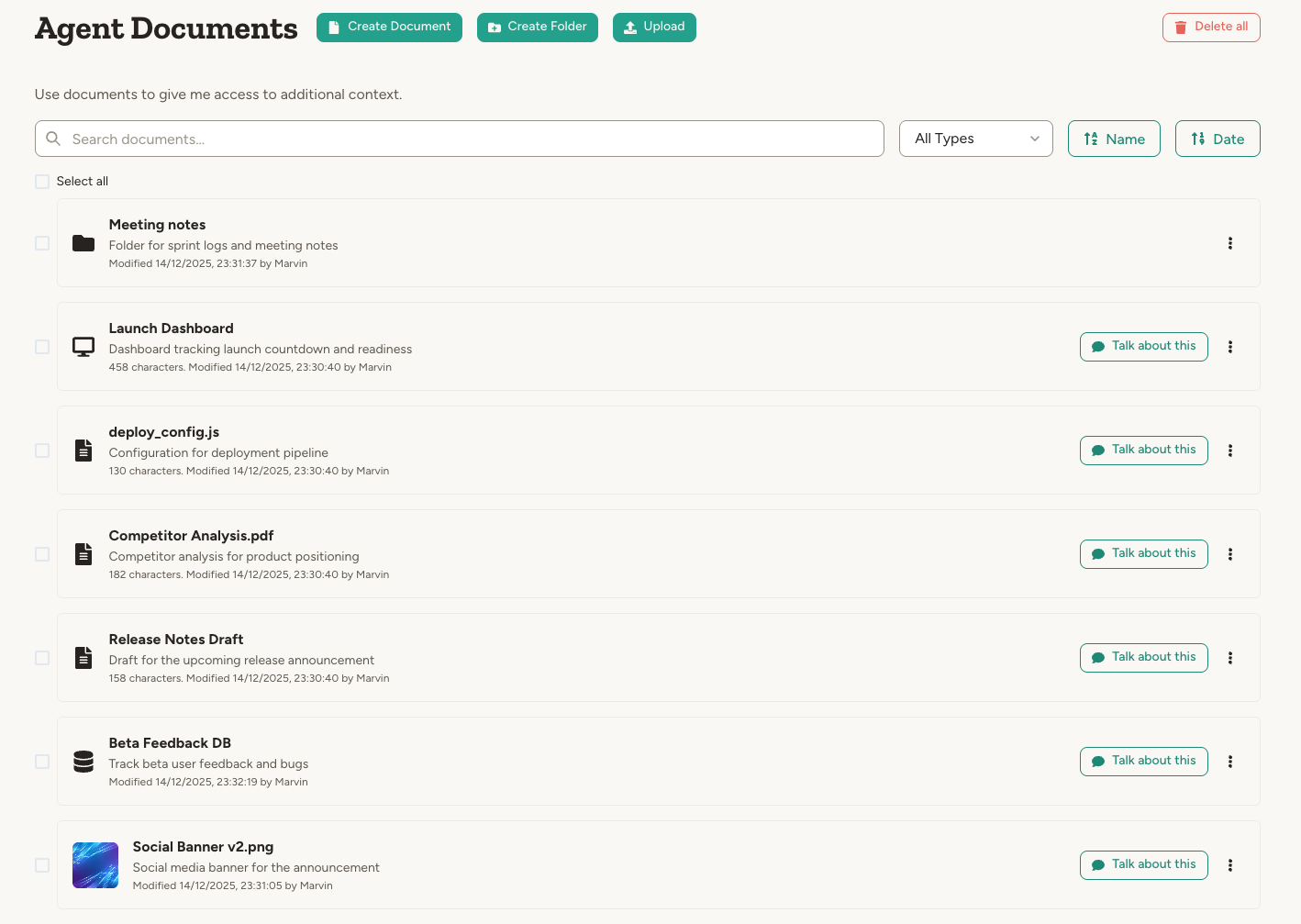
> Agents can read, edit, and create documents, apps, databases, and executable scripts
Documents are first-class storage in Abundly. Each workspace, each team, and each agent has its own document library, and your agents can read across all of them—just like a colleague who has access to a shared drive plus their own files. The platform tracks every change with full version history.
Documents can be pure content, such as a text file or PDF or image, or they can be [Interactive Apps](/features/apps) or [Agent Databases](/features/agent-databases).
 Documents work out of the box with no configuration. For external files like Google Drive or SharePoint, enable the corresponding [capabilities](/features/capabilities).
## Where documents live
Documents are organized into three scopes, mirroring how teams share information in real life:
* **Workspace documents** — Shared with everyone in your workspace. Find them on the **Workspace** page under the **Documents** tab. By default, only workspace admins can add, remove, and edit files; admins can adjust this on the Documents tab to also let all members and/or agents edit.
* **Team documents** — Shared within a single [team](/features/teams). Find them on the team's home page under **Documents**. By default, only team admins can edit; team admins can adjust this on the Documents tab to also let all team members and/or team agents edit. Workspace admins can always manage any team's documents.
* **Agent documents** — Belong to a single agent. Find them in the agent's **Documents** page. Anyone with edit access to the agent can manage them.
When working, an agent can read documents from all three scopes—its own, its team's, and the workspace. By default, it can only create or edit documents in its own library, but workspace and team admins can grant agents edit access to those libraries too—either all agents, or only [admin-restricted agents](/security/access-control#admin-restricted-agents).
The full-page **Documents** views (workspace, team, and agent) all use the same tree-based file explorer. The agent's Documents page shows the workspace and team scopes the agent can reach alongside its own library, so you can browse everything the agent works with from one place.
You can move a document between scopes from its menu, or by **dragging it** onto another scope or folder in the file explorer (for example, promote an agent document to a workspace document so other agents can use it). On desktop you can also drop files from your computer directly onto any scope to upload them there.
## Supported file types
Documents are plain text by default—typically Markdown for simple formatting. You can also upload other file types:
| File type | How it works |
| -------------------------- | ------------------------------------------------------------------------------- |
| **Text & Markdown** | Native format, directly editable by you and the agent |
| **Code files** | JavaScript, TypeScript, HTML, CSS, JSON, YAML, and more—stored as editable text |
| **SVG graphics** | Stored as editable text, rendered as vector graphics in preview |
| **PDFs, Word, PowerPoint** | Transcribed to text—original file preserved for reference |
| **Spreadsheets** | Transcribed to text—original file preserved for reference |
| **Images** | Vision AI generates a text description the agent can read |
| **Audio** | Automatically transcribed to text |
| **Video** | Audio track extracted and transcribed (video frames not analyzed) |
For uploaded files (PDF, audio, etc.), the platform creates a text version that the agent works with. Transcription runs **automatically in the background** as soon as the file is uploaded to an agent, workspace, or team library, and a short description is auto-generated afterwards so the file is easier to find later. You can access the original via the **Original file** button. If you edit the text, it will diverge from the original—the agent always works with the text version.
## Working with documents
Click any document to open it in a modal with a mode selector. Available modes depend on document type and context.
Use **Copy link** from a document's menu to grab a direct link to it. Anyone
with access to the agent — or to the workspace/team scope the document lives in
— can open the link straight to that document or app, making it easy to
reference a specific item in chat, Slack, or a ticket. This is different from
[publishing](#publishing-documents), which creates a public link that needs no
account.
### Text mode
The text representation of the document—this is what the agent sees and works with. You can edit the text directly here.
### View mode
A visual rendering of the document, depending on its type:
* **Markdown** → Rendered with formatting, headings, and links
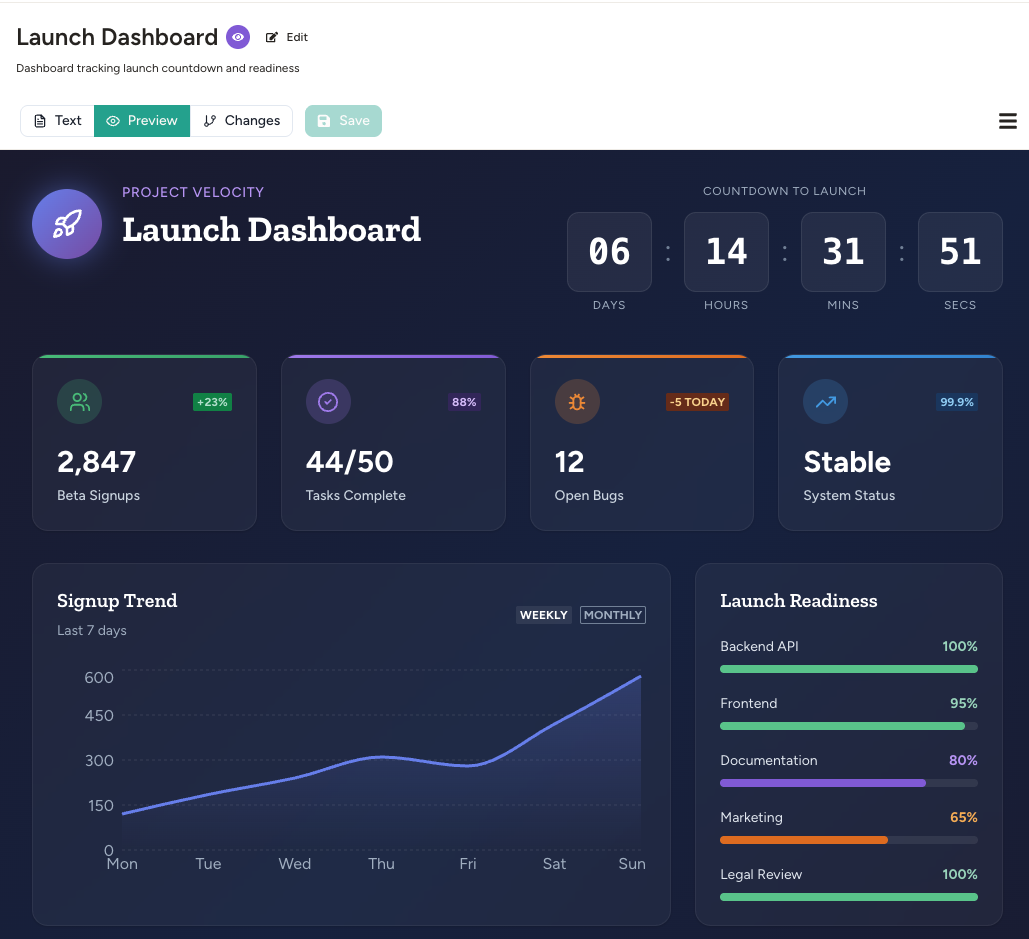
* **React or HTML** → Live rendered application or web page
* **Mermaid diagrams** → Rendered flowcharts, sequence diagrams, etc.
* **SVG** → Rendered vector graphic (editable as text)
* **Database documents** → Interactive table view of the data
Here is an example of a preview of an [Interactive App](/features/apps) document.
Documents work out of the box with no configuration. For external files like Google Drive or SharePoint, enable the corresponding [capabilities](/features/capabilities).
## Where documents live
Documents are organized into three scopes, mirroring how teams share information in real life:
* **Workspace documents** — Shared with everyone in your workspace. Find them on the **Workspace** page under the **Documents** tab. By default, only workspace admins can add, remove, and edit files; admins can adjust this on the Documents tab to also let all members and/or agents edit.
* **Team documents** — Shared within a single [team](/features/teams). Find them on the team's home page under **Documents**. By default, only team admins can edit; team admins can adjust this on the Documents tab to also let all team members and/or team agents edit. Workspace admins can always manage any team's documents.
* **Agent documents** — Belong to a single agent. Find them in the agent's **Documents** page. Anyone with edit access to the agent can manage them.
When working, an agent can read documents from all three scopes—its own, its team's, and the workspace. By default, it can only create or edit documents in its own library, but workspace and team admins can grant agents edit access to those libraries too—either all agents, or only [admin-restricted agents](/security/access-control#admin-restricted-agents).
The full-page **Documents** views (workspace, team, and agent) all use the same tree-based file explorer. The agent's Documents page shows the workspace and team scopes the agent can reach alongside its own library, so you can browse everything the agent works with from one place.
You can move a document between scopes from its menu, or by **dragging it** onto another scope or folder in the file explorer (for example, promote an agent document to a workspace document so other agents can use it). On desktop you can also drop files from your computer directly onto any scope to upload them there.
## Supported file types
Documents are plain text by default—typically Markdown for simple formatting. You can also upload other file types:
| File type | How it works |
| -------------------------- | ------------------------------------------------------------------------------- |
| **Text & Markdown** | Native format, directly editable by you and the agent |
| **Code files** | JavaScript, TypeScript, HTML, CSS, JSON, YAML, and more—stored as editable text |
| **SVG graphics** | Stored as editable text, rendered as vector graphics in preview |
| **PDFs, Word, PowerPoint** | Transcribed to text—original file preserved for reference |
| **Spreadsheets** | Transcribed to text—original file preserved for reference |
| **Images** | Vision AI generates a text description the agent can read |
| **Audio** | Automatically transcribed to text |
| **Video** | Audio track extracted and transcribed (video frames not analyzed) |
For uploaded files (PDF, audio, etc.), the platform creates a text version that the agent works with. Transcription runs **automatically in the background** as soon as the file is uploaded to an agent, workspace, or team library, and a short description is auto-generated afterwards so the file is easier to find later. You can access the original via the **Original file** button. If you edit the text, it will diverge from the original—the agent always works with the text version.
## Working with documents
Click any document to open it in a modal with a mode selector. Available modes depend on document type and context.
Use **Copy link** from a document's menu to grab a direct link to it. Anyone
with access to the agent — or to the workspace/team scope the document lives in
— can open the link straight to that document or app, making it easy to
reference a specific item in chat, Slack, or a ticket. This is different from
[publishing](#publishing-documents), which creates a public link that needs no
account.
### Text mode
The text representation of the document—this is what the agent sees and works with. You can edit the text directly here.
### View mode
A visual rendering of the document, depending on its type:
* **Markdown** → Rendered with formatting, headings, and links
* **React or HTML** → Live rendered application or web page
* **Mermaid diagrams** → Rendered flowcharts, sequence diagrams, etc.
* **SVG** → Rendered vector graphic (editable as text)
* **Database documents** → Interactive table view of the data
Here is an example of a preview of an [Interactive App](/features/apps) document.
 ### Data mode (for databases)
For [agent databases](/features/agent-databases), you can open a dedicated **Data** mode to view and edit raw JSON plus the schema.
### Changes mode
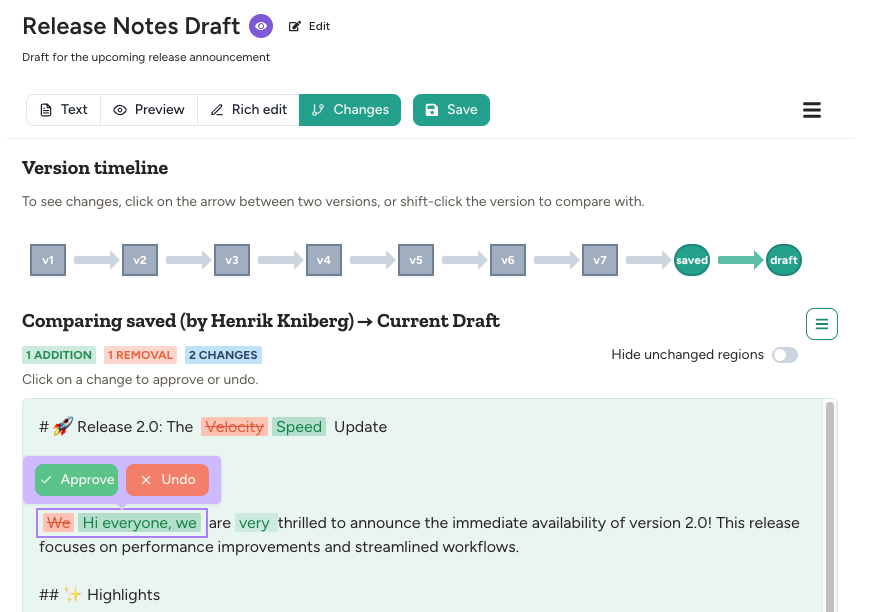
A version timeline showing every change made to the document. Click any version to view it, or click between two versions to see a diff of what changed. You can approve or undo individual changes, or revert to any previous version.
### Data mode (for databases)
For [agent databases](/features/agent-databases), you can open a dedicated **Data** mode to view and edit raw JSON plus the schema.
### Changes mode
A version timeline showing every change made to the document. Click any version to view it, or click between two versions to see a diff of what changed. You can approve or undo individual changes, or revert to any previous version.
 ## Visibility levels
Documents have two separate controls:
* **Visibility to the agent** controls what your agent can discover and read while working.
* **Publishing** controls whether people outside your workspace can open a public link.
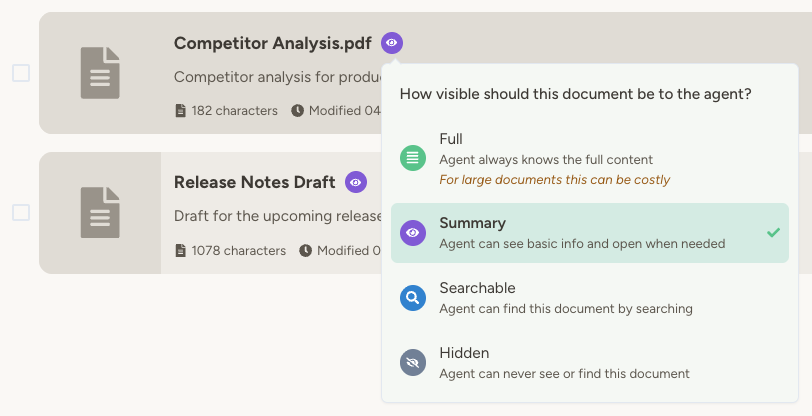
By default, agents know which documents they have (name and summary) and can read the full content when needed. You can adjust visibility per document:
| Level | Behavior |
| ---------------------------------------------------- | --------------------------------------------------------------------------------------------------------------------------------------------- |
| **Full** | Agent always knows the full content—included in every prompt alongside instructions. Use for essential context the agent should never forget. |
| **Summary** | (default value) Agent knows the document exists and its summary. Reads the full content only when relevant. Good for most documents. |
| **Hidden** | Agent cannot see or find this document. Use for your own notes or materials not relevant to the agent's job. |
To change visibility, click the visibility icon next to the document name in the Documents panel.
## Visibility levels
Documents have two separate controls:
* **Visibility to the agent** controls what your agent can discover and read while working.
* **Publishing** controls whether people outside your workspace can open a public link.
By default, agents know which documents they have (name and summary) and can read the full content when needed. You can adjust visibility per document:
| Level | Behavior |
| ---------------------------------------------------- | --------------------------------------------------------------------------------------------------------------------------------------------- |
| **Full** | Agent always knows the full content—included in every prompt alongside instructions. Use for essential context the agent should never forget. |
| **Summary** | (default value) Agent knows the document exists and its summary. Reads the full content only when relevant. Good for most documents. |
| **Hidden** | Agent cannot see or find this document. Use for your own notes or materials not relevant to the agent's job. |
To change visibility, click the visibility icon next to the document name in the Documents panel.
 Start with the default **Summary** visibility. You can add many documents without overloading the agent's context—it will read full content only when needed.
### Folder visibility
Folders have their own visibility control with just **Visible** and **Hidden** (folders have no content of their own, so **Full** doesn't apply). Click the visibility icon next to a folder name to change it.
Hiding a folder cascades to everything inside it:
* Every document and sub-folder underneath is treated as **Hidden** for the agent, regardless of the child's own visibility setting.
* The folder and its contents disappear from the agent's system prompt, from search results, and from folder browsing tools.
* In the Documents panel and file explorer, descendant documents and sub-folders show their visibility badge greyed out, with a tooltip explaining that an ancestor folder is hiding them — so you can tell at a glance which items are hidden because of a folder rather than their own setting.
* People who can see the workspace still see the folder normally in the Documents panel and the in-chat file explorer—only the agent's view is affected.
Use folder hiding when you want to keep a whole area of materials (drafts, archives, personal notes) out of an agent's reach without flipping visibility on each file.
## Adding documents
You can add documents in three ways. The flow is the same for workspace, team, and agent documents—open the corresponding **Documents** page or tab and use the same controls.
**1. Upload or create directly**
Each Documents view has **Create document** and **Upload document** buttons at the top—use them to start a new text document or upload files from your computer. You can also drag files straight onto the list. Each section and folder still has a kebab menu with **New Folder**, **New Document**, and **Upload** when you want to add content into a specific folder, and individual documents and folders have a row-level menu (⋮) with **Rename**, **Move**, and **Delete** so you can manage items right from the list without opening them first.
**2. Save from a conversation**
Drag a file into the chat, discuss it with the agent, then ask it to save the result. For example:
* Drag a meeting transcript, ask for a summary, then "save this as an agent document"
* Ask the agent to draft a newsletter, refine it together, then "save this to the newsletters folder"
When the agent opens content in the side panel (a chat-scoped document), click the menu and choose **Save as agent document** to promote it to a permanent agent document without asking the agent to do it. The same menu also offers **Save to Google Drive**, which creates a native Google Doc in your My Drive.
**3. Instruct the agent to create documents automatically**
Add instructions like:
* "When processing an invoice, add it to the processed invoices database"
* "Save all incoming emails to a message log"
* "After posting release notes, save a copy to the 'release notes' folder"
* "When you receive an email with an attachment, save it as an agent document"
**4. Download from a public URL**
Ask the agent to fetch a file from a URL and save it—for example, "Download the PDF at [https://example.com/report.pdf](https://example.com/report.pdf) and save it to the reports folder." Images, PDFs, Markdown, and plain text are all supported.
## Finding documents
Each Documents view—agent, workspace, or team—has a free-text **search** field at the top. It matches by document name, description, or type, and results appear as a flat list with folder-path breadcrumbs so you can see where each match lives. The search is scoped to the current section, so a workspace-documents search won't surface agent or team documents.
## Organizing with folders
Documents can be organized into folders. Create folders in the Documents panel and drag documents to organize them. Folders can be nested as deeply as you need, and nesting works the same way across workspace, team, agent, and chat document libraries. Reference folders in your agent's instructions: "Save meeting notes to the 'meetings' folder."
Deleting a folder that still contains documents or sub-folders prompts for confirmation and shows what will be removed, so you don't lose files by mistake.
## Version control
Every edit—by you or the agent—creates a new version automatically. The Changes mode lets you:
* **Browse history** — See all versions with timestamps and who made each change
* **Compare versions** — Side-by-side diff view to see exactly what changed
* **Approve or reject** — Optionally mark changes as approved or rejected (rejecting creates a new version with that change undone)
* **Revert** — Roll back to any previous version if needed
## Publishing documents
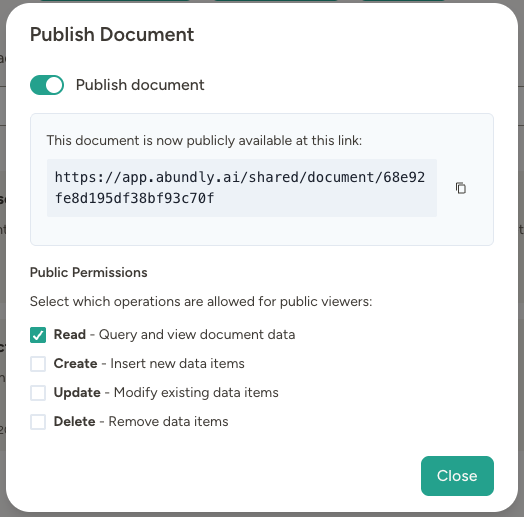
You can publish a document to make it available to anyone with the link. Open the document menu and choose **Publish** (or **Publish details** if it is already published). This works for documents in any scope—workspace, team, or agent.
Anyone with the link can view the document—no Abundly account required. If it is an app, they can interact with it. Published documents are marked with a **Published** badge in the Documents view. Logged-in visitors can also use **Copy to my agent** from the viewer to clone the published document into one of their own agents—handy for sharing templates, dashboards, or reference material across workspaces.
Use cases:
* Share a live dashboard with colleagues
* Publish an input form for data collection
* Share reports, drafts, or documentation externally
* Create a public-facing interactive app
You can also publish [Interactive Apps](/features/apps) and [Agent Databases](/features/agent-databases). For agent databases, choose what public users can do:
* **Read** to query and view data
* **Create** to insert new items
* **Update** to modify existing items
* **Delete** to remove items
Publishing a database exposes its entire contents. The Read/Create/Update/Delete toggles control which **operations** public viewers can perform; they don't restrict which rows are visible. See [publishing apps with data](/features/apps#publishing-apps-with-data) for details.
For uploaded files (like PDF, audio, or spreadsheets), you can optionally enable **Also publish original file** so anyone with the link can download the original file without logging in.
If a published app depends on other documents, publish those documents too (with at least **Read** enabled) so the app can access them from the public link.
Start with the default **Summary** visibility. You can add many documents without overloading the agent's context—it will read full content only when needed.
### Folder visibility
Folders have their own visibility control with just **Visible** and **Hidden** (folders have no content of their own, so **Full** doesn't apply). Click the visibility icon next to a folder name to change it.
Hiding a folder cascades to everything inside it:
* Every document and sub-folder underneath is treated as **Hidden** for the agent, regardless of the child's own visibility setting.
* The folder and its contents disappear from the agent's system prompt, from search results, and from folder browsing tools.
* In the Documents panel and file explorer, descendant documents and sub-folders show their visibility badge greyed out, with a tooltip explaining that an ancestor folder is hiding them — so you can tell at a glance which items are hidden because of a folder rather than their own setting.
* People who can see the workspace still see the folder normally in the Documents panel and the in-chat file explorer—only the agent's view is affected.
Use folder hiding when you want to keep a whole area of materials (drafts, archives, personal notes) out of an agent's reach without flipping visibility on each file.
## Adding documents
You can add documents in three ways. The flow is the same for workspace, team, and agent documents—open the corresponding **Documents** page or tab and use the same controls.
**1. Upload or create directly**
Each Documents view has **Create document** and **Upload document** buttons at the top—use them to start a new text document or upload files from your computer. You can also drag files straight onto the list. Each section and folder still has a kebab menu with **New Folder**, **New Document**, and **Upload** when you want to add content into a specific folder, and individual documents and folders have a row-level menu (⋮) with **Rename**, **Move**, and **Delete** so you can manage items right from the list without opening them first.
**2. Save from a conversation**
Drag a file into the chat, discuss it with the agent, then ask it to save the result. For example:
* Drag a meeting transcript, ask for a summary, then "save this as an agent document"
* Ask the agent to draft a newsletter, refine it together, then "save this to the newsletters folder"
When the agent opens content in the side panel (a chat-scoped document), click the menu and choose **Save as agent document** to promote it to a permanent agent document without asking the agent to do it. The same menu also offers **Save to Google Drive**, which creates a native Google Doc in your My Drive.
**3. Instruct the agent to create documents automatically**
Add instructions like:
* "When processing an invoice, add it to the processed invoices database"
* "Save all incoming emails to a message log"
* "After posting release notes, save a copy to the 'release notes' folder"
* "When you receive an email with an attachment, save it as an agent document"
**4. Download from a public URL**
Ask the agent to fetch a file from a URL and save it—for example, "Download the PDF at [https://example.com/report.pdf](https://example.com/report.pdf) and save it to the reports folder." Images, PDFs, Markdown, and plain text are all supported.
## Finding documents
Each Documents view—agent, workspace, or team—has a free-text **search** field at the top. It matches by document name, description, or type, and results appear as a flat list with folder-path breadcrumbs so you can see where each match lives. The search is scoped to the current section, so a workspace-documents search won't surface agent or team documents.
## Organizing with folders
Documents can be organized into folders. Create folders in the Documents panel and drag documents to organize them. Folders can be nested as deeply as you need, and nesting works the same way across workspace, team, agent, and chat document libraries. Reference folders in your agent's instructions: "Save meeting notes to the 'meetings' folder."
Deleting a folder that still contains documents or sub-folders prompts for confirmation and shows what will be removed, so you don't lose files by mistake.
## Version control
Every edit—by you or the agent—creates a new version automatically. The Changes mode lets you:
* **Browse history** — See all versions with timestamps and who made each change
* **Compare versions** — Side-by-side diff view to see exactly what changed
* **Approve or reject** — Optionally mark changes as approved or rejected (rejecting creates a new version with that change undone)
* **Revert** — Roll back to any previous version if needed
## Publishing documents
You can publish a document to make it available to anyone with the link. Open the document menu and choose **Publish** (or **Publish details** if it is already published). This works for documents in any scope—workspace, team, or agent.
Anyone with the link can view the document—no Abundly account required. If it is an app, they can interact with it. Published documents are marked with a **Published** badge in the Documents view. Logged-in visitors can also use **Copy to my agent** from the viewer to clone the published document into one of their own agents—handy for sharing templates, dashboards, or reference material across workspaces.
Use cases:
* Share a live dashboard with colleagues
* Publish an input form for data collection
* Share reports, drafts, or documentation externally
* Create a public-facing interactive app
You can also publish [Interactive Apps](/features/apps) and [Agent Databases](/features/agent-databases). For agent databases, choose what public users can do:
* **Read** to query and view data
* **Create** to insert new items
* **Update** to modify existing items
* **Delete** to remove items
Publishing a database exposes its entire contents. The Read/Create/Update/Delete toggles control which **operations** public viewers can perform; they don't restrict which rows are visible. See [publishing apps with data](/features/apps#publishing-apps-with-data) for details.
For uploaded files (like PDF, audio, or spreadsheets), you can optionally enable **Also publish original file** so anyone with the link can download the original file without logging in.
If a published app depends on other documents, publish those documents too (with at least **Read** enabled) so the app can access them from the public link.
 Published apps update automatically. Create a dashboard, share the link, and your colleagues always see the latest data.
## Editing and searching documents
Agents don't need to rewrite entire documents to make changes. They can:
* **Edit precisely** — Replace, insert, or append text
* **Search within a document** — Exact match, full-text, or semantic (meaning-based) search
* **Find documents** — Fuzzy keyword matching across names, descriptions, and content
* **Rename and describe** — Update document names and summaries
Use semantic search within documents to find content by meaning, not just keywords. For example, searching "global warming" can find sections about "climate change."
## Downloading documents
You can download individual documents in several formats:
* **Download text** — Get the text content as Markdown, plain text, or other formats
* **Download as MS Word** — Convert Markdown content to a `.docx` file
* **Download as PDF** — Convert a document to a PDF. Markdown, rendered documents (HTML, SVG, React apps), and embedded images are all included.
* **Download original** — For non-text files (PDF, audio, etc.), download the original file
To download multiple documents at once, use **Download all** in the Documents panel to get a ZIP file containing everything in the current folder, including any nested subfolders. You can also choose **Download folder as ZIP** from a folder's menu to download just that folder's contents.
On the full-page Documents views, you can also multi-select items with the row checkboxes and then bulk **move**, **download**, or **delete** the whole selection in one go.
To delete multiple documents at once, use **Delete all** from the Documents panel menu to remove everything in the current view.
## Documents as extended context
Agent documents are a powerful way to give your agent additional context without bloating its [instructions](/features/instructions). Instead of pasting everything into the instructions, store reference materials as documents:
* **Checklists** — Step-by-step procedures for specific tasks
* **Templates** — Formats for reports, emails, or communications
* **Guidelines** — Company policies, compliance rules, or style guides
* **Reference data** — Product catalogs, contact directories, FAQs
With **Summary** visibility (the default), the agent knows these documents exist and reads them when relevant—keeping its context focused while still having access to everything it needs.
For best results, guide your agent on when to use specific documents:
* "Before responding to compliance inquiries, read the compliance guidelines document first"
* "When drafting emails, use the email template in the templates folder"
* "All meeting notes are saved by date—search for them when you need context"
If you don't want the agent to create or edit documents, disable the **Edit Documents** capability in settings.
## Chatting about documents
Click **Chat about this** next to any document or folder to start a new conversation with that content as context. The agent has immediate access to the selected document(s), making it easy to ask questions, request edits, or work through the content together.
## FAQ
It depends on the document type:
* **Agent documents** (created directly in Abundly) are stored in EU data centers in Stockholm, Sweden. They remain fully under your control—you can delete them at any time.
* **External documents** (Google Drive, SharePoint, etc.) remain on their original provider's servers. The agent accesses them through your permission but doesn't copy them to Abundly's infrastructure.
For example, if you share a Google Doc with an agent, the document stays on Google's servers and is accessed only through your authorized connection.
See [Infrastructure & Compliance](/security/infrastructure) for details on data residency and security.
Published apps update automatically. Create a dashboard, share the link, and your colleagues always see the latest data.
## Editing and searching documents
Agents don't need to rewrite entire documents to make changes. They can:
* **Edit precisely** — Replace, insert, or append text
* **Search within a document** — Exact match, full-text, or semantic (meaning-based) search
* **Find documents** — Fuzzy keyword matching across names, descriptions, and content
* **Rename and describe** — Update document names and summaries
Use semantic search within documents to find content by meaning, not just keywords. For example, searching "global warming" can find sections about "climate change."
## Downloading documents
You can download individual documents in several formats:
* **Download text** — Get the text content as Markdown, plain text, or other formats
* **Download as MS Word** — Convert Markdown content to a `.docx` file
* **Download as PDF** — Convert a document to a PDF. Markdown, rendered documents (HTML, SVG, React apps), and embedded images are all included.
* **Download original** — For non-text files (PDF, audio, etc.), download the original file
To download multiple documents at once, use **Download all** in the Documents panel to get a ZIP file containing everything in the current folder, including any nested subfolders. You can also choose **Download folder as ZIP** from a folder's menu to download just that folder's contents.
On the full-page Documents views, you can also multi-select items with the row checkboxes and then bulk **move**, **download**, or **delete** the whole selection in one go.
To delete multiple documents at once, use **Delete all** from the Documents panel menu to remove everything in the current view.
## Documents as extended context
Agent documents are a powerful way to give your agent additional context without bloating its [instructions](/features/instructions). Instead of pasting everything into the instructions, store reference materials as documents:
* **Checklists** — Step-by-step procedures for specific tasks
* **Templates** — Formats for reports, emails, or communications
* **Guidelines** — Company policies, compliance rules, or style guides
* **Reference data** — Product catalogs, contact directories, FAQs
With **Summary** visibility (the default), the agent knows these documents exist and reads them when relevant—keeping its context focused while still having access to everything it needs.
For best results, guide your agent on when to use specific documents:
* "Before responding to compliance inquiries, read the compliance guidelines document first"
* "When drafting emails, use the email template in the templates folder"
* "All meeting notes are saved by date—search for them when you need context"
If you don't want the agent to create or edit documents, disable the **Edit Documents** capability in settings.
## Chatting about documents
Click **Chat about this** next to any document or folder to start a new conversation with that content as context. The agent has immediate access to the selected document(s), making it easy to ask questions, request edits, or work through the content together.
## FAQ
It depends on the document type:
* **Agent documents** (created directly in Abundly) are stored in EU data centers in Stockholm, Sweden. They remain fully under your control—you can delete them at any time.
* **External documents** (Google Drive, SharePoint, etc.) remain on their original provider's servers. The agent accesses them through your permission but doesn't copy them to Abundly's infrastructure.
For example, if you share a Google Doc with an agent, the document stays on Google's servers and is accessed only through your authorized connection.
See [Infrastructure & Compliance](/security/infrastructure) for details on data residency and security.