> ## Documentation Index
> Fetch the complete documentation index at: https://docs.abundly.ai/llms.txt
> Use this file to discover all available pages before exploring further.
# Multi-channel Communication
> Agents communicate through chat, email, SMS, voice calls, and more
Agents are not stuck in a chat window—they communicate through multiple channels depending on what's most convenient for you and the task at hand.
This flexibility means an agent can receive a request via email, update you on Slack, and call you if something urgent needs your attention. You decide which channels your agent can use.
## Available channels
| Channel | Description | Setup |
| ---------------------- | ------------------------------------------------------------------------- | ---------------------------------------------------- |
| **Chat** | Feature-rich AI chat with voice input, file uploads, and interactive apps | Built-in, always available |
| **Email** | Send and receive emails from the agent's own address | Built-in, toggle to enable |
| **SMS** | Send and receive text messages | Beta — contact support |
| **Voice calls** | Make and receive phone calls with real-time conversation | Beta — contact support |
| **WhatsApp** | Hold 1:1 WhatsApp conversations from a dedicated number | Requires [WhatsApp setup](/integrations/whatsapp) |
| **Slack, Teams, etc.** | Communicate through collaboration tools | Requires [integration setup](/integrations/overview) |
By default, only chat is enabled. This is a security measure—you decide how your agent is allowed to communicate. Go to **Settings → Capabilities** to enable additional channels.
## Enabling communication channels
If you ask your agent to use a communication channel that isn't enabled, it will show you a capability card where you can toggle it on.
You can also proactively enable channels in **Settings → Capabilities** before you need them.
If your agent has multiple communication channels enabled, it will make a best guess about which channel to use. For more control, give guidance in your agent's [instructions](/features/instructions) or during conversation—for example, "Always email me weekly reports" or "Only call me for urgent issues."
### Example use cases
* "Every Monday morning, email me a summary of last week's incoming book manuscripts"
* "Post a summary of this conversation to the #engineering Slack channel"
* "When you receive support tickets via email: Check the knowledgebase. For simple questions with obvious answers, reply yourself. Otherwise, text me and create a ticket in Notion."
* "When a new lead fills out the contact form, research their company, send them a personalized welcome email using the template I gave you, and post a summary to #sales on Slack."
## Multi-modal content
Beyond text, agents can work with different types of media:
* **Images** — Generate, analyze, and include images in messages
* **Audio** — Transcribe recordings, generate voiceovers
* **Documents** — Read and create PDFs, presentations, spreadsheets
* **Diagrams** — Generate visual diagrams and charts
### Generating voiceovers
Your agent can generate audio files and embed them in emails, documents, and messages. This is useful when you want content that can be consumed on the go—during a commute, while exercising, or between meetings.
**How to enable:** Go to **Settings → Capabilities** and enable **Text to Speech**.
**Example use cases:**
* "Generate a voiceover for this script using a male Scottish voice"
* "Every morning, generate a 'daily briefing' that I can listen to while driving to work"
* "In the weekly competitive analysis email, include an audio clip of the executive summary"
Here is an example of a voiceover embedded in an email report:
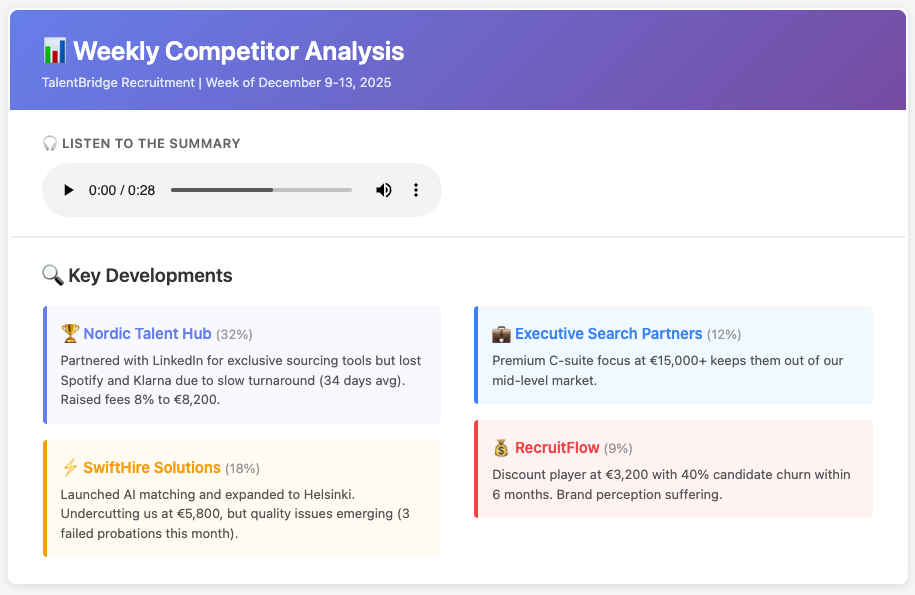 Voice generation is powered by [ElevenLabs](/integrations/elevenlabs) and [OpenAI](/integrations/openai), giving you natural-sounding voices in multiple languages.
### Other examples
* "When you receive an email with a voice memo attached, transcribe it and add the notes to my meeting log"
* "When a customer sends a photo of a damaged product, analyze it and draft a response"
See [Document management](/features/documents) for more details on working with files.
## Learn more
Rich chat interface with voice input, file uploads, and interactive apps
Send and receive emails and text messages
Voice input, text-to-speech, and phone calls
Voice generation is powered by [ElevenLabs](/integrations/elevenlabs) and [OpenAI](/integrations/openai), giving you natural-sounding voices in multiple languages.
### Other examples
* "When you receive an email with a voice memo attached, transcribe it and add the notes to my meeting log"
* "When a customer sends a photo of a damaged product, analyze it and draft a response"
See [Document management](/features/documents) for more details on working with files.
## Learn more
Rich chat interface with voice input, file uploads, and interactive apps
Send and receive emails and text messages
Voice input, text-to-speech, and phone calls