> ## Documentation Index
> Fetch the complete documentation index at: https://docs.abundly.ai/llms.txt
> Use this file to discover all available pages before exploring further.
# Agent management
> Centralized administration for managing agents, filters, and limits across your workspace
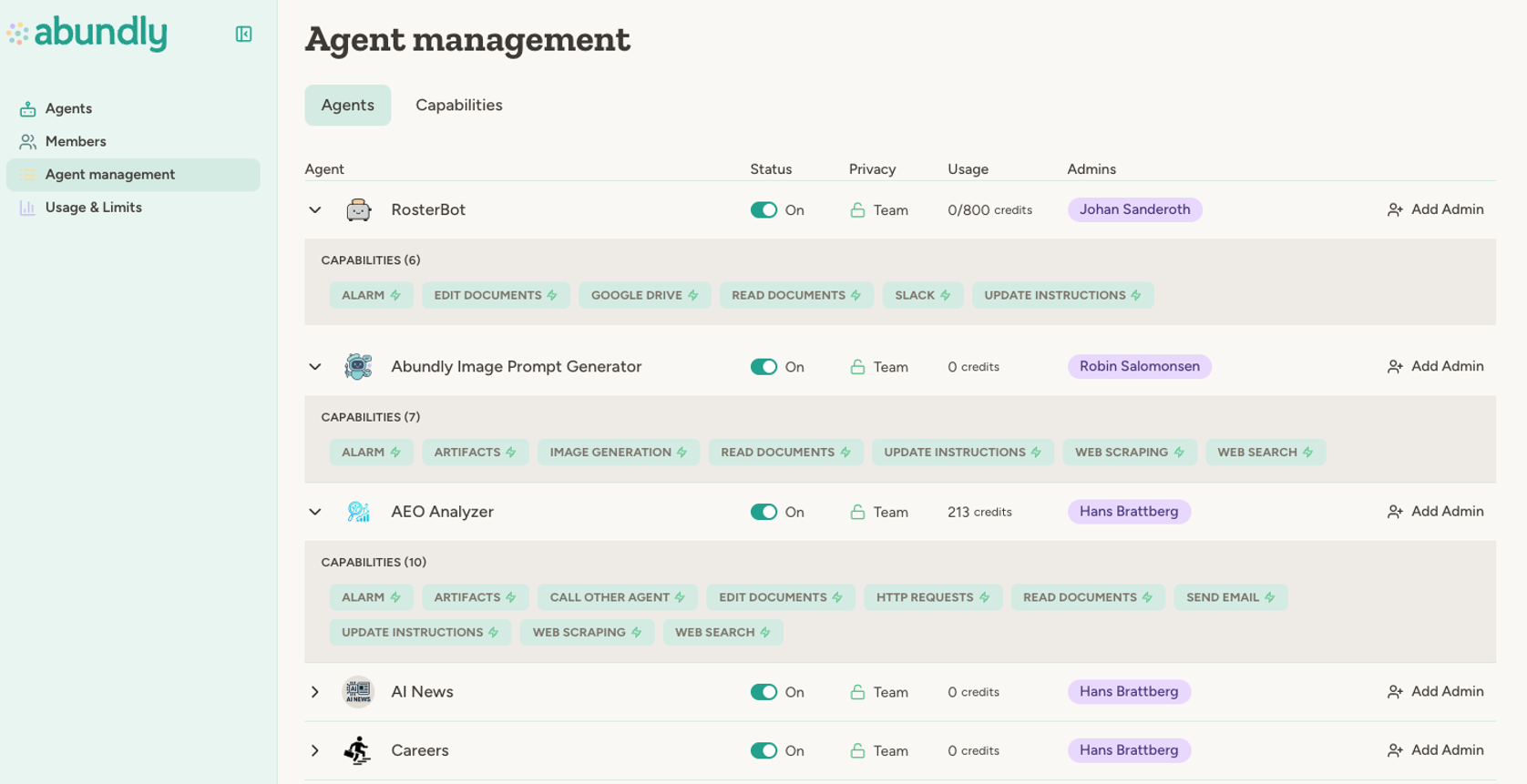
The Agent Management page gives workspace and team administrators a centralized view of the agents they can manage. You can search, filter, sort, and update agents in bulk, including status, team assignment, model, tags, owners, and daily limits.
 ## Access levels
* **Workspace administrators** can manage all agents in the workspace.
* **[Team](/features/teams) administrators** (when teams are enabled) can manage agents in their teams.
## Agents tab
The Agents tab is a flat, searchable table with sorting, filtering, and bulk actions.
| Column | Description |
| ----------------------- | ------------------------------------------------------------------------------------------------------------------ |
| **Agent** | Name, avatar, privacy icon, and compact badges for model and team |
| **Usage (today)** | Credits used today, with limit context |
| **Last activity** | Latest entry in the agent activity log |
| **Last updated** | Most recent configuration change date |
| **Credit details** | Whether credit details are shown in logs/chat sidebar |
| **Value & criticality** | Category badges and criticality level when value capture is enabled; warning icon when required fields are missing |
Click a row to expand details for:
* Tags
* Enabled capabilities (including whether a capability is disabled by admin policy)
* API capabilities
* MCP servers
* Agent owners
### Search, filters, and sorting
You can search by agent name and open a filter panel to narrow by status, privacy, teams, tags, model, owner, capabilities, API capabilities, MCP servers, usage range, and date ranges for last activity and last updated.
When filters are active, a **Reset** button appears next to the filter panel button, letting you clear all filters in one click.
Column headers support sorting for key fields like usage and activity dates, and active filters are counted in the filter button.
### Bulk actions
Select one or more agents with the checkboxes to run bulk actions:
* Enable
* Disable
* Move to team (if you have move permissions)
* Set daily limit
* Set model
* Turn credit details on or off
### Per-agent quick actions
Each agent row includes an actions menu where you can:
* Enable or disable the agent
* Add owner
* Edit tags
* Move to team
* Open agent settings
* Show or hide credit details
You can only remove an owner if at least one other owner remains on that agent.
## Agent limits tab
The Agent limits tab lets you manage daily credit limits directly from Agent Management:
* Set or edit a workspace default daily limit
* Add or change custom per-agent limits
* Remove a custom limit (fall back to the default)
* Reset an agent's daily usage counter
For details on how limits behave when reached, see [Usage & Limits](/features/usage#agent-limits).
## Capability policies
Capability availability policies are configured outside this page:
* **Capabilities** for workspace-wide defaults plus per-team overrides (when teams are enabled)
* **Workspace management → Model selection** for which LLM models agents may use in this workspace (you can turn families off, for example; models disabled by Abundly for all workspaces stay off)
## FAQ
Disabled agents stop processing triggers, schedules, and incoming work until re-enabled.
Yes. Use row selection plus bulk actions to enable/disable agents, move teams, or set limits/models for multiple agents in one step.
## Learn more
Track credit usage and configure limits in detail
Organize agents and administration by team
Clone and share agents across workspaces
Understand workspace, team, and agent permissions
## Access levels
* **Workspace administrators** can manage all agents in the workspace.
* **[Team](/features/teams) administrators** (when teams are enabled) can manage agents in their teams.
## Agents tab
The Agents tab is a flat, searchable table with sorting, filtering, and bulk actions.
| Column | Description |
| ----------------------- | ------------------------------------------------------------------------------------------------------------------ |
| **Agent** | Name, avatar, privacy icon, and compact badges for model and team |
| **Usage (today)** | Credits used today, with limit context |
| **Last activity** | Latest entry in the agent activity log |
| **Last updated** | Most recent configuration change date |
| **Credit details** | Whether credit details are shown in logs/chat sidebar |
| **Value & criticality** | Category badges and criticality level when value capture is enabled; warning icon when required fields are missing |
Click a row to expand details for:
* Tags
* Enabled capabilities (including whether a capability is disabled by admin policy)
* API capabilities
* MCP servers
* Agent owners
### Search, filters, and sorting
You can search by agent name and open a filter panel to narrow by status, privacy, teams, tags, model, owner, capabilities, API capabilities, MCP servers, usage range, and date ranges for last activity and last updated.
When filters are active, a **Reset** button appears next to the filter panel button, letting you clear all filters in one click.
Column headers support sorting for key fields like usage and activity dates, and active filters are counted in the filter button.
### Bulk actions
Select one or more agents with the checkboxes to run bulk actions:
* Enable
* Disable
* Move to team (if you have move permissions)
* Set daily limit
* Set model
* Turn credit details on or off
### Per-agent quick actions
Each agent row includes an actions menu where you can:
* Enable or disable the agent
* Add owner
* Edit tags
* Move to team
* Open agent settings
* Show or hide credit details
You can only remove an owner if at least one other owner remains on that agent.
## Agent limits tab
The Agent limits tab lets you manage daily credit limits directly from Agent Management:
* Set or edit a workspace default daily limit
* Add or change custom per-agent limits
* Remove a custom limit (fall back to the default)
* Reset an agent's daily usage counter
For details on how limits behave when reached, see [Usage & Limits](/features/usage#agent-limits).
## Capability policies
Capability availability policies are configured outside this page:
* **Capabilities** for workspace-wide defaults plus per-team overrides (when teams are enabled)
* **Workspace management → Model selection** for which LLM models agents may use in this workspace (you can turn families off, for example; models disabled by Abundly for all workspaces stay off)
## FAQ
Disabled agents stop processing triggers, schedules, and incoming work until re-enabled.
Yes. Use row selection plus bulk actions to enable/disable agents, move teams, or set limits/models for multiple agents in one step.
## Learn more
Track credit usage and configure limits in detail
Organize agents and administration by team
Clone and share agents across workspaces
Understand workspace, team, and agent permissions